Use these instructions to create an account in Frances Online to apply for benefits. Frances Online responds to the information you enter, so you may see different screens and receive different questions based on your situation.
Step 1 —
Go to
frances.oregon.gov.
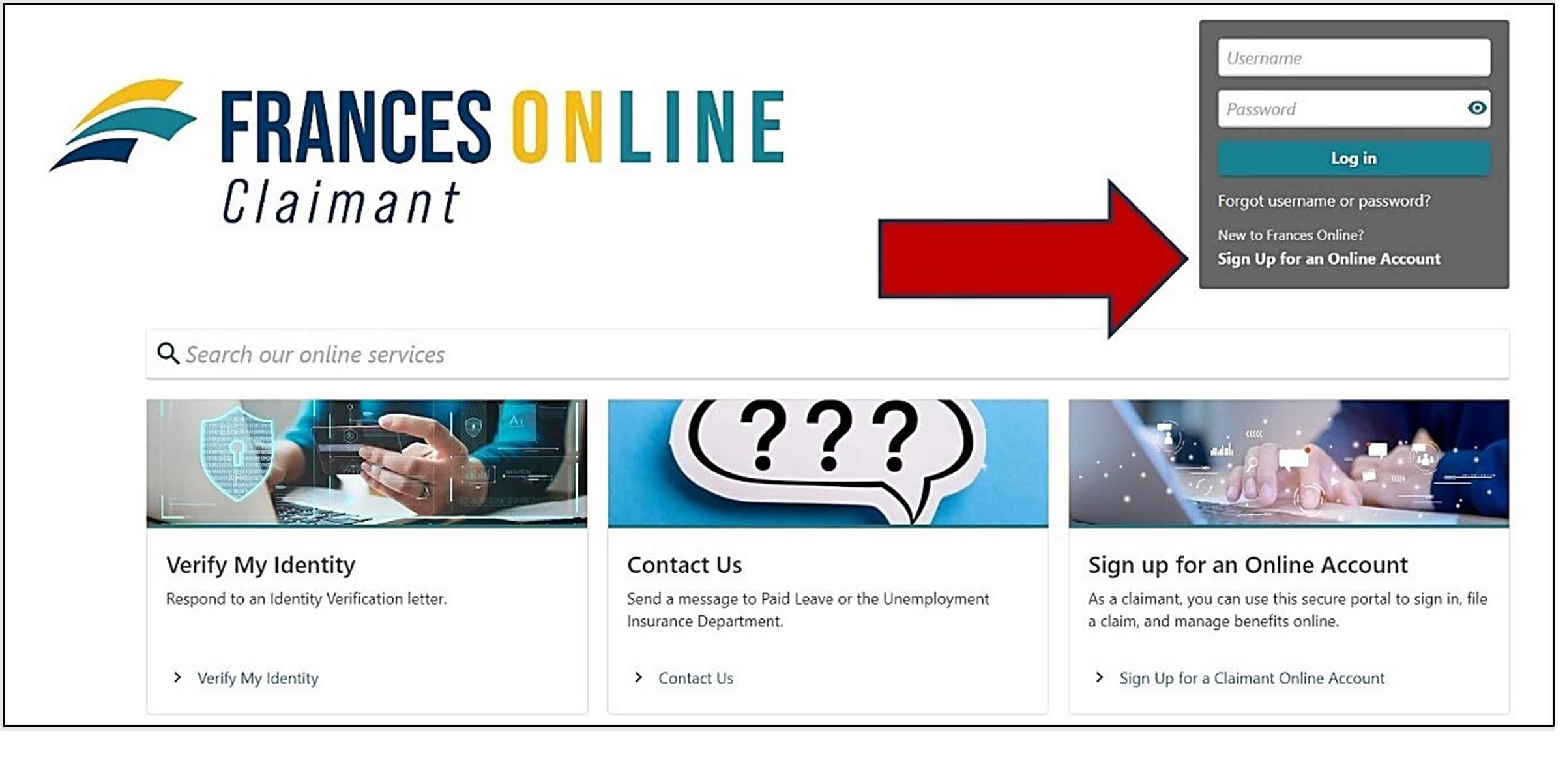
Under “Employees and Claimants,” select “Log on to Frances Online.”
Step 2 —
On the next screen, select “Sign Up for an Online Account.”
Moving forward, you can reach this page directly at
frances.oregon.gov/claimant
Step 3 —
The next screen shows what information you need to create an account in Frances Online.
- Gather the required information and select the “Next” button.
Step 4 —
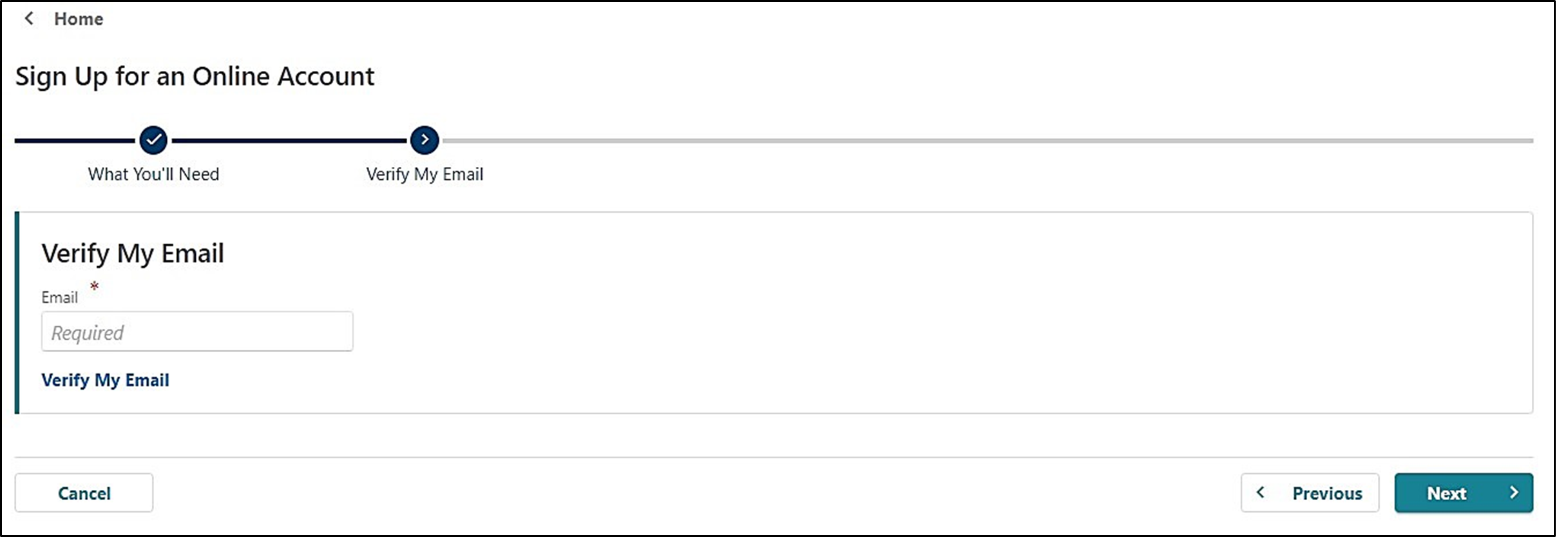
You will need to provide and verify your email address.
- After you enter your email and select “Verify My Email,” we will send a unique code to your email address.
- Enter that code in the field to verify and continue.
Step 5 —
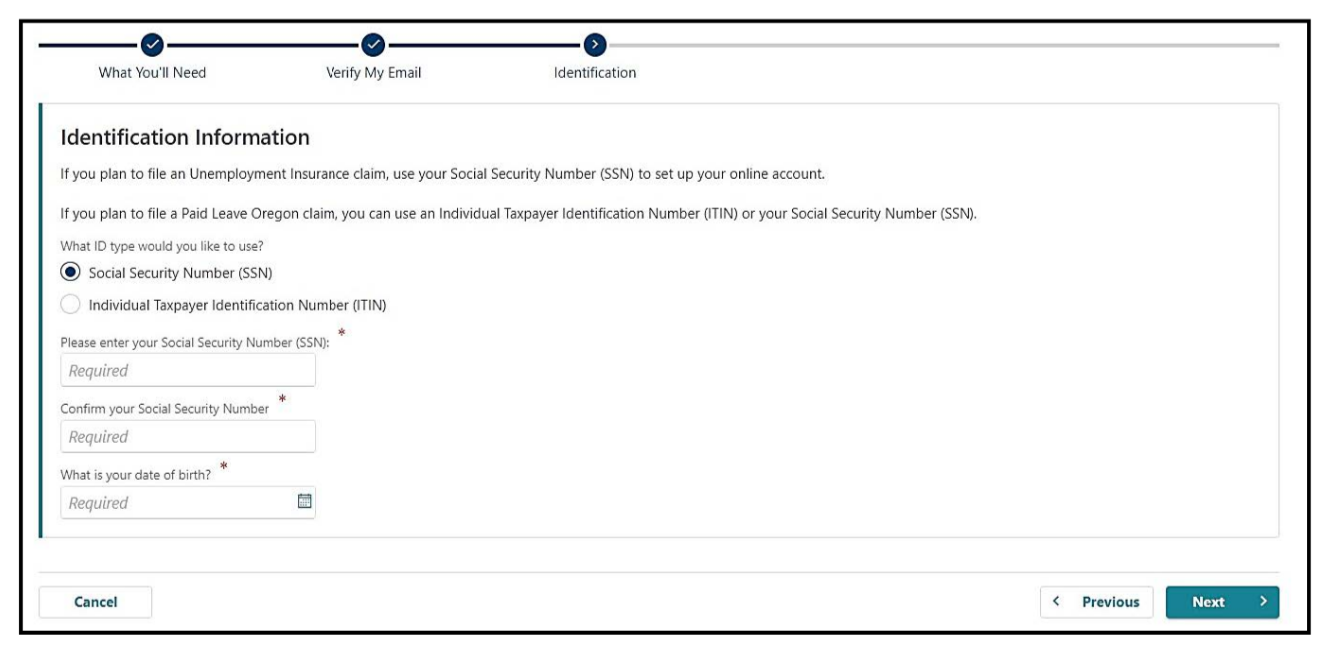
You can create an account with a Social Security Number (SSN) or an Individual Taxpayer Identification Number (ITIN).
- If you have a Social Security Number, use it to set up your account.
- If you do not have a Social Security Number, you can use an Individual Tax Identification Number for Paid Leave Oregon.
- You must have a Social Security Number to apply for Unemployment Insurance.
- Enter your date of birth and select “Next”
↳
| After you select “Next,” if Frances Online finds a record of you in our system, we will need to connect that information to your new account. This usually occurs because you have filed a claim with us in recent years. |
↳
| If we find a record of you in our system, we will need to take some additional steps to confirm your account and protect your information. If so, you will advance to the “Letter ID” screen and can go to Step 6 now. |
|
↳ | If we don’t find a record of you in our system, you will move forward to continue creating your account and can go to Step 8 now. |
Step 6 —
Request a Letter ID to confirm your account.
- All the letters we send contain a code, known as a Letter ID, that you can use to confirm your account. If you do not have a recent letter from us, you need to request a Frances Access Letter.
Use the following steps to request a Frances Access Letter.
- Fill out your mailing address so we can send the Frances Access Letter to the right address. If your address has changed since your most recent claim, fill out your new, current address. You must be able to receive mail at this address and check it regularly because the Letter ID is valid for a limited time.
- When the Frances Access Letter arrives, follow the instructions on the letter.
Step 7 —
Use a Letter ID to confirm your account.
- We will send you a Frances Access Letter through the U.S. mail to keep your information secure. This may take several days to arrive, depending on your location.
- The Letter ID starts with “L” and is followed by 10 digits. It is in the top right corner of the first page in the letters we send.
- If you have a Frances Access Letter or another recent letter from us with a Letter ID, you can use it to create your account.
- Enter the “L” and the following 10 digits in the appropriate field when prompted.
Step 8 —
If Frances Online did not find a record of you in our system, you will continue to the Name screen, where you will tell us how we should refer to you.
Step 9 —
On the Addresses screen, tell us where to send important mail and information.
- After entering your address, select the red text, “Click here to verify your address” to confirm the address.
- You must complete this step to move on from this screen.
- You can also add a different address where you would like to receive mail.
Step 10 —
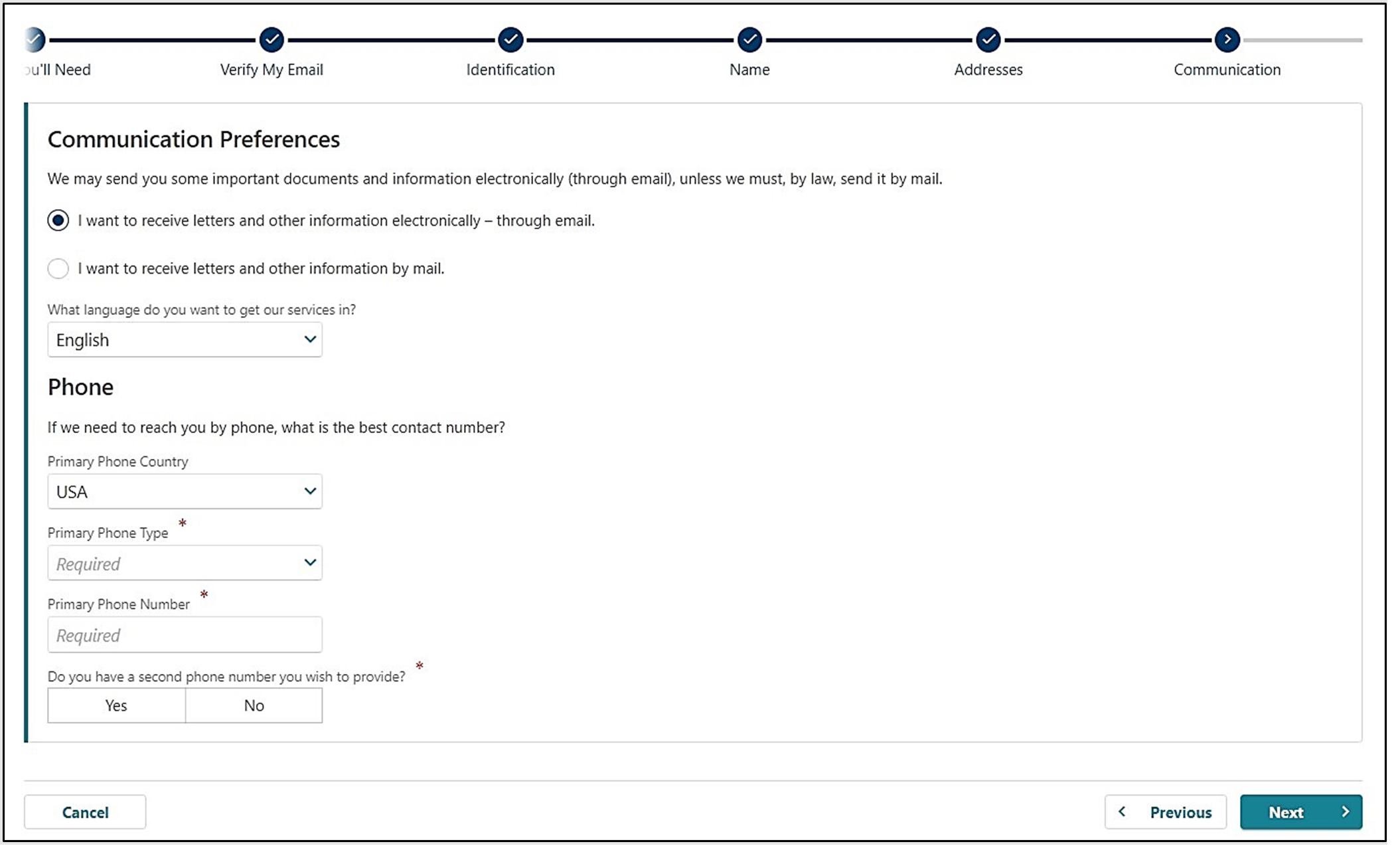
Choose if you would like to receive important documents electronically or through the mail.
- If you want letters sent electronically, you will get notified via email that you have letters in Frances Online. Be aware that we are required by law to send some letters through the U.S. mail, so check your mail regularly.
- We also need a phone number so we can call to get more information. We might call from an unlisted phone number. Make sure your voicemail is set up so we can leave a voice message.
Step 11 —
On the Identification and Accessibility page, enter your driver’s license or state-issued ID information. Select “Yes” under Accessibility if you would like additional free help to use our services.
Step 12 —
To create an account, you need to enter your verified email address again and create a password.
- You need to create a unique password with letters, numbers, and symbols that you can remember and keep secret.
- Select a secret question from the drop-down menu and provide an answer in case you need to reset your password.
Step 13 —
Certify that the information is correct and accurate by entering your name in the field at the bottom of the page. If anything is incorrect, use the “Previous” button to go back and change it.
Step 14 —
The final screen will show a confirmation number that you can save if you need to contact us and ask questions.
Step 15 —
Once you finish creating your account, Frances Online will log you out and send you back to the Frances Online Claimant home page.
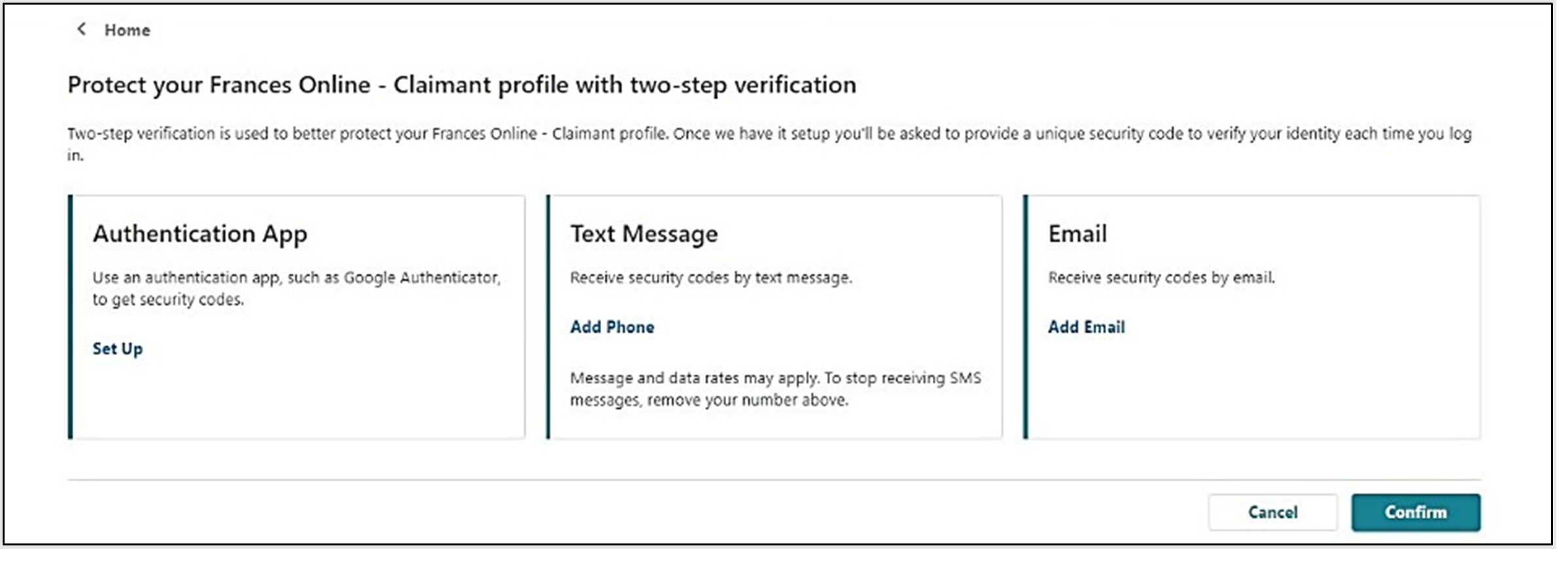
- For your final step, log back in and protect your account by setting up two-step verification.
- We only ask you to do this the first time you sign in after setting up your account.
- You can choose to connect to an authentication app, an email, or a cell phone that receives text messages.
- Once you add your choice and save, you’re done!
You are now ready to use Frances Online to:
- File an initial claim for Unemployment Insurance benefits.
- File Unemployment Insurance weekly claims.
- File a Paid Leave claim.
- File Paid Leave weekly claims
- Send secure messages to staff at Oregon Employment Department.
- Update your information.
- Appeal administrative decisions, and more!
We are making regular updates to Frances Online, so the screens you see may look a little different from the images in this guide. You can use the “next” and “previous” buttons in Frances Online to move between screens and update your answers without losing your information. Selecting “cancel” will erase your progress.