Use this guide to request a reasonable accommodation through Frances Online, from signing in to submitting your request. We make regular updates to Frances Online, so the screens you see may look a little different from the images shown here.
Step 1 — Go to the Frances Online Claimant Portal and log in.
There are two ways to get there:
Go to frances.oregon.gov and go to the Employees and Claimants panel to select the “Log on to Frances Online” link
Go directly to
frances.oregon.gov/claimant 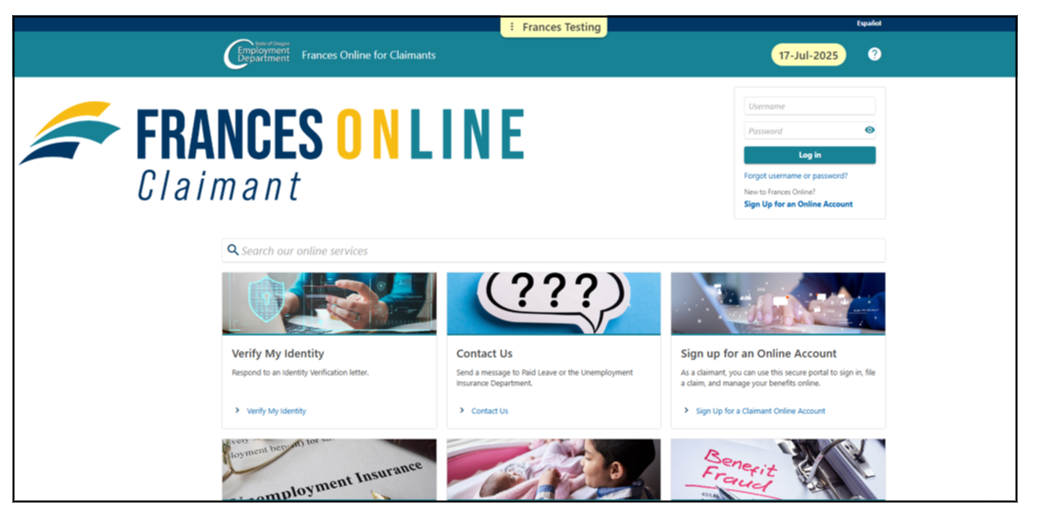
Step 2 — After you log in, you'll see your "Home" screen.
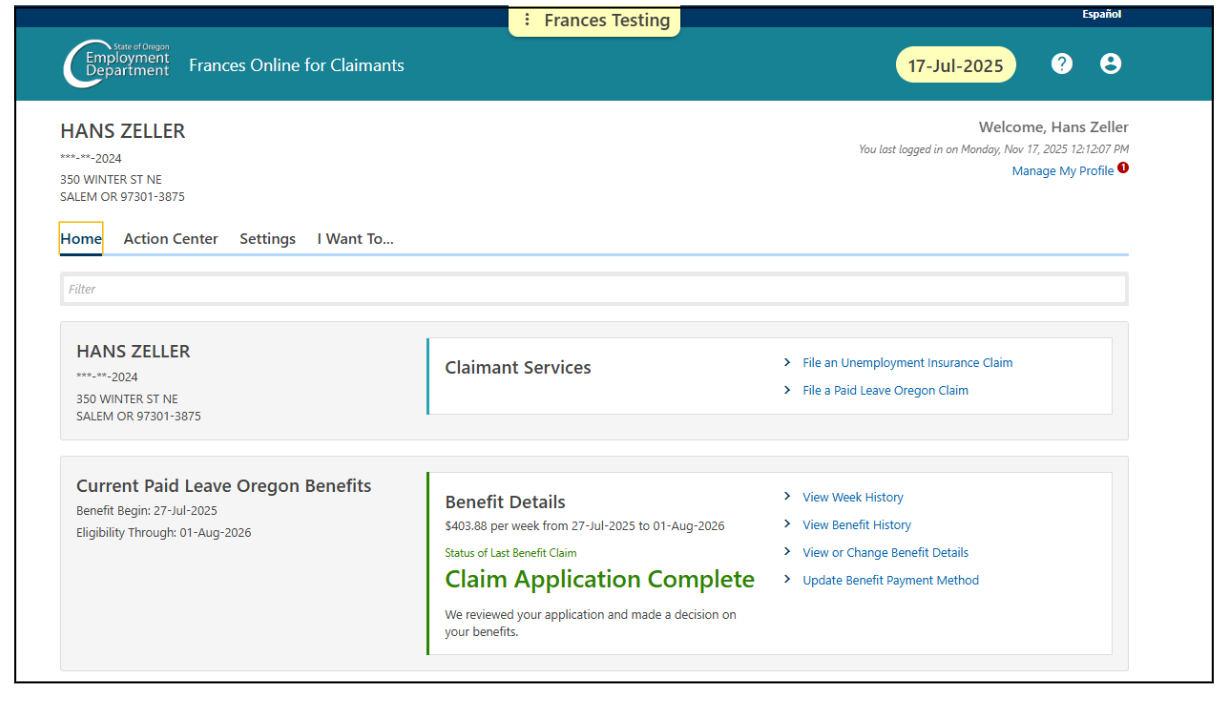
Select "I Want To..." to view more options.
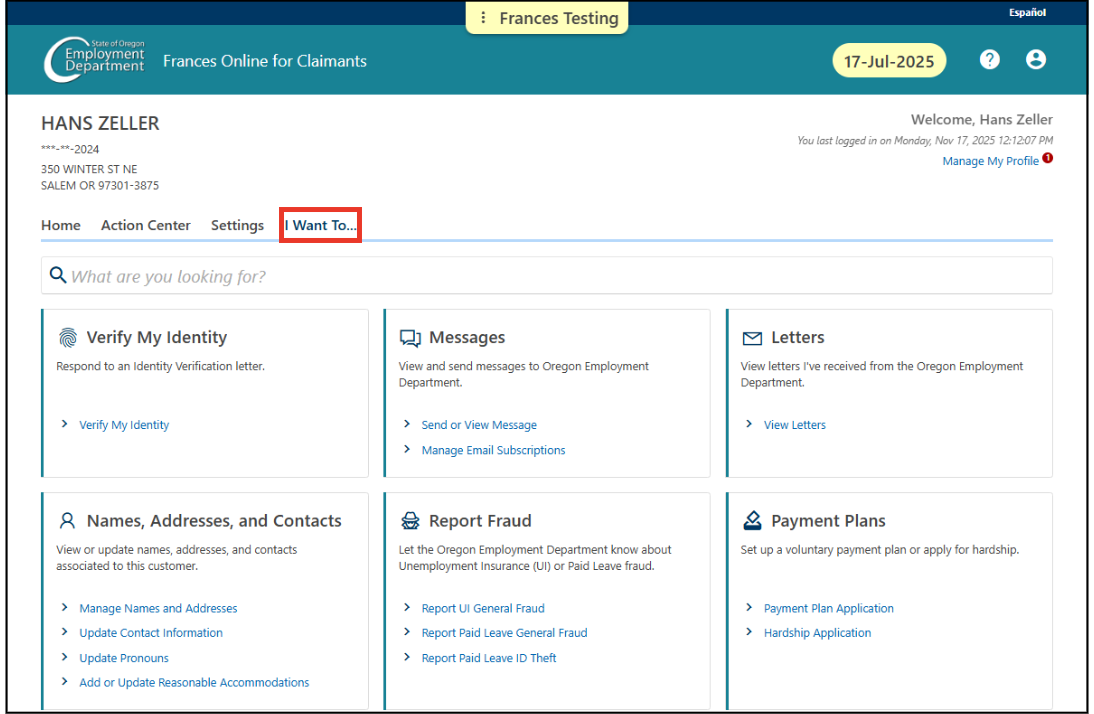
Step 3 — In the “Names, Addresses, and Contacts” panel, select
“Add or Update Reasonable Accommodations.”
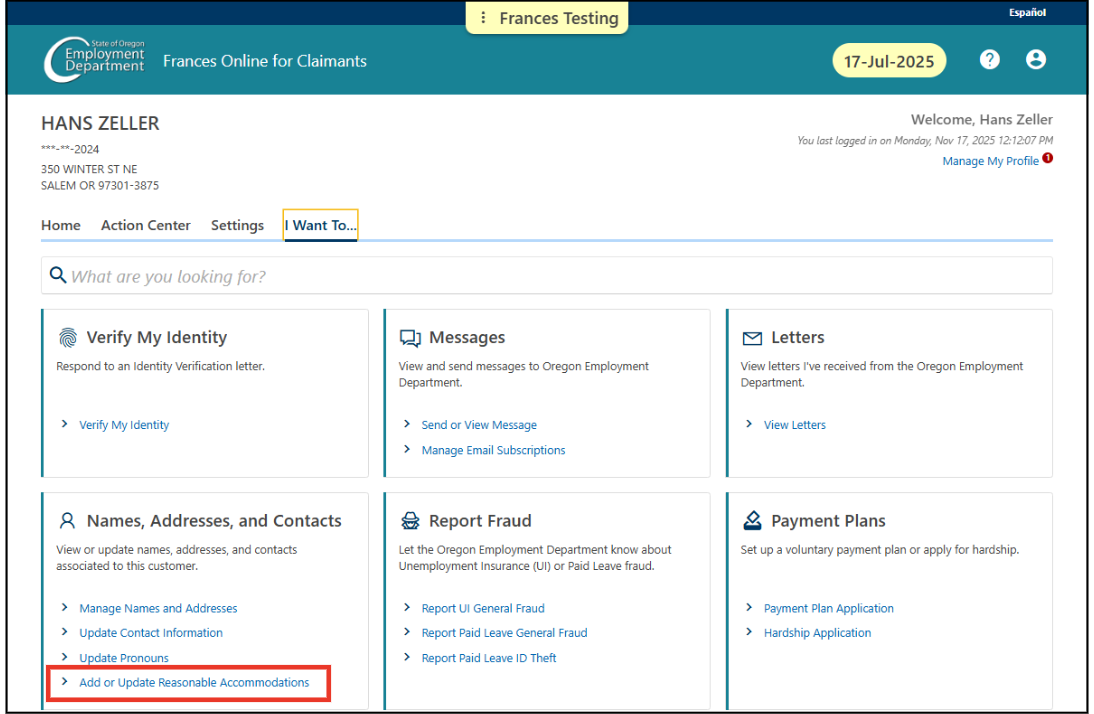
Then select
"Next."
Step 4
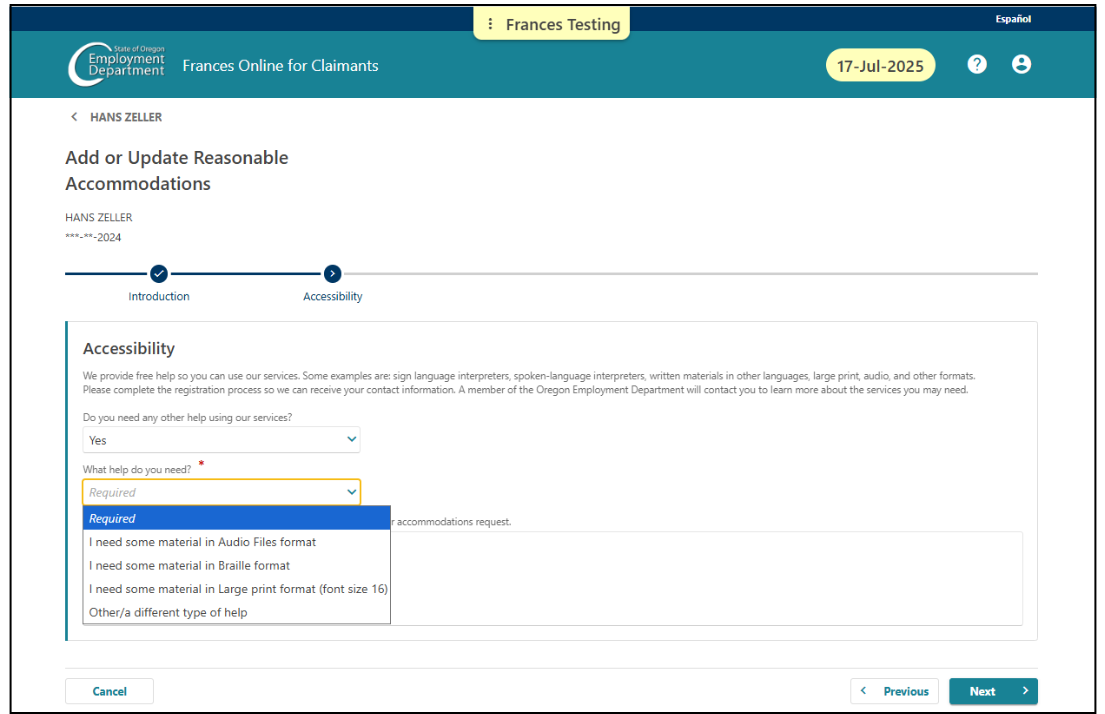
— Answer the questions using the drop-down options provided. You can request audio files, Braille, large print format (16-point font), or another type of help.
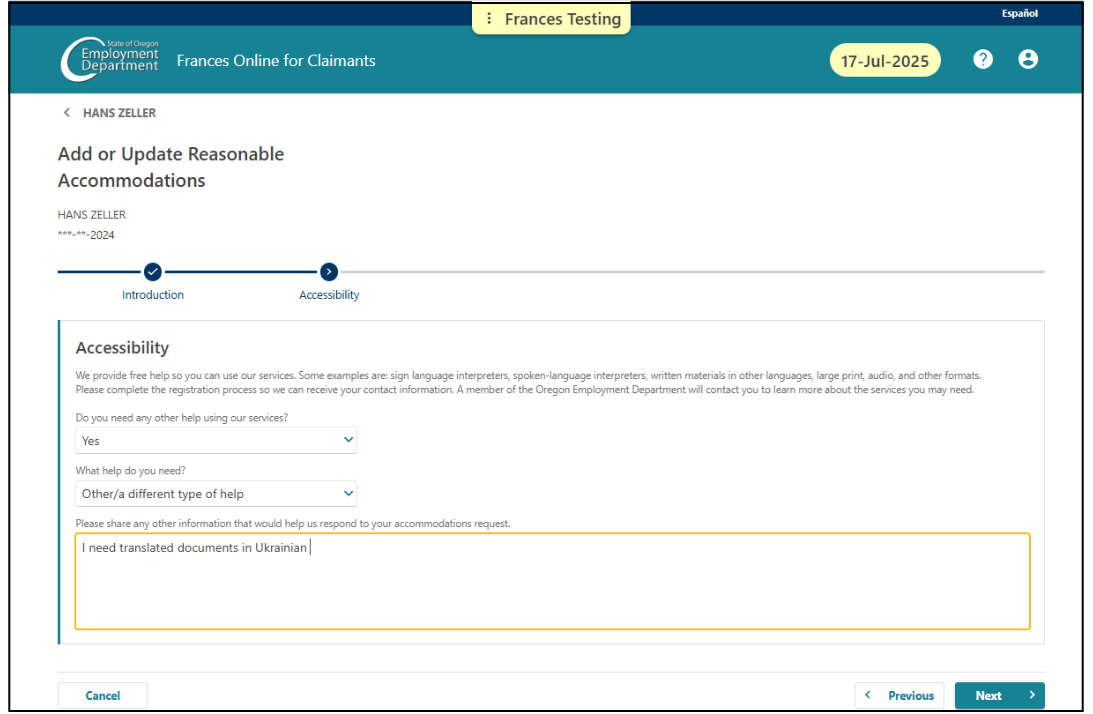
Step 5— You can also share additional information to help us respond to your request. When you’re finished, select
“Next.”
Step 6 — If you want to review or change your information, select
“Previous.”
Step 7
— When you’re ready, enter your name in the
“Certification” field and select
“Submit.”
Step 8 — After you submit your request, we’ll review it and contact you if we need more information. We’ll work with you to find an accommodation that meets your needs.
Note: If you can’t access your Frances Online account, or if you don't have a Frances Online account, you can also request a reasonable accommodation by:
Calling the Unemployment Insurance contact center at 877-345-3484
Calling the Paid Leave Oregon contact center at 833-854-0166
Emailing Paid Leave Oregon at
access.paidleave@oregon.gov