Use these instructions to file your weekly claim for benefits from Paid Leave Oregon. You must file for each week that you want benefits if you are on an intermittent schedule. This means you may work some days during your leave.
Step 1 —
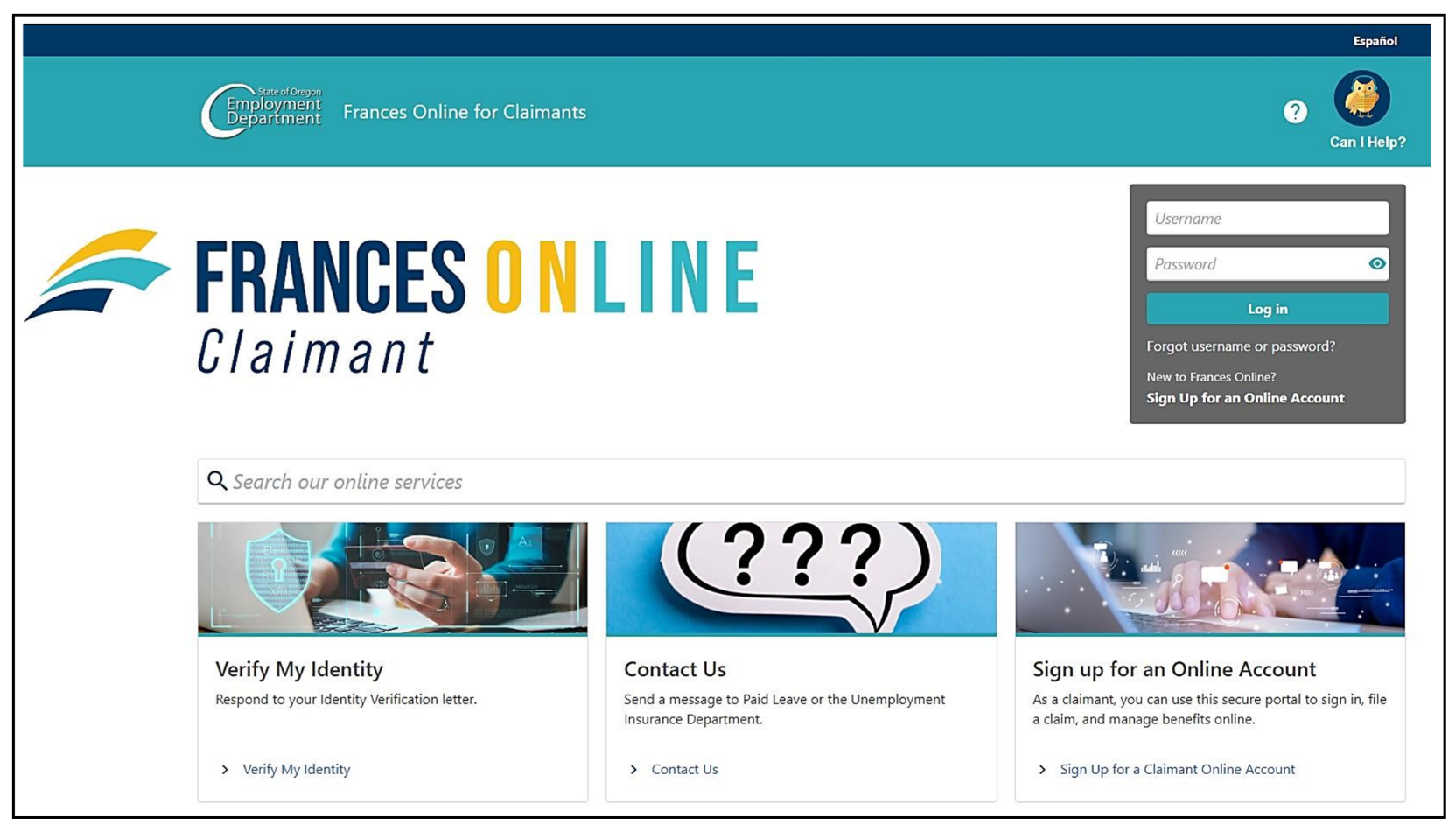
Go to the Frances Online Claimant Portal
There are two ways to get there:
Enter your email address (username) and password and select “Log in.” Your username cannot be changed even if you cannot receive messages from that email account. You can change your email, but you will always use your original email to log in to your account
Step 2 —
After you log in, look for the “Ready to File” message on your home screen for the week you want to file a claim. Select “File Now.” If the “File Now” message is not visible, it means we are still reviewing your application for benefits, or we may be checking new information we received about your benefits.
Step 3 —
Read the instructions. You must give correct and accurate answers. Select “Next” on each screen when you are ready to continue.
Step 4 —
Answer the questions about your leave dates. Select your employer’s name to show which days you took leave.
Step 5 —
Fill in which days you worked and which days you took leave.
- In this example, the claimant took Paid Leave on Wednesday, didn’t work over the weekend, and worked Monday, Tuesday, Thursday, and Friday. Select “Did Not Work” for the days you were not scheduled to work.
- For a holiday, follow the same instructions. If you were expected to work and did not work, select “Did Not Work.”
- Only select “Took Paid Leave” for full days you did not work but were scheduled to work. You cannot take Paid Leave on a day you worked any hours.
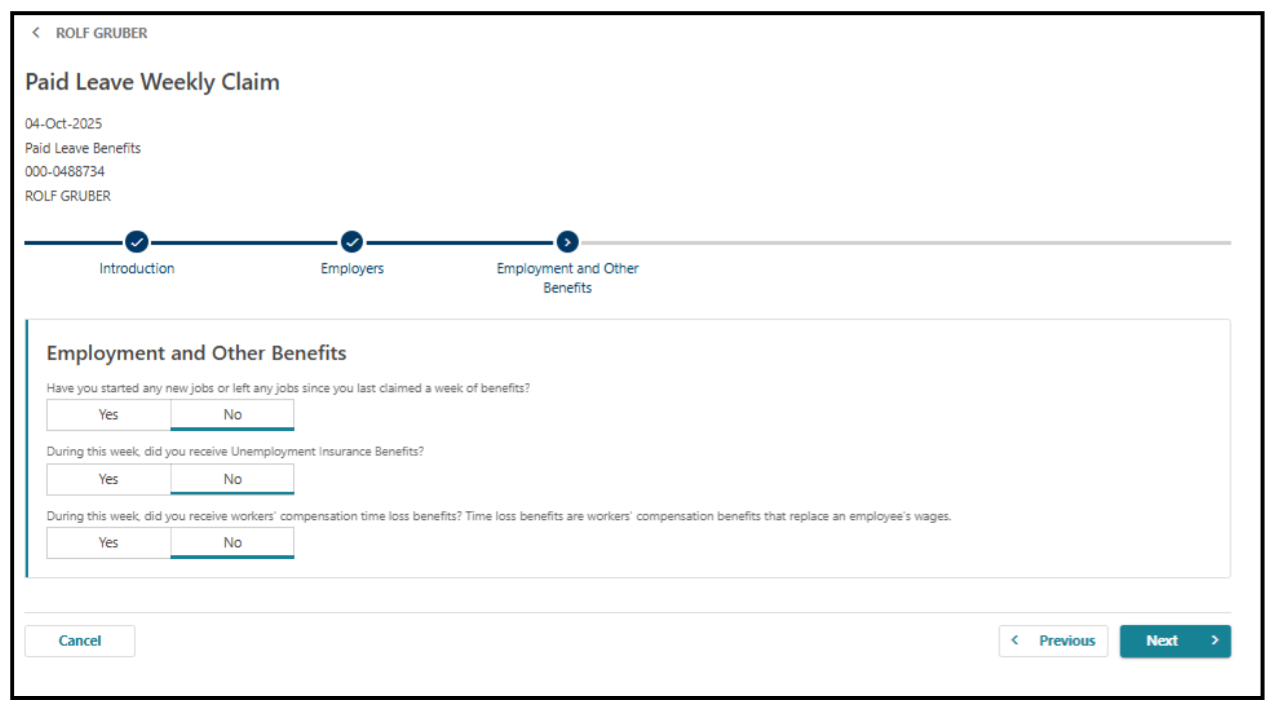
Step 6 — Answer questions about other jobs or benefits.
Step 7 —
Review the information you provided before checking the box to confirm the information is accurate.
Select “Submit” to finish your intermittent claim.
We are making regular updates to Frances Online, so the screens you see may look a little different from the images in this guide. You can use the “next” and “previous” buttons in Frances Online to move between screens and update your answers without losing your information. Selecting “cancel” will erase your progress.