If you want to filter the information provided in a given page based on specific criteria, you can create your own My Filter. By selecting a given filter from the My Filters dropdown on a page, the page will display information according the criteria set up for that Filter. For example, if you want the Records List Page to display permits that were submitted in a certain timeframe, you can use filters to display only those records in that time period.
The pages that have the My Filters dropdown will also have a My Filters option in the Menu dropdown. This is where you can create and edit your own custom Filters. Filters are specific to the page and specific to the user who created it. If you create a custom filter, a coworker would not have access to your custom filter in their My Filter dropdown.
Steps to create a custom filter in the Record List Page
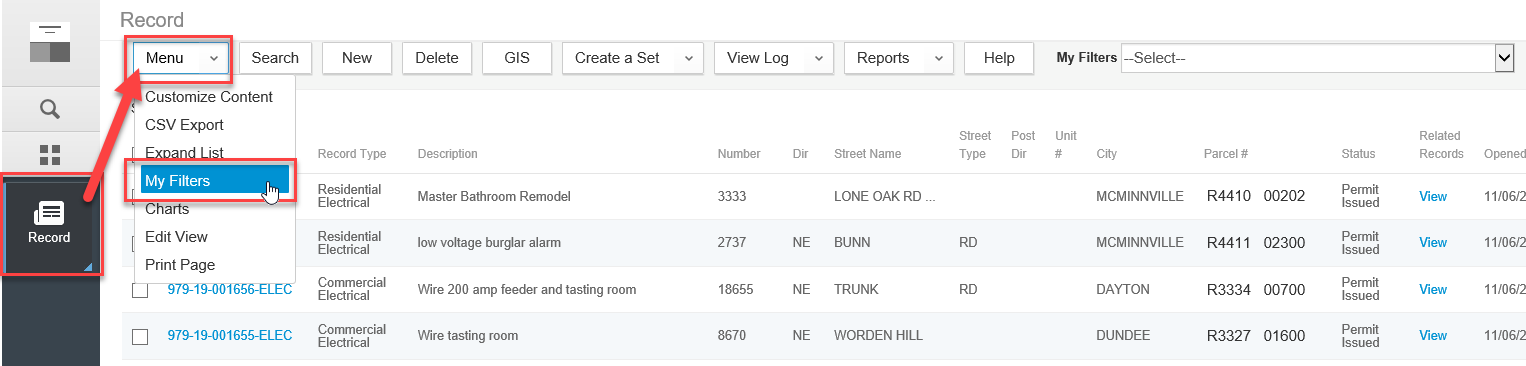
- Click on the four-square Launchpad icon > open the Record list page > Click Menu > Select My Filters.
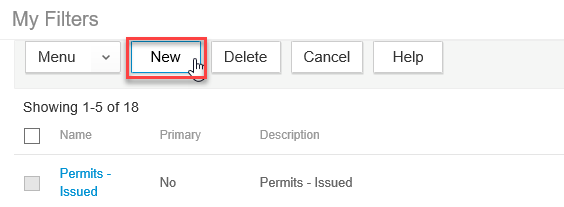
- You will see all of the global filters for your agency and your custom filters. Click New to create a new custom filter. Note, while you can see Global Filters, you cannot edit them.
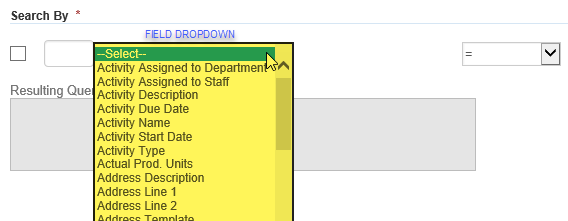
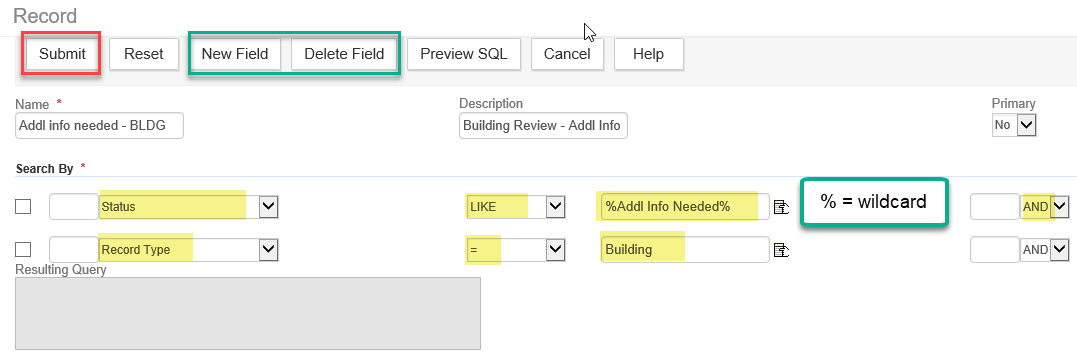
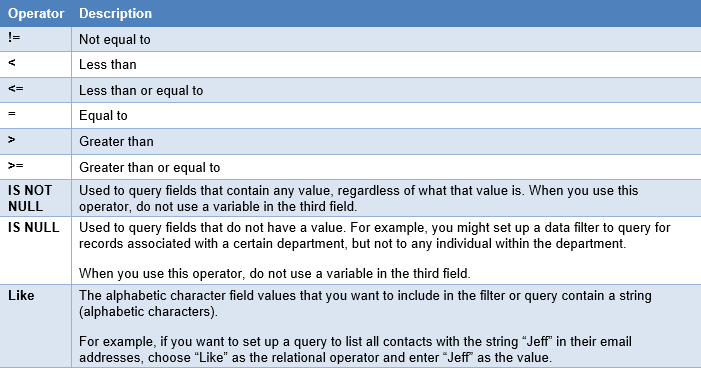
- Enter a Name and Description for the custom filter. Next, under the Search By area, click the field dropdown and select which field you first want to filter on - then select the proper operator, and enter the specific value (case sensitive). You will be able to choose from available fields for that particular page, to pull in the information you might be looking for. For example, if you want to create a Filter for records with an Addl Info Needed status, you might select Status as one of your fields. You will also use a dropdown menu to choose from operators like = (equals), and != (not equal to). The field after the operator dropdown gives you the option of choosing from a generic menu or entering a specific value.
See Operator definition list at the end of this document.
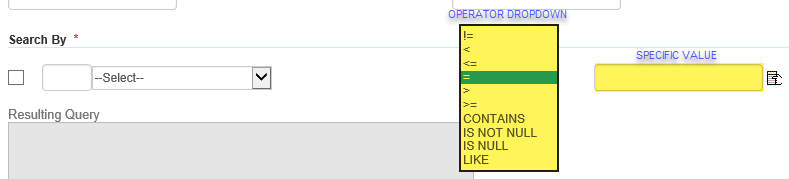
Values are case sensitive and your Filters will not work if there are any differences between your search and the actual data. In our example, if you select Status is = (equal to) and then you enter a value of “addl info needed", if the actual status as it appears in Accela is “Addl Info Needed", your Filter will not pull data because of the difference in case.
- Click the New Field button to add another filter criteria. Once you have set the criteria, click the Submit button to save your custom filter.
- You will see the list of My Filters once you click Submit. Click Cancel to get back to the Record list page.
Global Filters
Global filters can only be directly created or added by ePermitting staff. The filters that the ePermitting team create for the Model are set as Global Filters, therefore available to all agencies in the My Filters dropdown.
If you are looking to have a custom agency filter you have created added to your agency as a Global filter, please submit a ePermitting Help Desk ticket.
to make this request. Please make sure to include a screenshot of your filter criteria with Name and Description, indicate which modules you want to access it, and which page you want it associated to - Record List, My Tasks Activities, My Tasks Workflow Tasks, or Inspections.
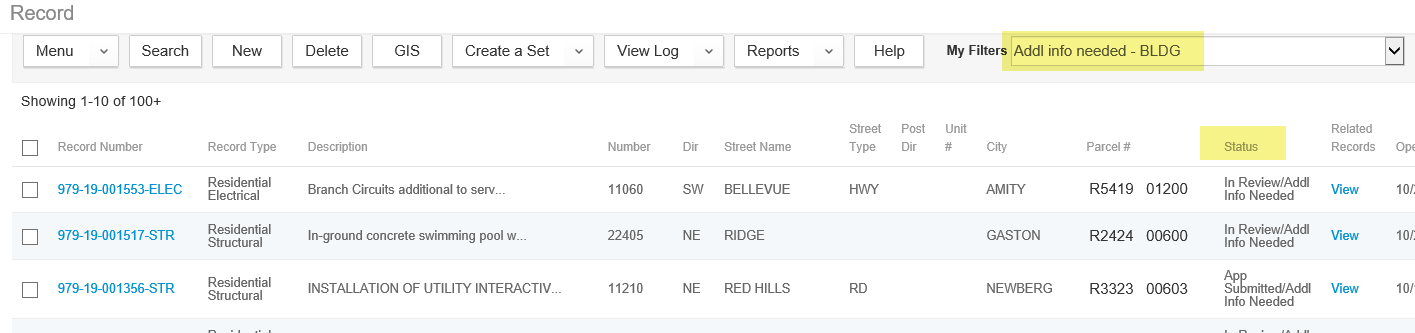
Now, you can select the new custom filter from the My Filters dropdown and filter the Record List page based on this new filter.
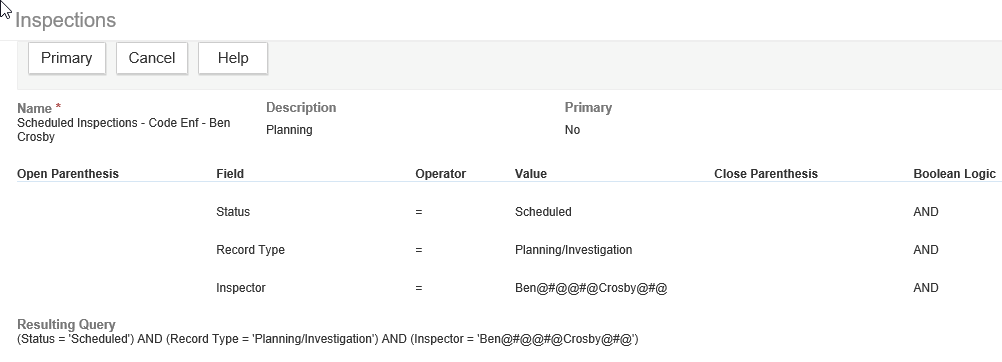
Filter examples
Scheduled inspections for a specific inspector:
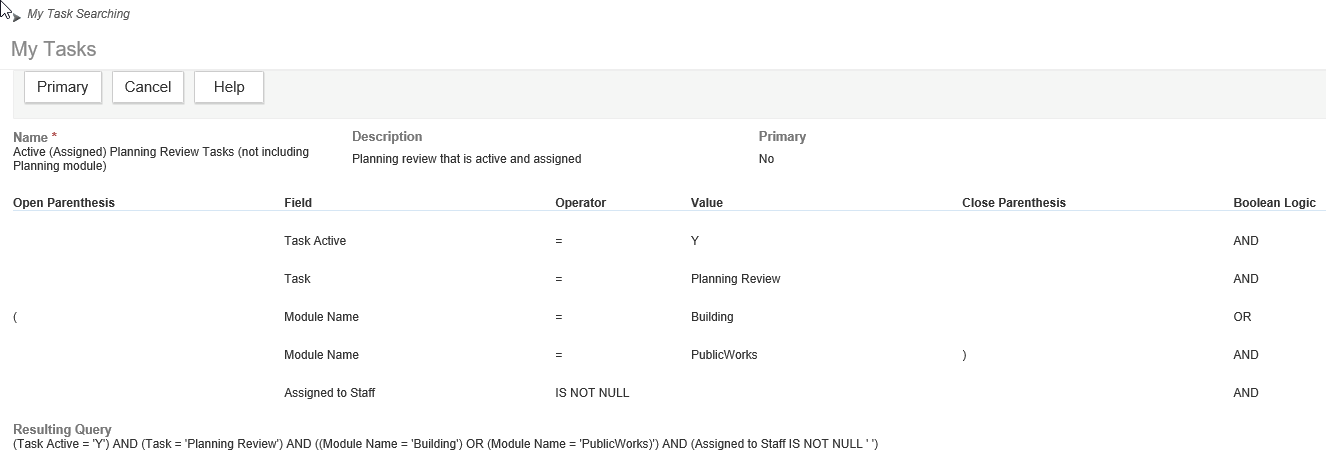
Active assigned planning reviews not in the planning module:
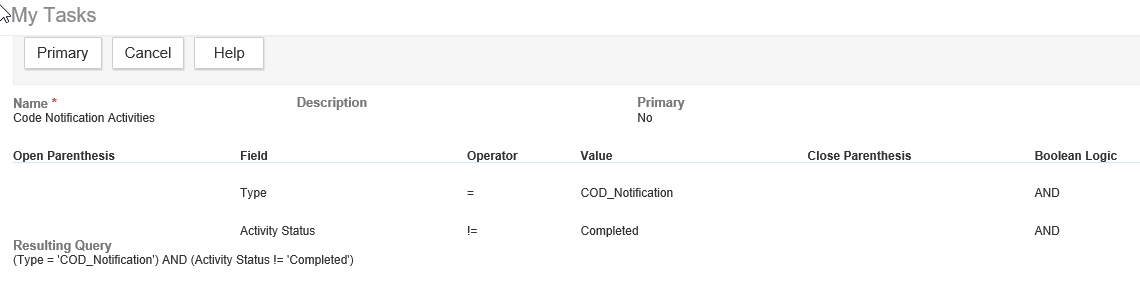
Base filter for Code Enforcement activity type: