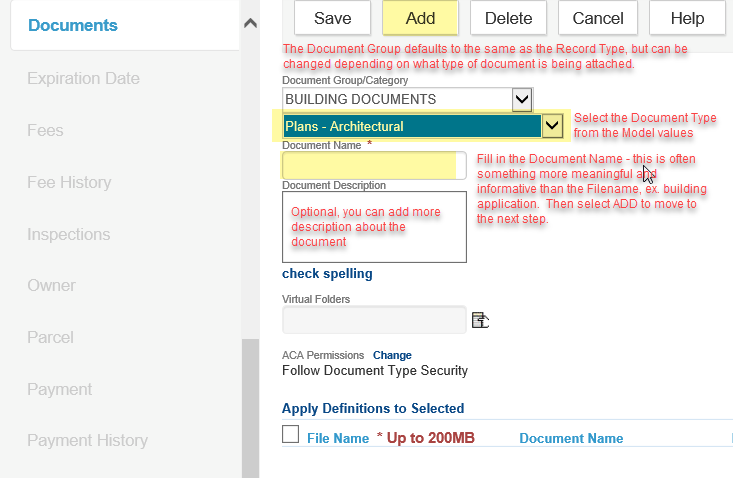
- Go to the Documents tab on the record > click NEW > select the appropriate 'Document Type' from the dropdown. IMPORTANT NOTE: any doc type that is 'Plans' will be restricted from view/download online, except by those people associated to the record, as plans are protected by copyright. Then fill in the 'Document Name' - this often is a more descriptive meaningful name than the filename, ex. building plans, then click ADD to actually attach the document:
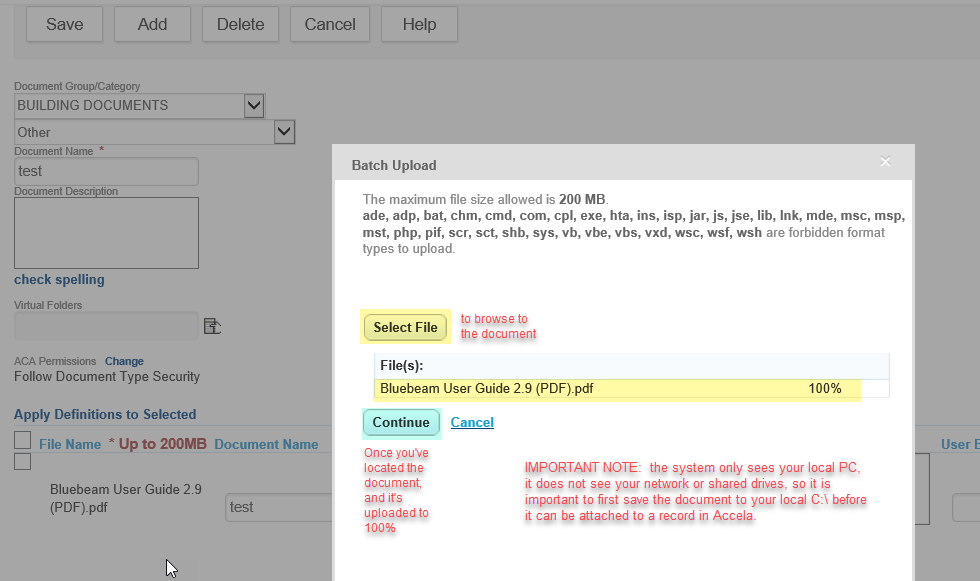
- Click the SELECT FILE button to browse to the file, locate the file. IMPORTANT NOTE: the system only sees your local PC, it does not see your network or shared drives, so it is important to first save the document to your local C:\ before it can be attached. Once the document uploads to 100%, click ADD to move to the next screen:
- Once the next screen loads, review the document details along the bottom of the window. IMPORTANT NOTE: ACA Permissions are set to follow the Document Type Security as defined in the Model - if you wish to change this default security, you would select the 'Change' link just to the right; the change screen is not a representation of the document's current security, it is a blank form for you to fill in accordingly. NOTE, any changes to default document security are the sole responsibility of the agency.
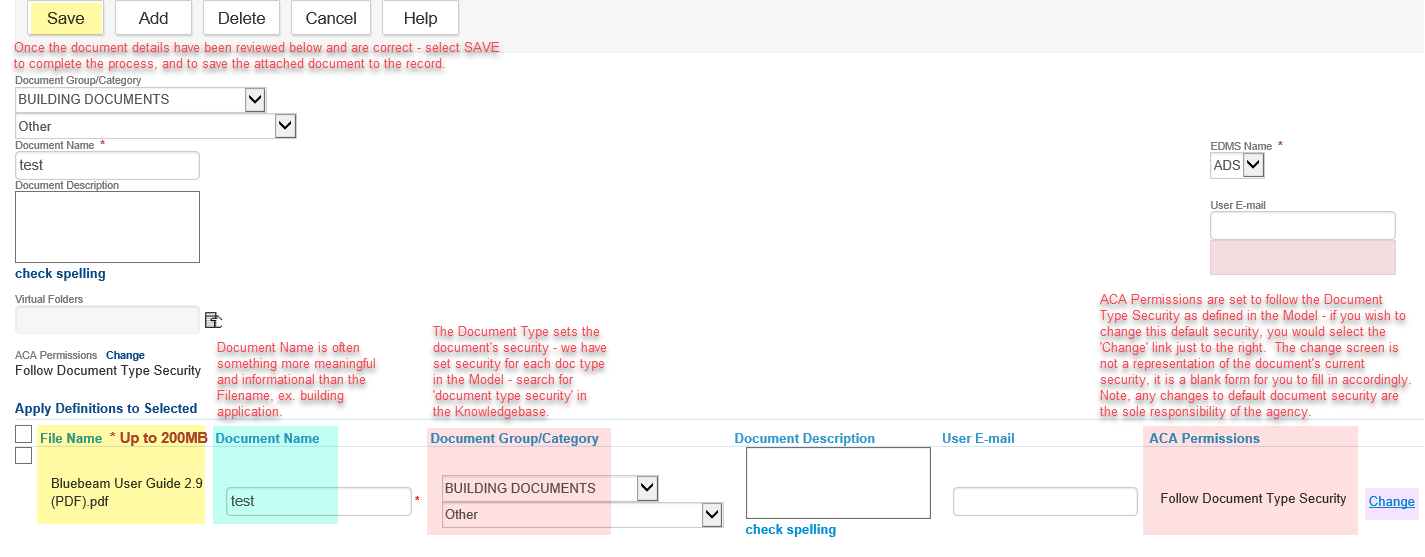
- Finally, if all is correct on the document details, click SAVE to save the attached document to the record. You're done!
Current Model Document Type Security Matrix
Review this article in the Knowledgebase for further information on how to change the ACA Permissions on documents - this article includes the current Model Document Type Security matrix.
 Modifying ACA Document Permissions