There are times when you will need to add a new fee item to a record that has already been paid. For example, a contractor is doing a remodel and forgot to add a garbage disposal to the permit.
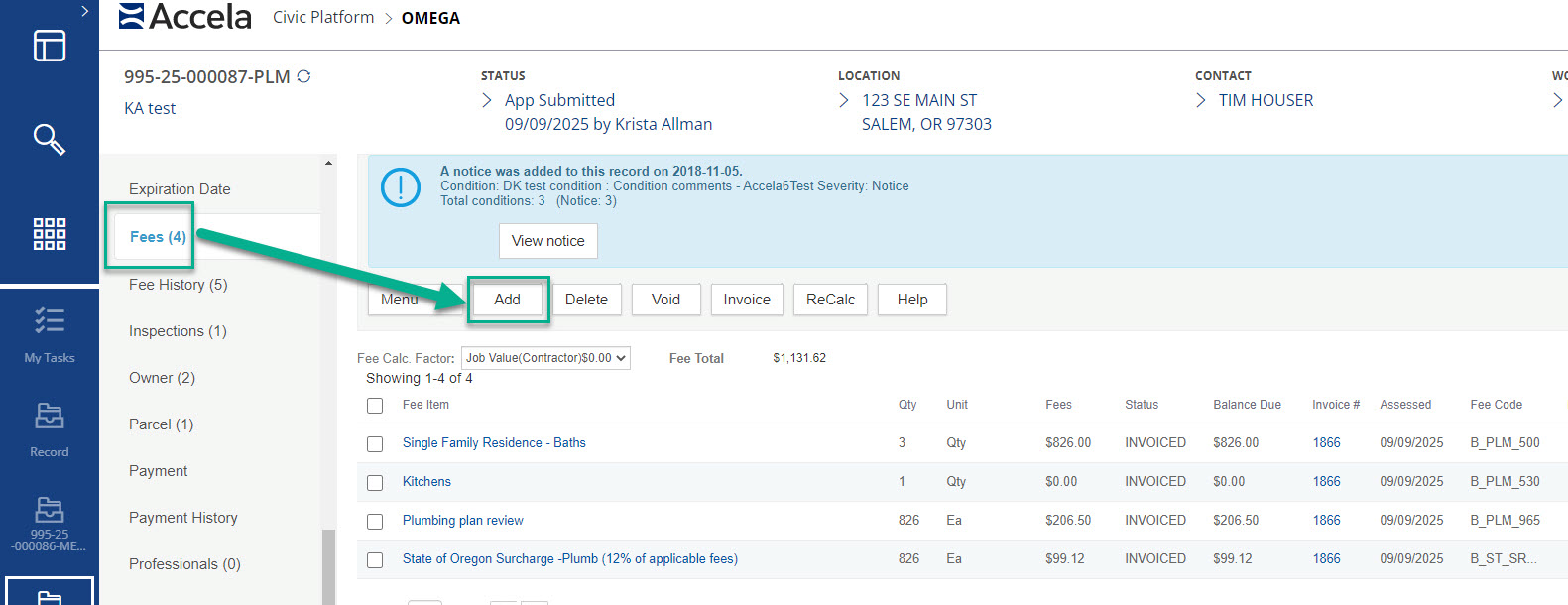
In the record go to the Fees Page then click on the Add button.
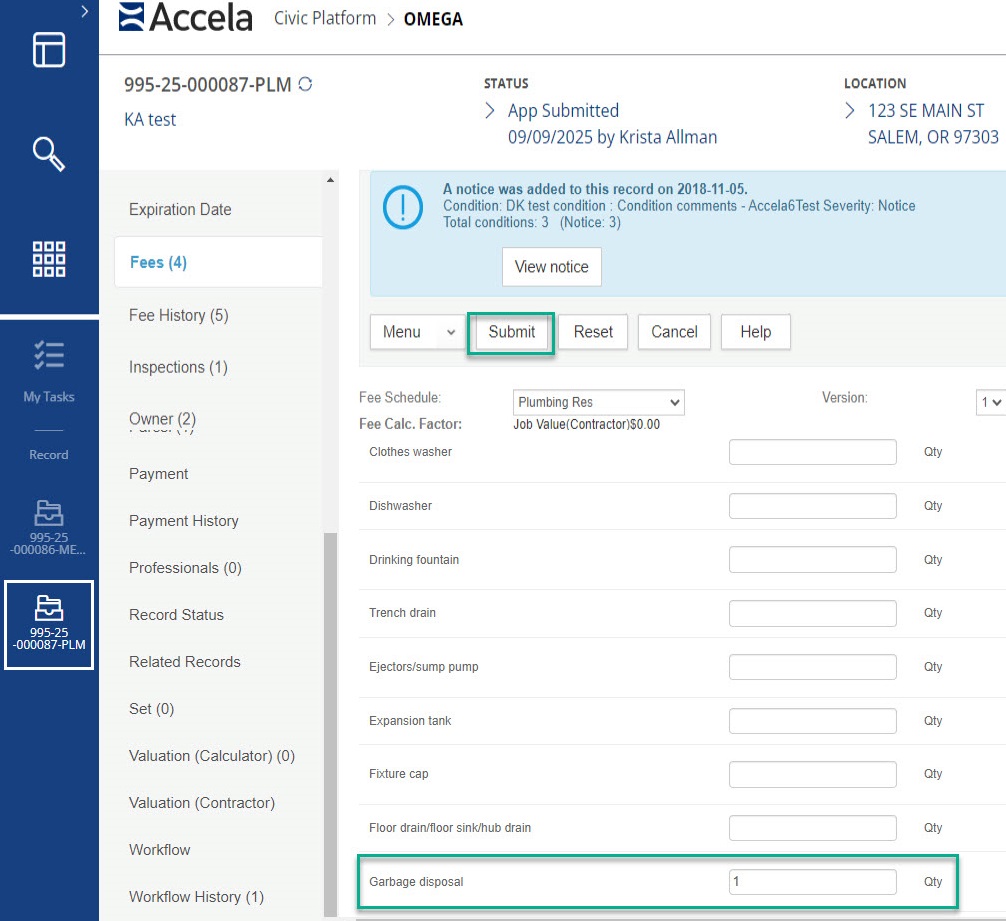
 Select the fee item that you need to add by entering the correct number you intend to add next to the fee then select Submit at the top of the page.
The new fee items and the State Surcharge will have a new status, Invoice the new fee items by clicking the box next to them and click on Invoice at the top of the page, then go the Payment page.
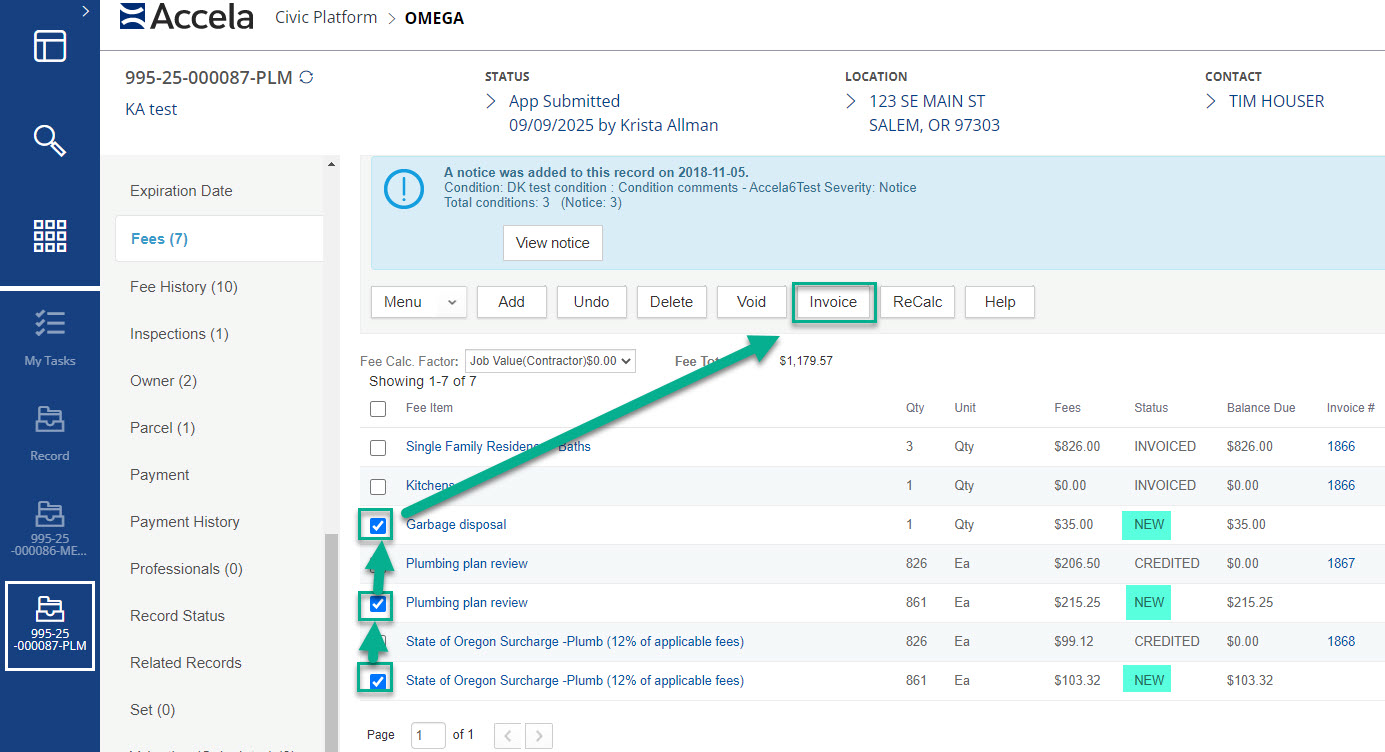
*Note: If your agency uses the balance minimum fee, based on the amout your minimum fee is set to and the fee amount added you will see the balance minumum update or remove once the minimum has been reached. If the balance minimum fee updates and is showing new, invoice it with the additonal new fees.
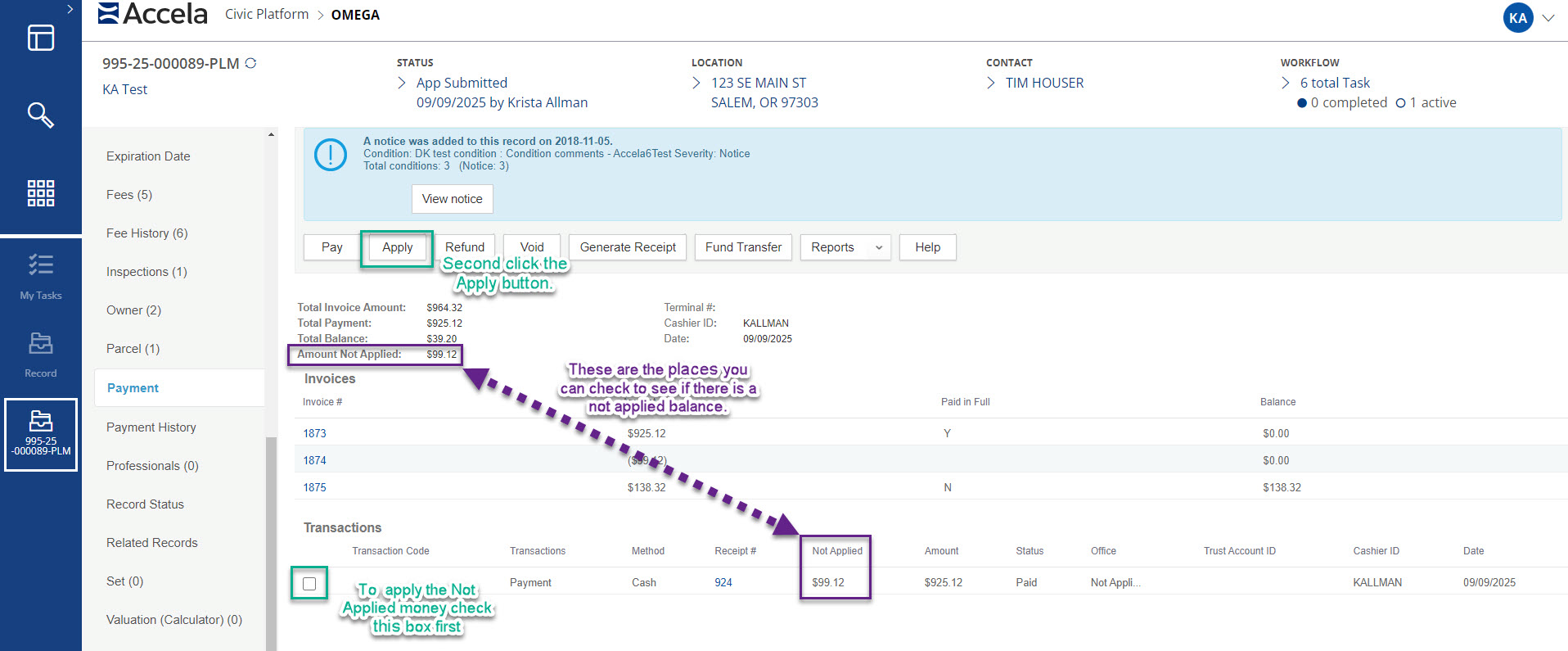
In the Payment page you will see that you now have Not Applied money. Under the Transactions section of the Payment page, check the box on the line with the payment that has an unapplied amount, then click the Apply button at the top of the page.
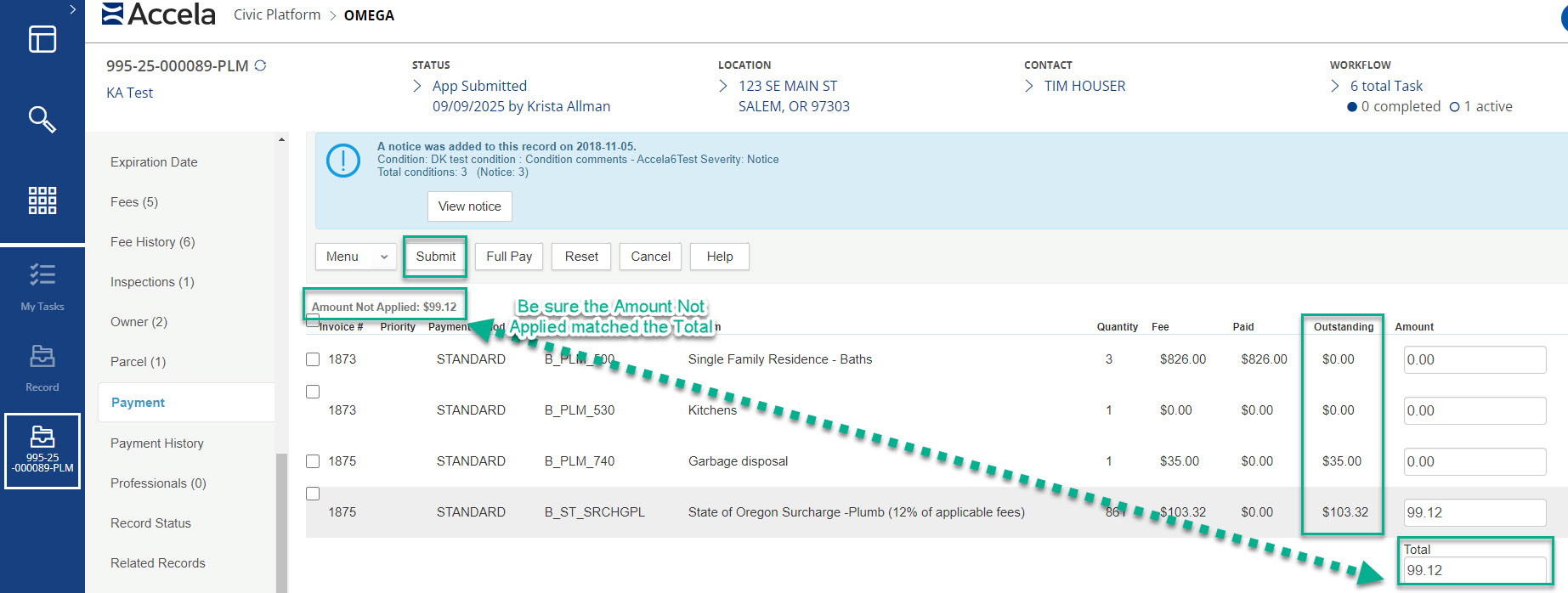
Next, you will be directed to a new page that lists all of the fees, look at the Outstanding column, anything with a balance needs to be paid. (We haven't collected all of the money yet but we do need to designate where the money we do have needs to go.) To the left of the page under the submit button you can see the amount that needs to be applied. In the amount column to the far right designate which of the outstanding fees/amounts get money applied to them by entering the amount for each fee. At the bottom of the Amount column the amount you are going to apply adds up so you can check to be sure the Amount Not Applied matched the amount total before completing. Once you have the correct amount to apply in the Amount column click on submit at the top left of the page.
Note: You will want to apply the money back to any fees previously paid first. Be sure you are paying attention to what you are adding to surcharge as it will need to be paid on the fees that are being paid.
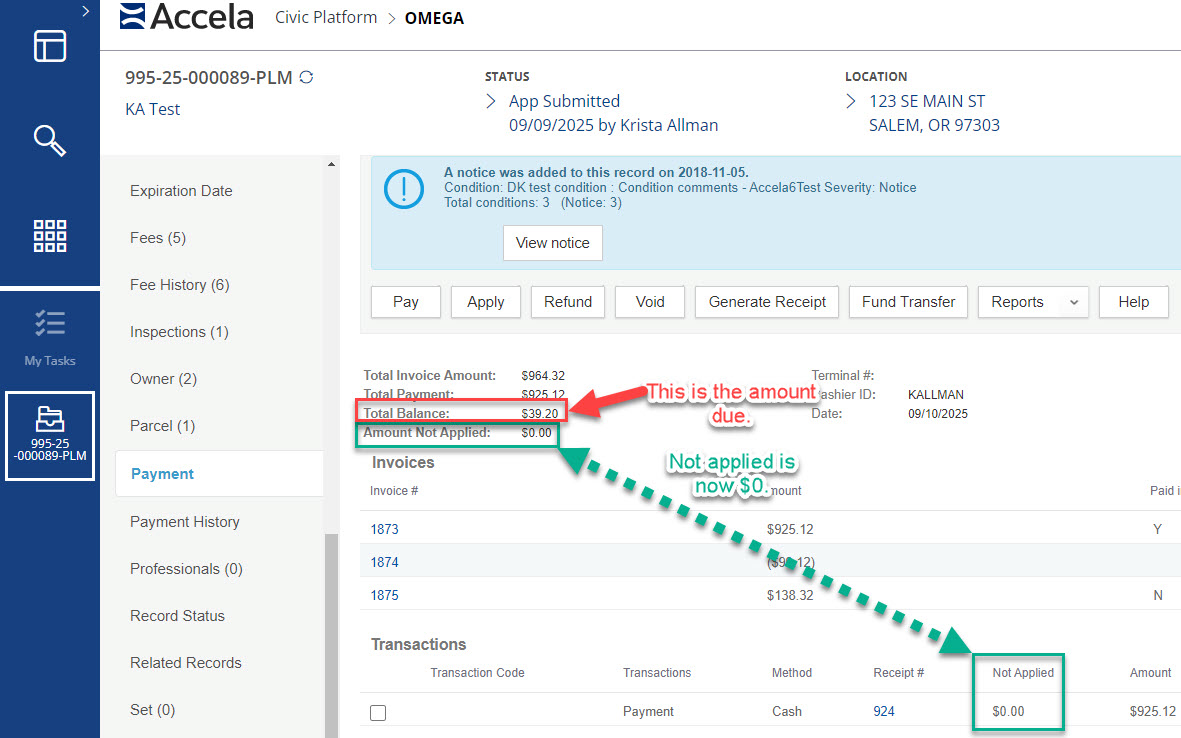
The page will go back to the Payment page on the record. Both places that reflect the Unapplied amount now have a $0 balance.
The total balance is now reflective of the remaining money you need to collect from the customer. Process the payment as per regular procedure.
Note: It is very important to Apply the Unapplied amount before processing payment. If you process a payment before Applying the fees, Accela will Apply them at random and this will affect your account codes and receipts.