After a record is created and the fees are paid there are many reasons that the fees need to be adjusted, these changes are not available online and will need to be made in the back office before any additional payments can be collected. For example if there are two dishwashers on a record but the customer needs six, you will need to adjust the fees.
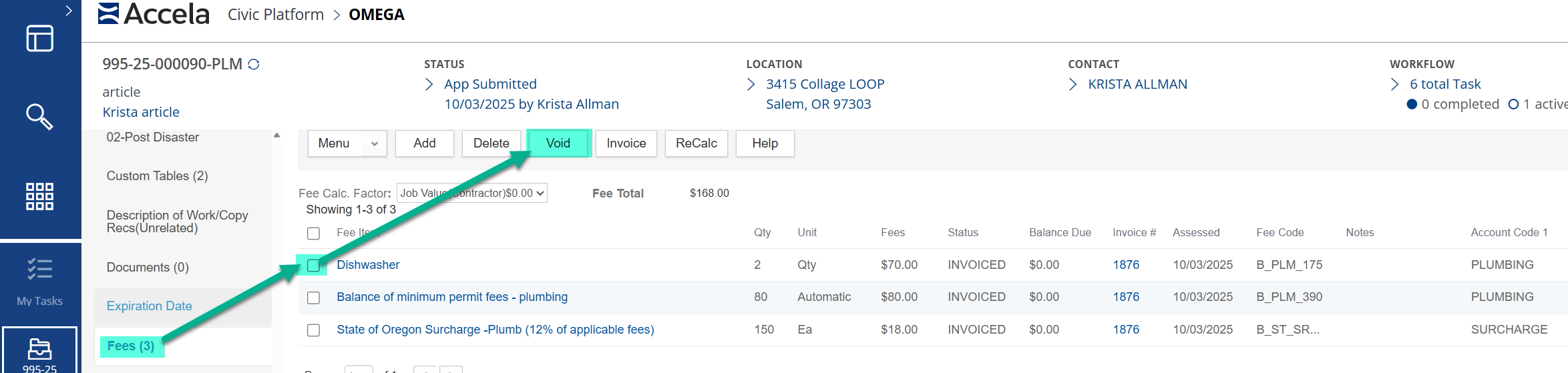
Start by going to the Fees Page in the record, locate the fee you need to update then select the checkbox next to the item and void the fee. This will void the fees previouly paid for and in addition to voiding the fee the system will release any money applied to that fee.
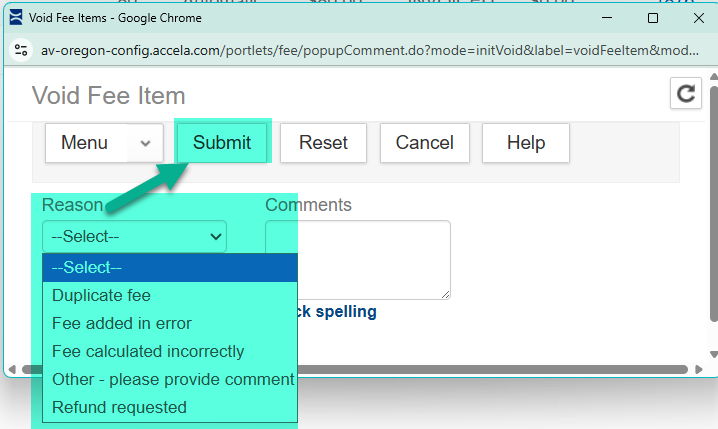
A box will come up, select a reason you are voiding the fee then click on submit to complete the void process.
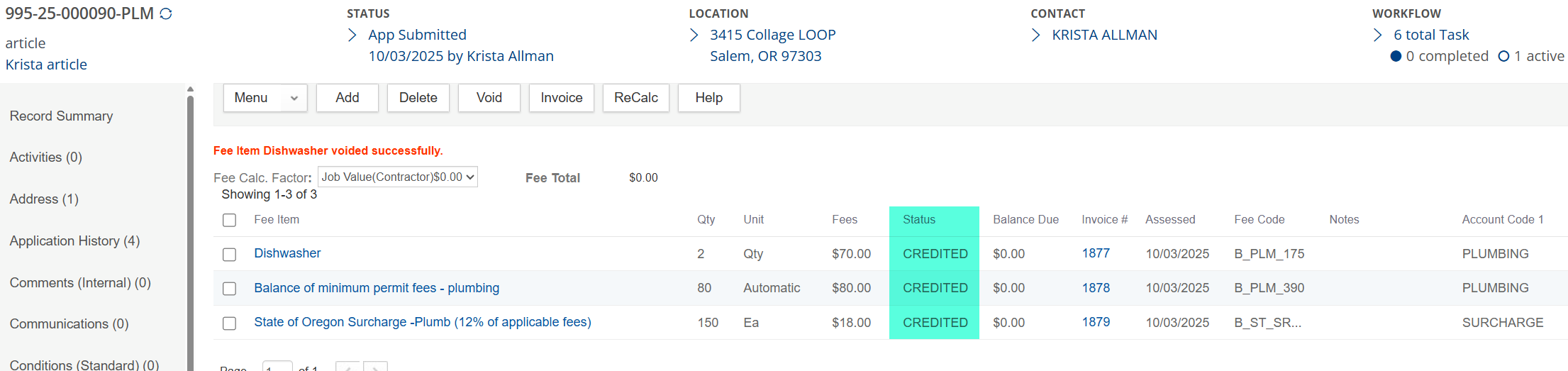
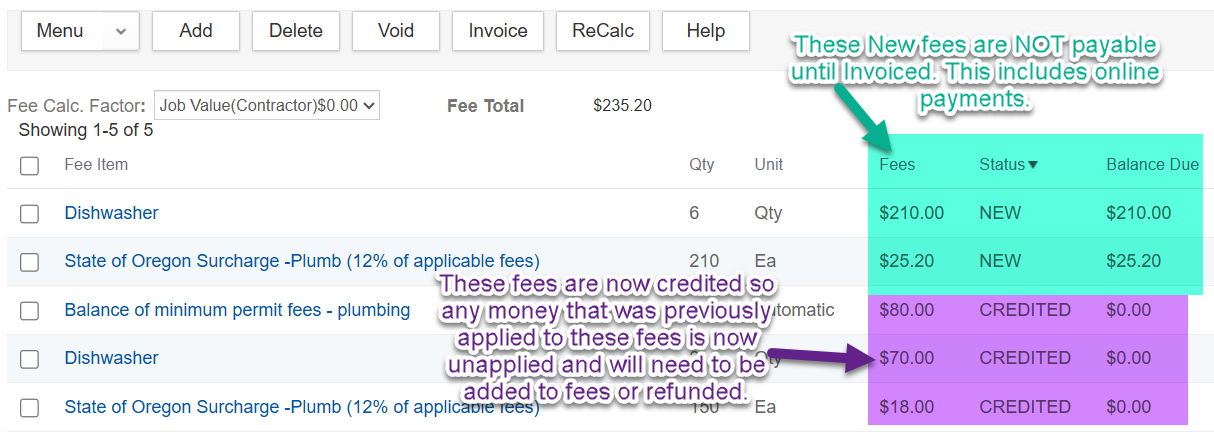
The fees will now show the previously invoiced and paid fees are now credited along with any fees that were calculating using the fee you voided.
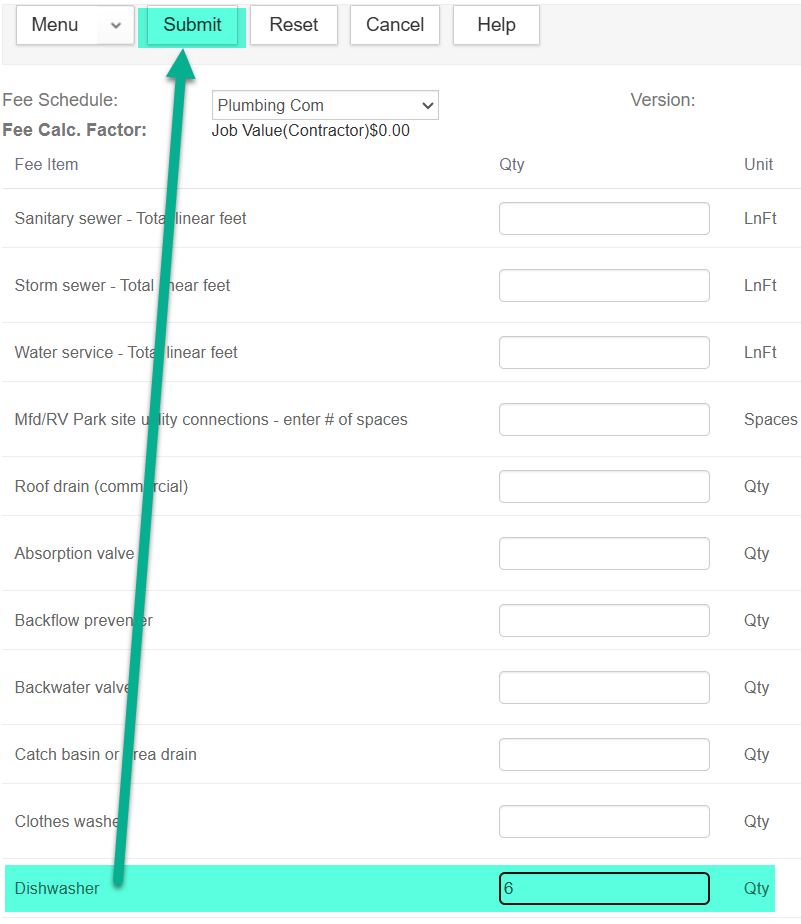
Next, click on the add button on the fees page and add the correct amount of the fee you need to charge and click on the submit button.
The updated fee will be added along with surcharge updating, if you have a balance minimum fee it will also recalculate and potentially not re-assess if your fees are at or above the minimum and will reassess if the fees are below the minimum. Any other fees that calculate based on the updated fees will also now be recalclated and they will all show a status of 'New'.
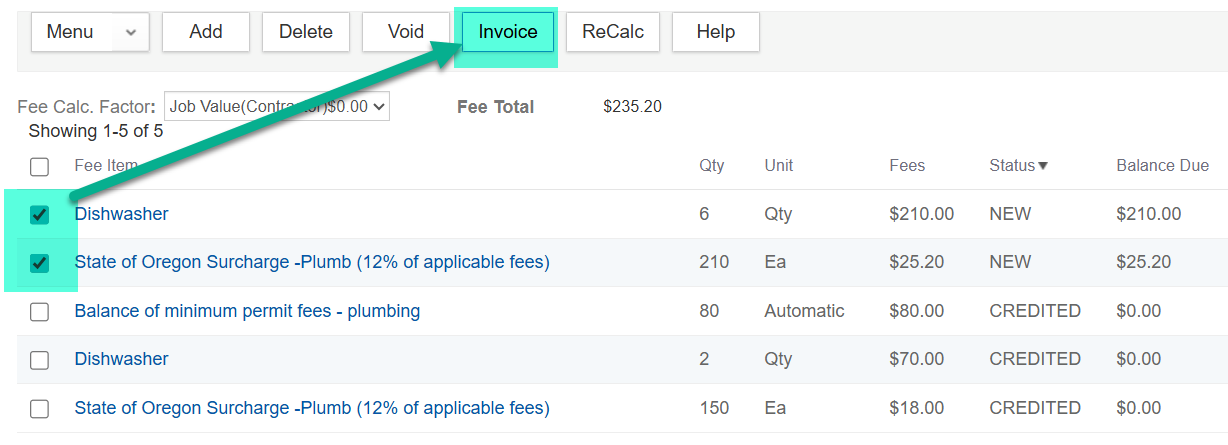
To prepare the fees to collect payment, check the box next to the fees with the 'New' status and click on 'Invoice'.
Note: It is very important to Apply the Unapplied amount before processing payment. If you process a payment before Applying the fees, Accela will Apply them at random and this will affect your account codes and receipts.
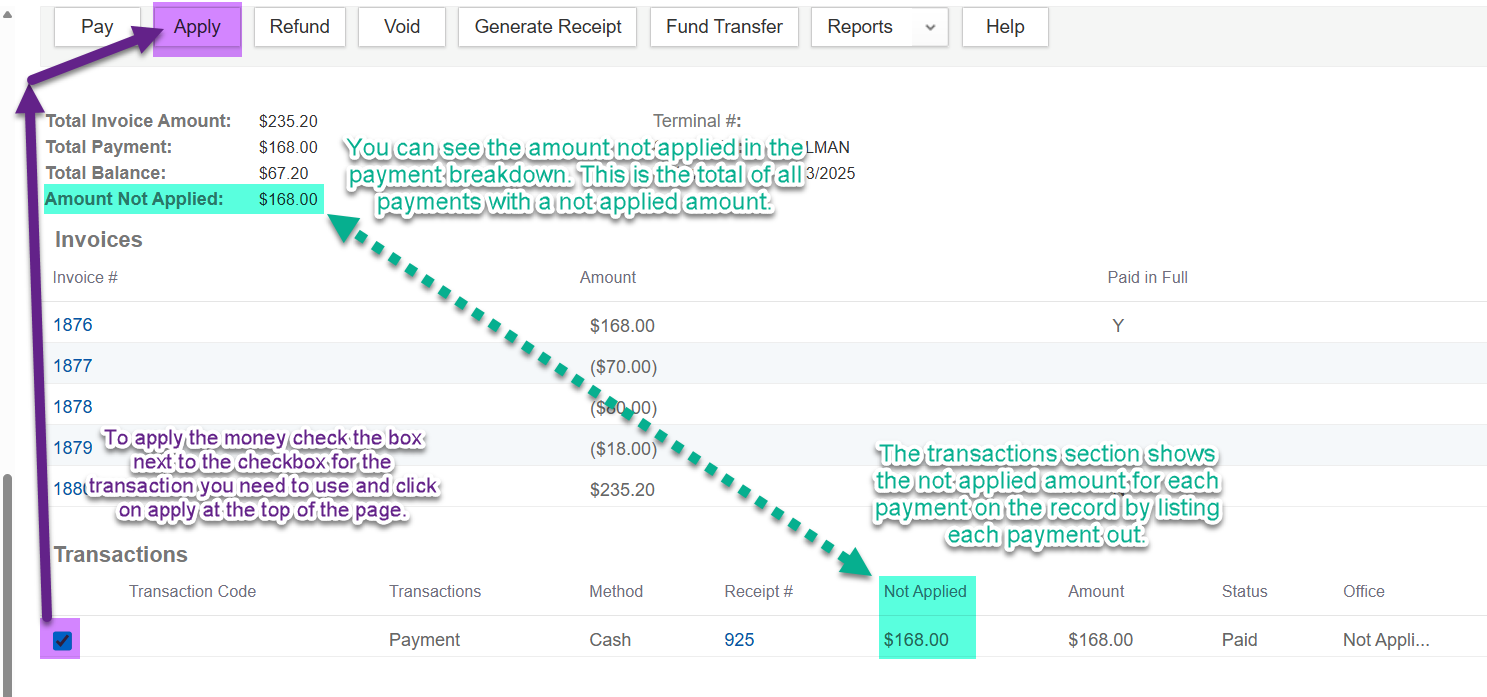
Go to the payment page and look for the 'Amount Not Applied'. Under the Transactions section of the Payment Page, check the box on the line with the Unapplied amount and click Apply.
Next you need to apply the money to the correct fee items, to do so look at the outstanding column to identify fees eligable to have money applied to them and enter the amount you want to apply in the 'Amount' column. To see how much you have available to apply it is listed in the top left of the page.
Note: Be sure to apply 12% of the available funds to surcharge so you can be sure your surcharge account is funded.

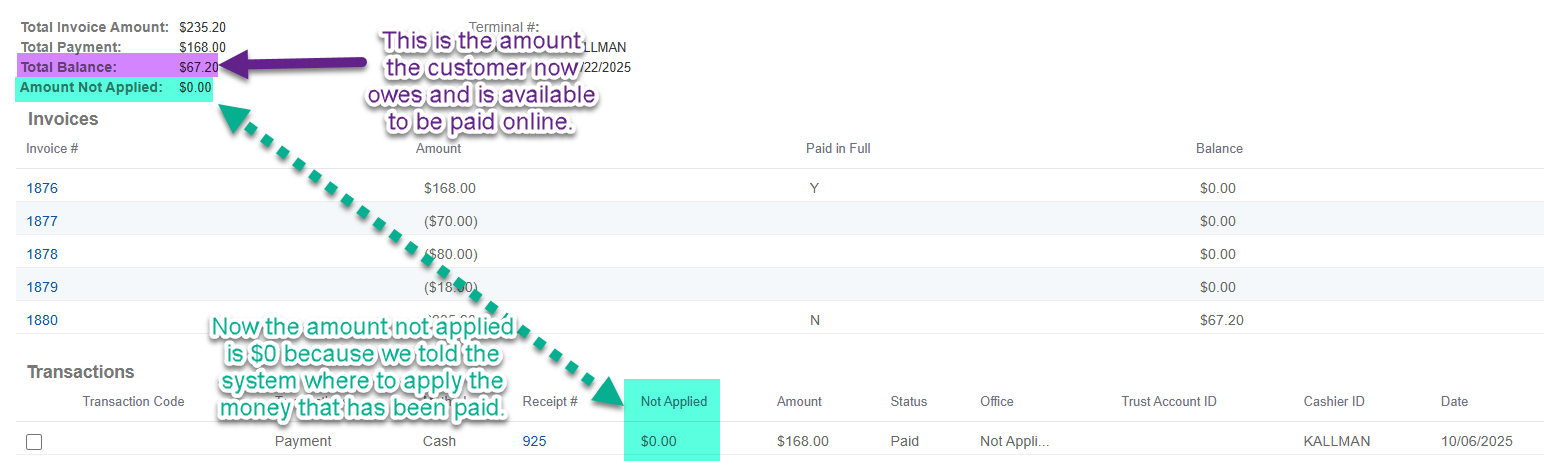
You will now see that the Unapplied amount is $0 and the balance that is left is what the customer owes. Process payment as per regular procedure to collect the remaining outstanding balance. (The fees are available to be paid online now because they have been invoiced.)