Locate the permit/record you are needing to receipt payment for. You would do this thru the Global Search (magnifying glass icon ) or thru the Record list page in your Launchpad group ( ). If you are not seeing the Record list page in your favorites (with the star filled in yellow, then you will need to first favorite this page from the All Pages dropdown before it is available in your Launchpad pages. Do not forget when searching for converted records, to enter your agency’s specific source sequence number prior to the record number, i.e.. 164-M20-4049.
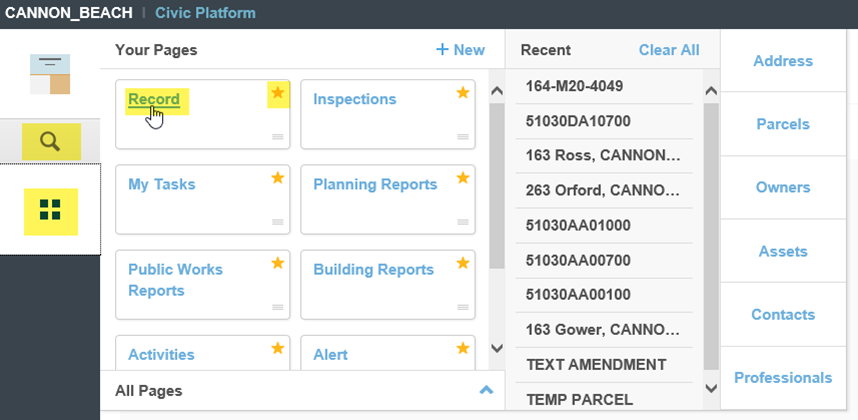
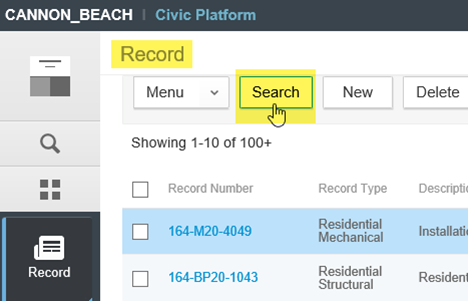
To search from the Global Search, you simply enter the record number – this can be the fastest way to search but displays less detail in the result. To search from the Record list page, select the Search button at the top of the page.
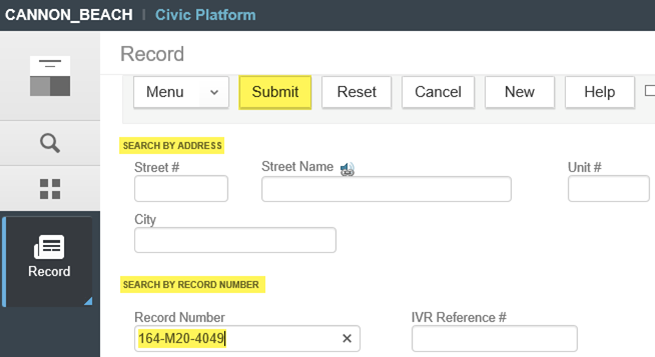
Once the Search page loads, you can search by address or by record number depending on what information the customer provides to you. There are many other search criteria available as well. Select Submit to search.
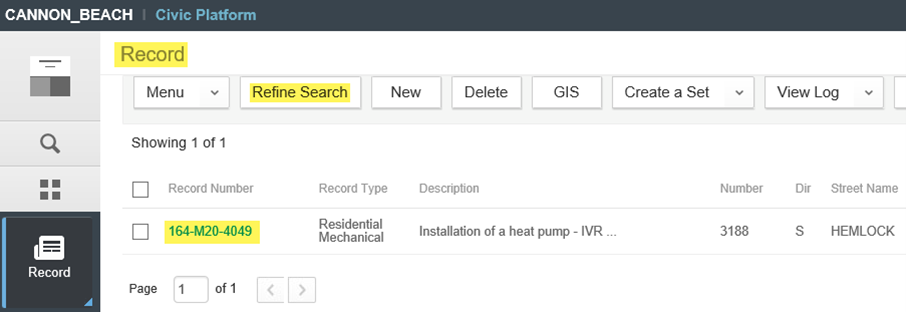
If your search was successful, your result(s) is returned. Note, you can use wildcards (%) in your search, surrounding your search terms, if you are unsure of the exact search terms, ie. maybe you’re not sure how to spell a street name, i.e.. “M%ca% for Micah Street where it could be spelled Myca or Micah.
Click the record number link to open the record. Note, you are in Search mode still as the button reads Refine Search (rather than Search). If you have completed your search, close the Record list completely and open a fresh copy through your Launchpad again. If you simply need to edit your current search, click the Refine Search button to return to your initial search and edit your search criteria as per your needs.
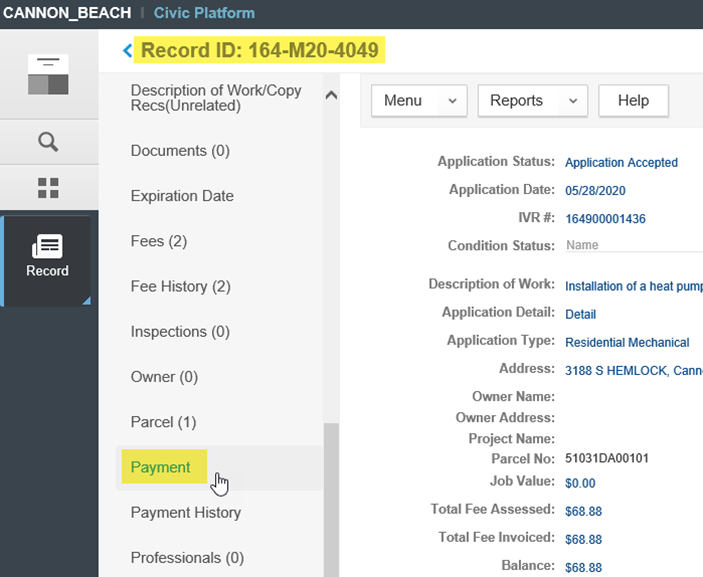
Once you are in the individual record, scroll down to the Payment tab in the light grey Navigation pane.
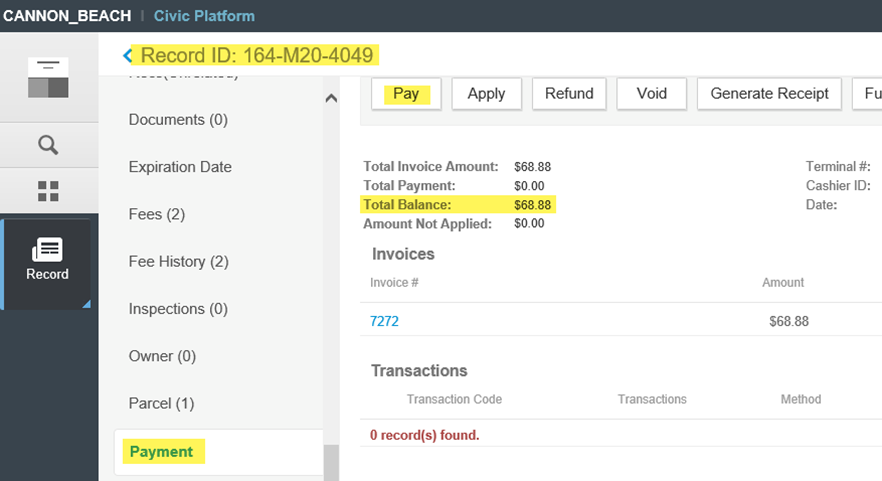
Once in the Payment screen, you will see the Total Balance (outstanding) – this is the amount to be paid. Select the Pay button to initiate a payment.
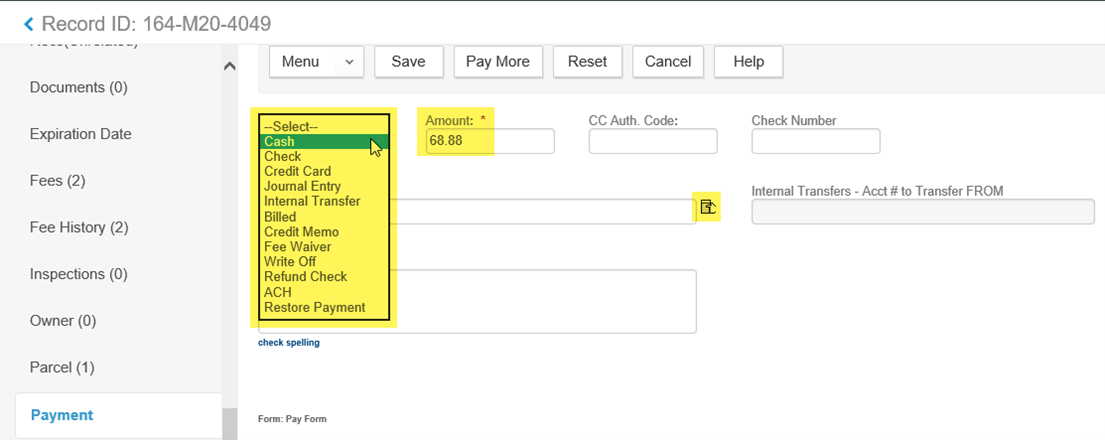
The Pay form will load. Select the appropriate payment method from the dropdown, select the Payor (from the picker - do not free-type in payor as this is not auditable – remember that if the payor is not yet associated to the record, go to the Contacts tab in the Navigation pane and add the contact first, then return to the Payment tab to process the payment). The payment Amount will autofill with the full outstanding balance, make sure to edit this if the customer is not paying in full. Partial payments will require you to disperse the payment to the individual fee items – remember to pay State Surcharge commensurate to any Permit fees you are paying to avoid any State Surcharge imbalance. A Check payment method will require the Check Number field. See next step for Credit Card payment method details.
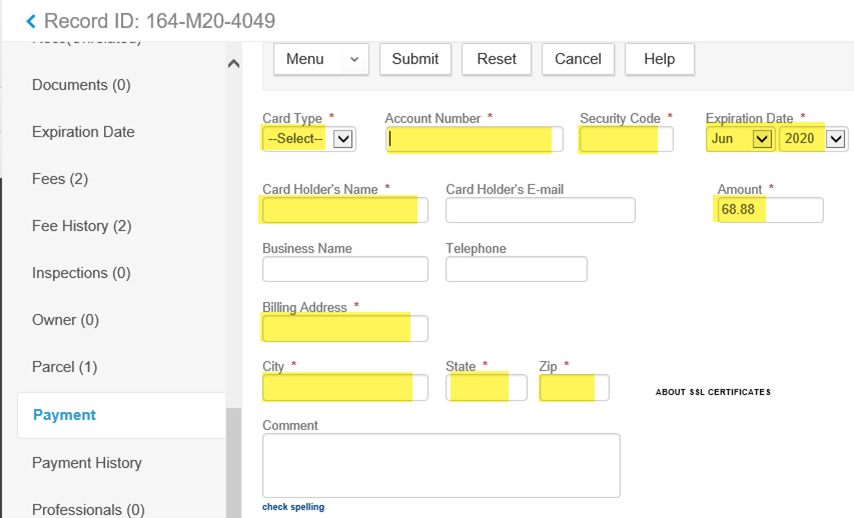
If your agency is processing credit card payments using integrated Converge (you will know this as the credit card form will ask for the actual card number and card details) – you will need to enter all of the required information as per the red asterisks. Required fields are the card type, the card number (not dashed or spaces), the card expiration date, the CVV2 3-digit security code, the cardholder name, and the billing address the card company has on file for statements. Important note, if the billing address as provided by the customer does not match what the card company has on file for that card, your agency will pay a slightly higher transaction rate to process the card.
Select Submit when you are ready to process the card. The system encrypts and sends the card info to Converge for processing (no card information is retained in the Accela database in any way) – once processed, you will receive two separate receipts in pop-up windows. One will be the Converge receipt with the cardholder name, approval code, and a signature line – you need to have the cardholder sign this receipt and your agency retains this for your records and for balancing. The other will be an Accela system receipt simply showing what was paid specifically, account codes, payor, record number, etc – this is the receipt you provide to the customer for their records.