Refunds are only appropriate for invoiced and paid, or unapplied fees resulting from an overpayment. Fees that have yet to be invoiced, having a fee status of new, are deleted instead.
A. Partial refund:
Example - several fixtures applied for, one is not needed
- Locate and select the record you are needing to process a fee refund for – left navigation > Fees
- Check the box next to
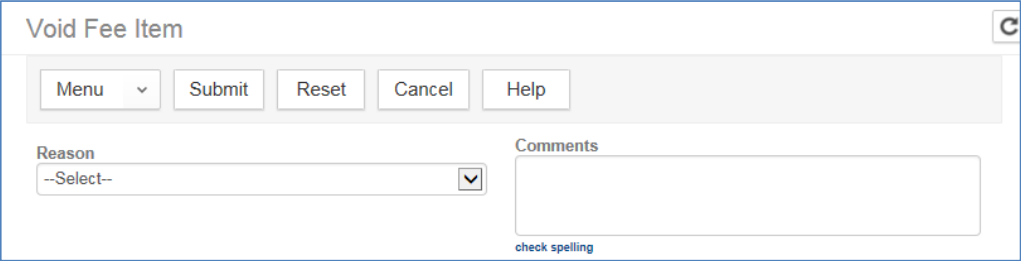
the fee(s) you need to void for refund – select the Void button. A Void Fee
Item pop-up window will open where you will need to select a Reason for the
refund using the dropdown menu, and then enter any pertinent comments – select
the Submit button.
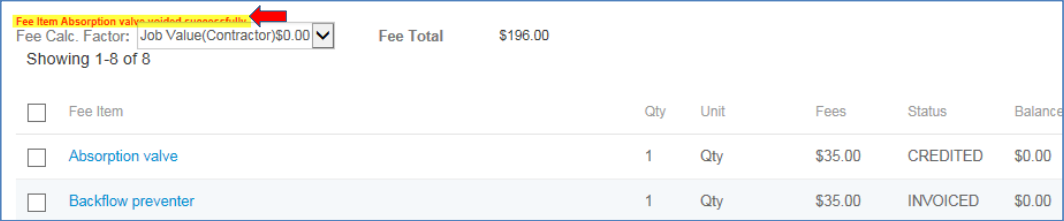
The Fee page will then be refreshed to reflect the changes you have made. There will be a red
confirmation statement of your void, if successful.
- If the fee(s) you are
voiding is an item included in the State Surcharge calculation, the State
Surcharge fee item will also automatically
void to credit and be assessed again as a recalculated “New” fee which will be
a total based on all eligible State Surcharge items. You will need to invoice
this new State Surcharge fee item before moving forward with your refund

- Navigation
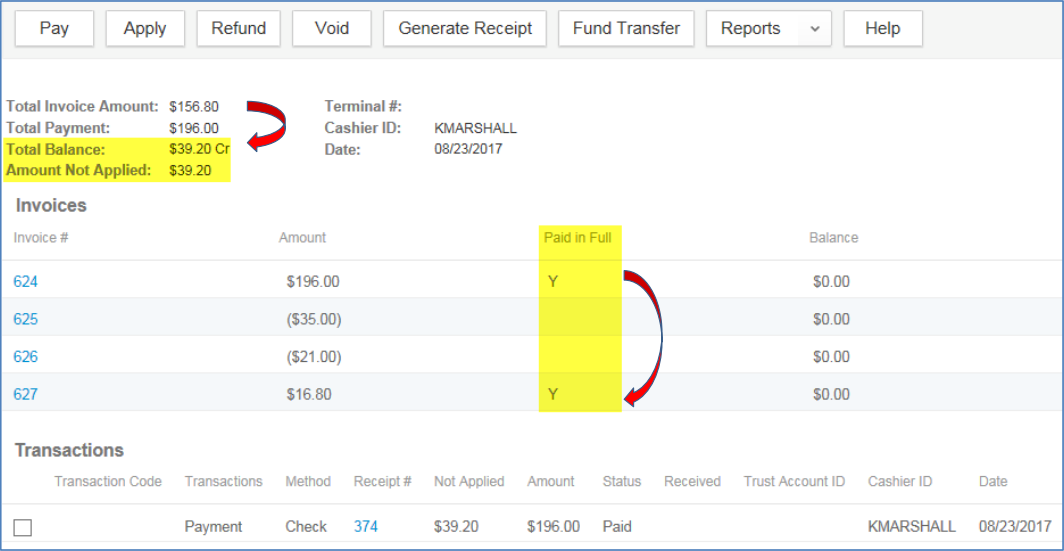
> Payment – here you
should note the Amount Not Applied shows there is an unapplied credit that you
will need to reapply. To do this go to
the Transaction section, checkbox the payment that displays a Not Applied
Amount. Now select the Apply button Note:
If more than one payment is involved, process them one at a time. This will
effectively “reapply” the original payment again to the outstanding newly
recalculated fees.
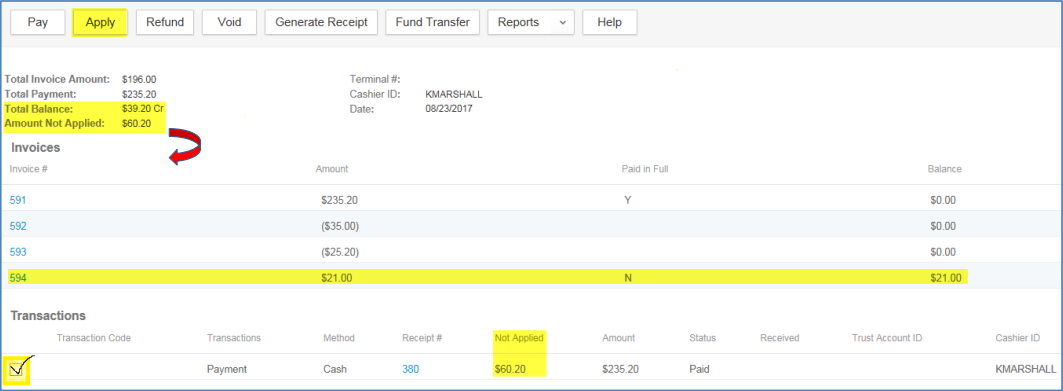
Prior to reapplying the payment, in this example
notice the difference between the Total Balance ($39.20) and the Amount Not
Applied ($60.20) – this difference is the Amount Not Applied ($60.20) minus the
amount of the new State Surcharge fee ($21) = $39.20.
- Once you checkbox the
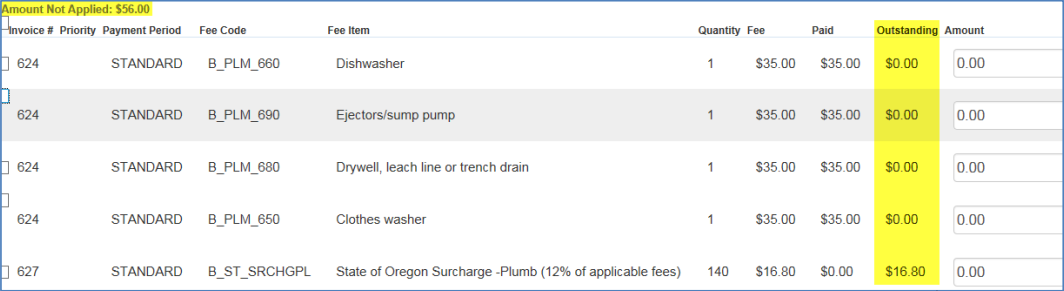
Payment in the Transactions section, select Apply - a Fee Allocation window
will pop-up indicating the current outstanding balance for each fee item
included on the record – most of these will show a $0 Outstanding balance
indicating they are paid. In this example, the newly recalculated State
Surcharge fee will show with an Outstanding balance remaining, as you are reapplying
the original payment to repay the newly recalculated State Surcharge.
In
the example above, there is an outstanding balance indicated, to allocate part
of the original payment to this newly recalculated State Surcharge fee, enter
the total into the Amount field, then Submit.
- You will be returned
to the refreshed Payment page where the Total Balance will now match the Amount
Not Applied – this amount should be the amount that you are intending on
refunding. Confirming that these two items match is a good double-check to
confirm that you’ve take care of any outstanding balance(s)/unpaid fee(s). Also,
while these two may match, make sure you
have invoiced any New fees so they can potentially be paid prior to making
refund.
- Select the Refund button.
The fee allocation window will open again – note that the outstanding balance
column shows all fee items as fully paid $0, and the Total field shows the
refund amount. You will select the Submit button as no actions are required in this window since there is nothing
outstanding – you have already completed all the fee and invoice activities
related to the refund [refer to steps 1-6 for review].
- A payment window will automatically open at Submit.
- Enter which Method you will be paying the refunded monies in: “Refund Check" if your Finance Department will be cutting the refund check outside of Accela (recommended method), or “Cash" if you will be making the refund to the customer directly from your cash till. The “Refund Check" method won't be paid from your daily CASH, so this method exempts the refund from your end-of-day balancing report (“Payments Received"). If you're going to be refunding directly to the customer's credit card (i.e. Converge) then the refund payment method would be Credit Card and would show up as a negative amount on standard financial reports (refund/void). (Refer to the Converge Refund Document)
- The Refund Amount is defaulted in with the remaining amount.

- Complete the Paid To field by using the select icon, making sure to pay the refund to the person that originally paid the source payment.
- Select the Reason from the dropdown list.
- Input any Comments as appropriate.
- Select the Submit button.
9. A transaction receipt
report will be automatically generated – this receipt simply shows the ‘cashing
out’ of the monies from Accela to balance to $0.00. You then need to also
regenerate the original source payment receipt to provide the general
ledger/account code detail side of the refund transaction – do this by
selecting the Receipt # link in the Transactions section on the Payments page (do
not simply reprint the original payment receipt from Documents, this is
ineffective, it must be regenerated). Both
documents should be provided to Finance so they have the required information
to process the refund in the financial system, and cut a refund check. It is
best practice to include a copy of the Refunds Issued v3 report as well for
tracking purposes – this report is located in Report 2 page > Financial
Reports v3 subcategory > Refunds Issued v3.

B. Full refund: refund of all fees in a group of fees at 100% rate of refund
Example: Permit application withdrawn or cancelledThe process is the same as for partial refunds above, excluding steps 3-5 – complete steps 1 and
2, picking back up at step 6 at the Payments page > Transactions and continue through to step 9 to
complete the full refund.
C. Processing Permit Fee Retention for work completed prior to consideration of refund:
The Permit Retention
fee* differs from an administrative Refund Processing fee as it is the
retention of a portion of the paid
permit fees for work already
completed, such as Inspections. The Oregon Standard Model has the Permit
Fee Retention broken out into 3 standard percentage rates to assist with this.
Additional percentage breakdowns can be configured upon request.
The administrative Refund Processing fee is determined to be a flat fee, separate from and in addition to, the paid permit fees. It is this distinction that indicates that the Permit Retention fee is subject to State Surcharge, where the Refund Processing Fee is not, and why permit fee retention precedes the refund process, if applicable.
* Please note, planning and public works retention fees might be configured differently. Building State Surcharge will not apply in these modules and will not be a factor in your retention.
1. Complete steps 1 and 2 from section A above – voiding to credit all paid fees, in full at a 100% rate.
Note: Retention of Plan Review fees are not subject to State Surcharge.
To process the Permit Fee Retention, go to the Fees tab in the record navigation. Select the applicable permit fees that have been invoiced and paid, and void them to credit if they have not been credited already.
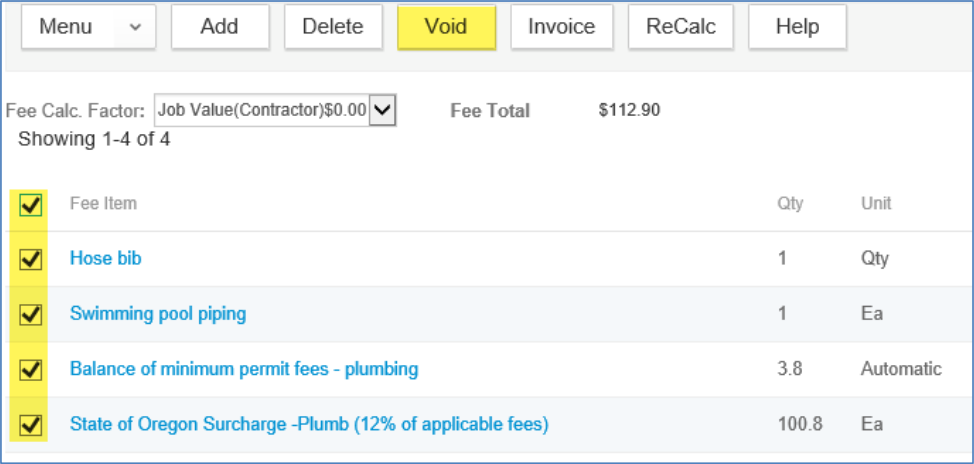
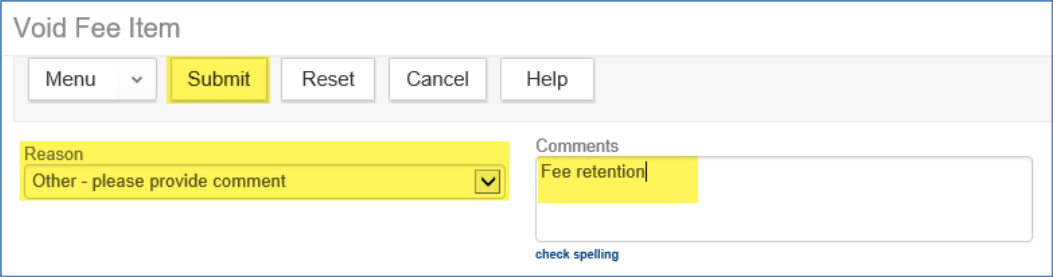
2. Select the Add fee button.
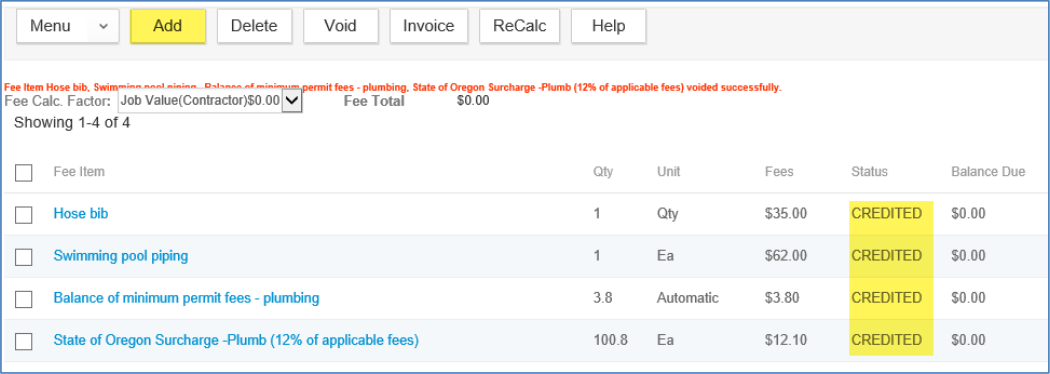
3. Locate the Permit Fee Retention with the percentage of the permit fees to be retained.
4. Enter the total amount of permit fees in the
Quantity Box, that were paid and are eligible to be potentially refunded, excluding
previously paid State Surcharge.
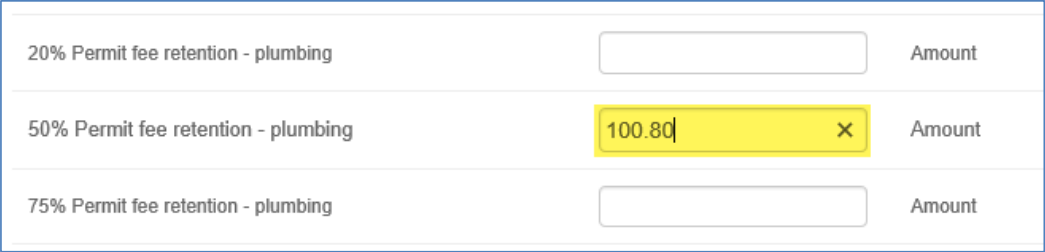
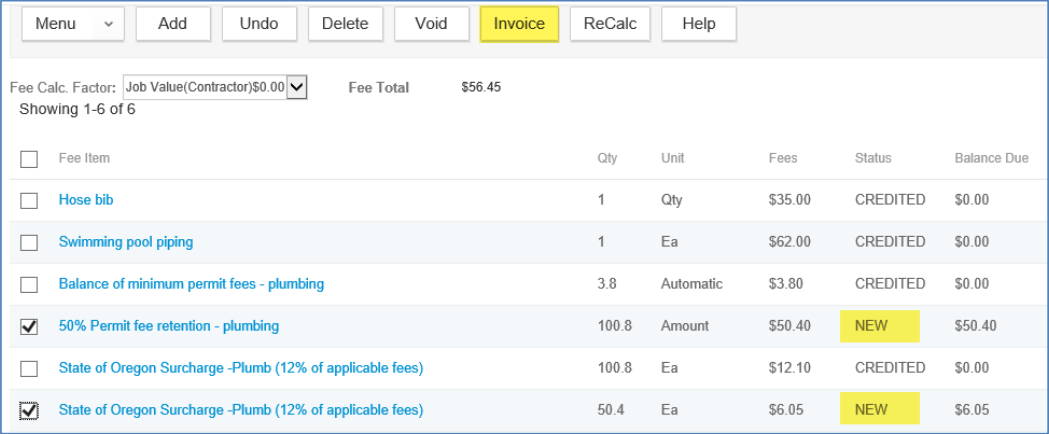
5. Click Submit – the Permit Retention fee will
calculate the percentage at the rate you selected and will automatically
recalculate State Surcharge at 12% of what is being retained. Invoice the new
Permit Fee Retention and State Surcharge fee items.
6. Go to the Payment tab. Note that you now have unapplied fees, from voiding the permit fees to credit, in the Amount Not Applied. Checkbox the source payment in the Transactions section that shows a Not Applied balance (transactions appear at the bottom of the Payment screen). Select the Apply button to now reapply these monies.