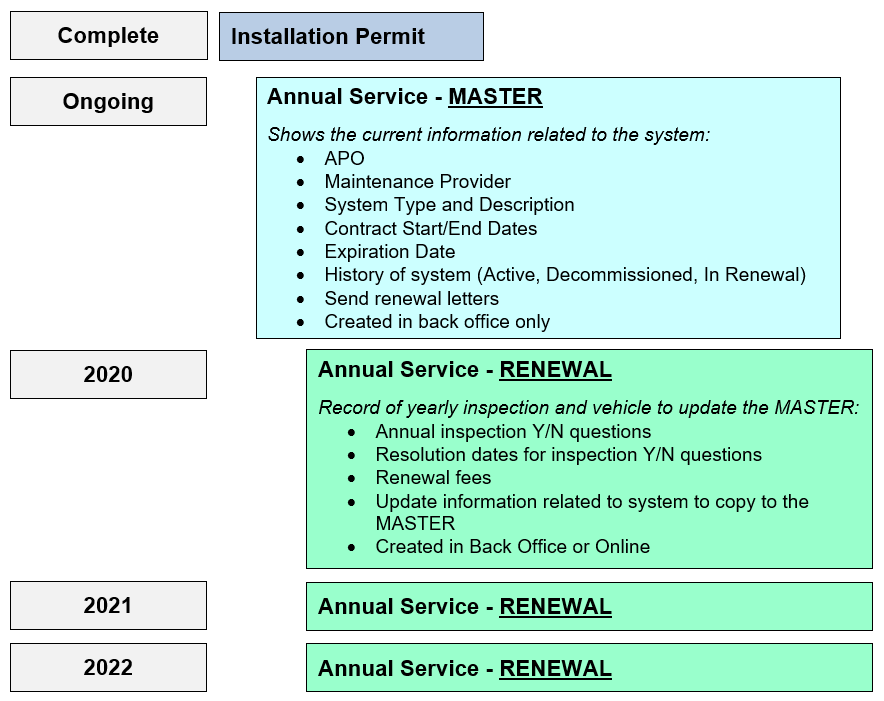
Record relationship
This diagram describes the purpose of each record and the hierarchy relationship between the Permit, Master record, and Renewal record. In most cases, this will be the hierarchy but there may be exceptions where the Permit is not related, for example when the Permit was not converted or created in Accela.
Creating master records
There are three ways to create an Onsite Annual Service Master record:
Method 1 – automatic from Onsite Permit workflow
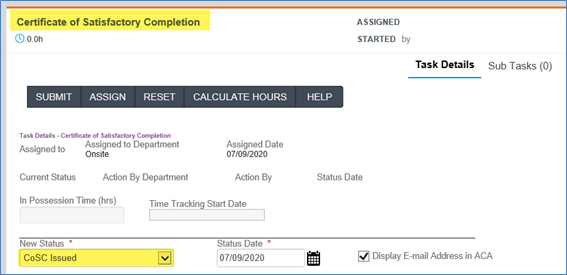
The first method is automatic. For counties participating in the new Onsite Renewal feature, as soon as an Onsite Permit C of SC is Issued through workflow, a Master record will automatically be created and becomes a Child record of the Onsite Permit.
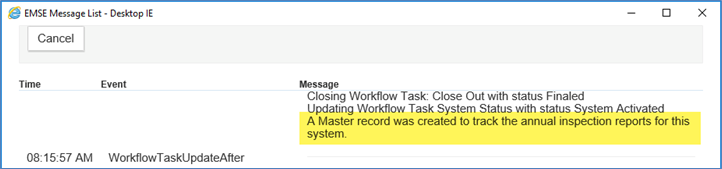
A pop up message will remind the user that a new child Master record was automatically created.
The Related Records page shows the new child Master record.

Now, the Contract Start and End Dates can be entered on the Master record to help track maintenance contracts. Also, be sure to verify all information is accurate (Address, Parcel, Owner, Licensed Professional, Contacts, System Type).
Method 2 – Clone from Onsite Permit
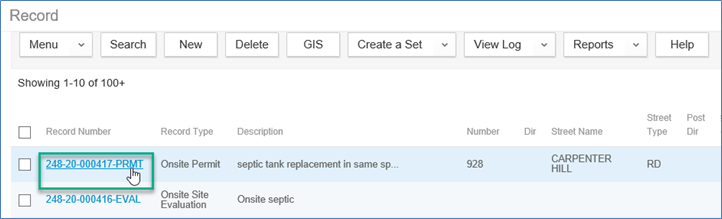
The next two methods are manual. Click on the four-square Launchpad icon > open the Record list page > Click on the Record Number hyperlink to open.
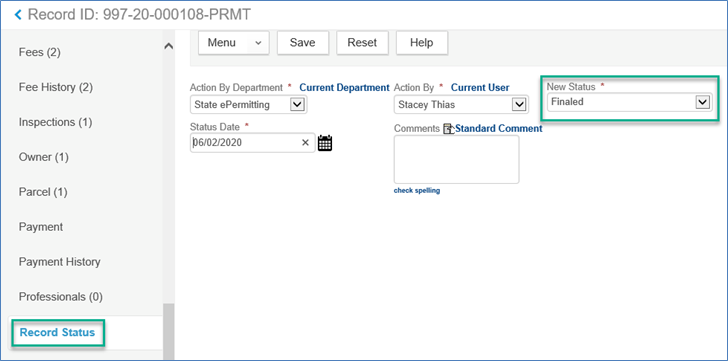
Note: Verify that the C of SC has been issued by clicking on the Record Status tab in the left navigation – the record should have a record status of Finaled.
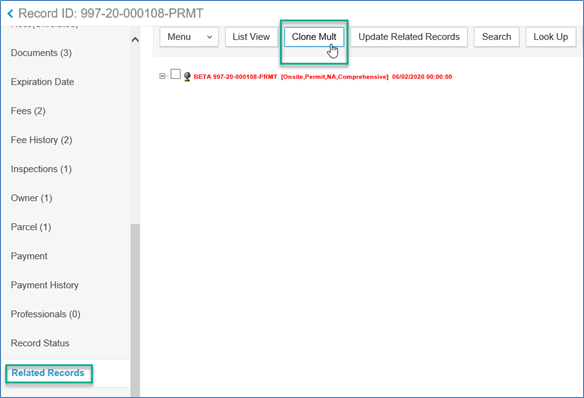
Start by verifying that there hasn't already been an Onsite Annual Service Master record created, by clicking on the Related Records tab in the left navigation, you should only see one record listed. Next, click the Clone Mult button.
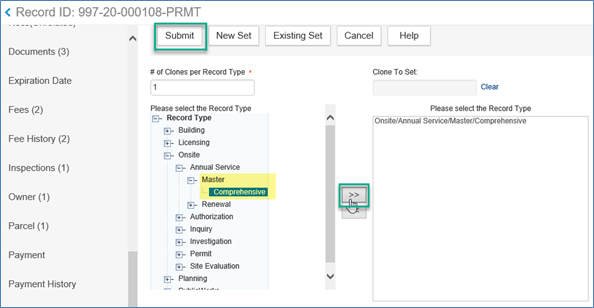
Navigate to the record type Master (Record Type > Onsite > Master > Comprehensive), then click on the double arrow button to move the selected record over into the box on the right of the screen. Then click Submit to continue.
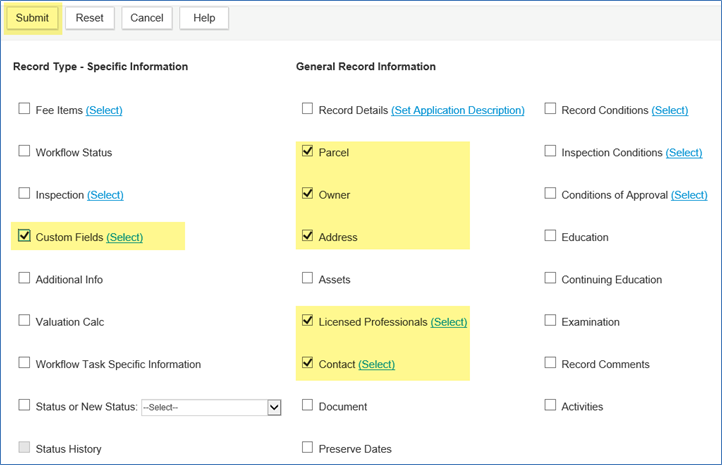
On this screen you will select the information from the original permit record that will be copied into the new Master record. It is recommended to only bring over the Parcel, Owner, Address, Licensed Professionals, and Contact from the center column and the Custom Fields information from the first column. Click in the check box to select and then click Submit.
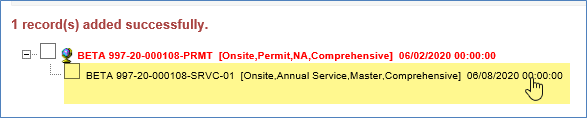
The new record has now been created. Click on the new Master record to open it.
Method 3 – Create from the intake form
Another way to create a MASTER record is by clicking the New button. Navigate to the record type Master (Record Type > Onsite > Master > Comprehensive).
Then you would need to fill in the required data on the intake form and submit to create the new record.
Note: If you do not have an installation record/permit, manually creating a New record would be the way to create a Master record.
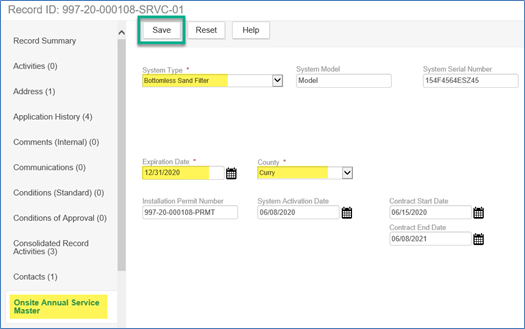
With the new Master record open, click the Onsite Annual Service Master tab in the left navigation. Then fill in in the required information and click Save.