Processing a single record through payment:
A Renewal Record can be processed through the back office by submitting payment in full or by updating the workflow. The fastest method is by submitting payment in full.
- IMPORTANT: All Renewal records processed in the back office must start from the Master record. The first step is to search for the appropriate Master record (ending in -SRVC).
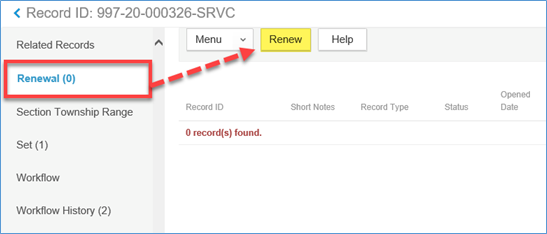
- Once the Master record is selected, navigate to the Renewal page > click Renew.
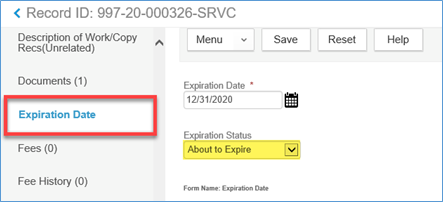
Note: If you do not see the Renew button, navigate to the Expiration Date page and verify the Expiration Status = About to Expire. If the Expiration Status is different, this Master record may have already been renewed for this year. The Expiration Date will help you determine this.
- As soon as the Renew button is clicked, the intake form for the Renewal record will display and will be pre-populated with all of the existing data on the Master record.

- You can optionally update any of the data on the intake form and once the Renewal is complete, the Master record will be updated with any changes you have made. However, it is suggested if you have property changes, you do that directly on the Master record.
Note: You will be required to update on the Renewal record any missing required data, Applicant, and the annual inspection Y/N questions.
IMPORTANT NOTE FOR HOLDING TANKS
There are three subtle differences when “renewing" Holding Tanks. Aside from these three items, everything else is the same on the intake form and the process in general is the same.
The license professional is required. You can use License Type Owner (Property Owner).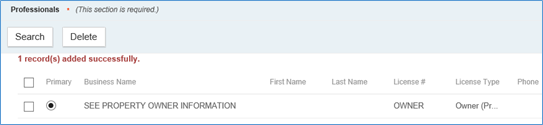
The annual inspection Y/N questions are not required. You can just skip past these fields.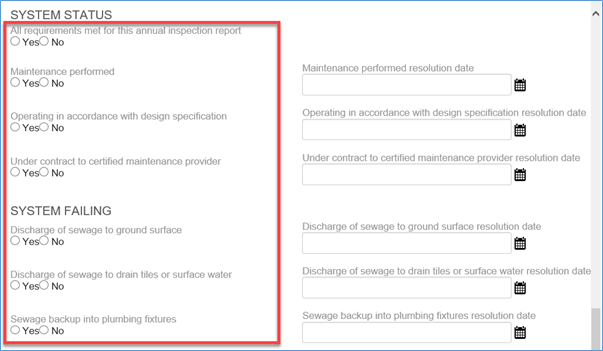
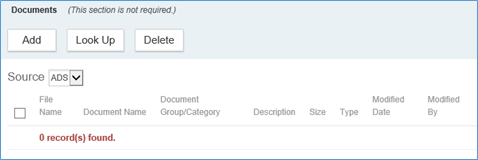
The Documents portlet is available for uploading the property owner's annual pumping record.
- Once all the information is updated correctly on the intake form, click Submit.
- View the new Renewal record by going to the Renewal page > then click on the Record ID.

If any of the annual inspection Y/N questions were answered negatively, a Notice Condition will automatically be added to the Renewal and Master record.
At this point, you can make any additional changes to the Renewal record data that should be copied to the Master record. Or you can continue to complete the Renewal by submitting a payment in full.
- Navigate to the Fees page > verify the fee is correct and INVOICED.

- Navigate to the Payment page > submit payment in full. You can print or email the Receipt document to the customer for their records.
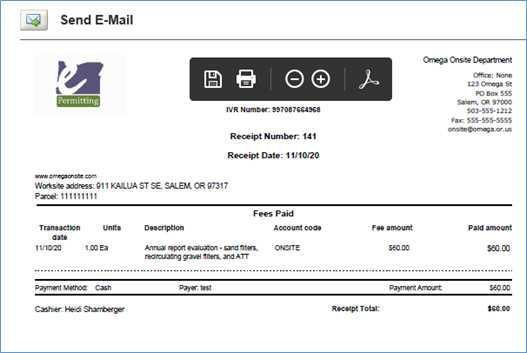
- Once payment was submitted in full (no balance is left on the record) the following actions took place. At this time the Renewal is complete and is ready for the annual inspection report to be submitted next year.
Processing a single record through workflow:
There may be rare times when you may need to complete the Renewal through workflow. For example, if no payment is submitted on the record.
- Follow along with steps 1 – 8 above.
- Navigate to the Workflow page.
- Update the Renewal task with Renewed status.
- At this time the Renewal is complete and is ready for the annual inspection report to be submitted next year.
Processing multiple records through a set payment:
You can process multiple Renewal records through a Set Payment. You may want to do this if a maintenance provider submits multiple annual inspection reports to your office with a single check. This process is not available through Citizen Access.
- Follow along with steps 1 – 8 above.
- Create a Set with the appropriate records. You can create the set by performing a Record search (for example, searching for all the Renewal records with a particular maintenance provider) or go to the Set page and search and add the Renewal records one at a time.
- Navigate to the Payment tab > click Pay button.
- Enter the payment information > click Pay.
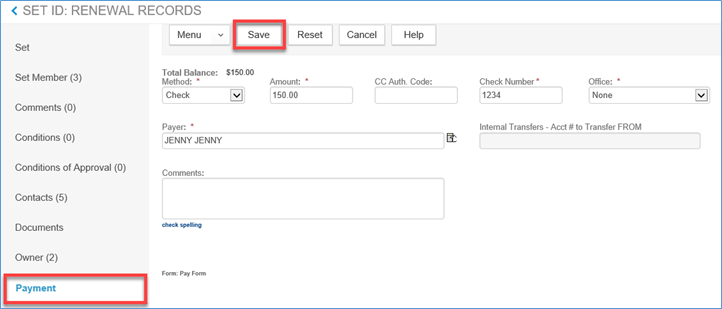
- At this time the Renewal is complete for all Set Members and they are ready for the annual inspection report to be submitted next year.
Data from the Renewal record is copied to the Master record, including Address, Parcel, Owner, Primary Contact, Maintenance Provider, System Information.
Managing annual inspection questions:
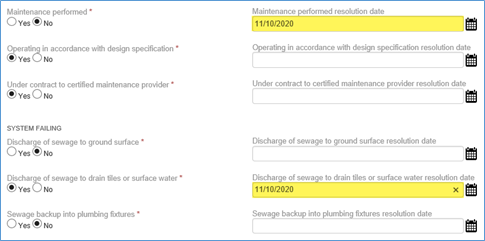
If any of the annual inspection Y/N questions were answered negatively, a Notice Condition will automatically be added to the Renewal and Master record. These records may need follow up with the maintenance provider or property owner.

- Use the Record List Filter called Annual Service Renewals – Negative Results to retrieve a list of Renewal records where at least one of the annual inspection Y/N questions was answered negatively.
- Follow up as needed and record communication through Internal Comments, Workflow Emails, Activities, or any other method that you typically use in your agency.
- To automatically remove the Notice Condition, navigate to Onsite Annual Service Renewal and do one of the following:
- Update each Y/N question with a positive answer.
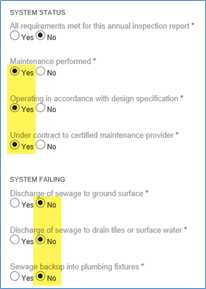
- Leave the negative Y/N answers as-is and enter a resolution date.