Why connect master records to Reference APO:
Master records will be “Active" records in the Accela system for the life of the installed system, or until it becomes decommissioned. It will be easier going forward to get the current Owner in the years to come as the renewal period rolls around and letters need to be sent to the current Owner when these records are connected to Reference APO.
Some Master records will already be connected to Reference APO in these scenarios:
- Counties with a data conversion (> 100 systems):
- Some records will already be connected to Reference APO because they are converted from the Permit created in Accela.
- Master records automatically created from CSC Issued in workflow from Permits created in Accela.
- Cloning from a Permit that was created in Accela.
- Using the “New" button to create the Master record.
Master records that are most likely to be disconnected from Reference APO:
- Counties with a data conversion (> 100 systems):
- Permits that were converted (created in the system used before Accela), are most likely to not be connected to Reference APO.
- Master records automatically created from CSC Issued in workflow from Permits that were converted (created in the system used before Accela).
- Cloning from a Permit that was converted (created in the system used before Accela).
Time commitment:
It takes about 1.5 minutes to connect each Master record to Reference APO, following along with these steps.
Steps:
- Under Onsite Reports > generate report called Onsite Annual Service System Audit.
The date parameters are looking at the date that the install Permit record was Finaled. Enter a date that will go far enough back to retrieve all Permits records. In this example, I used 1/1/1900:
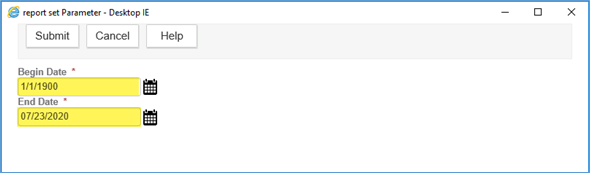
- There are two sections in this report: 1) Permits that are missing the Master record; and 2) Master records missing the Reference Parcel. You should pay attention to the second section.

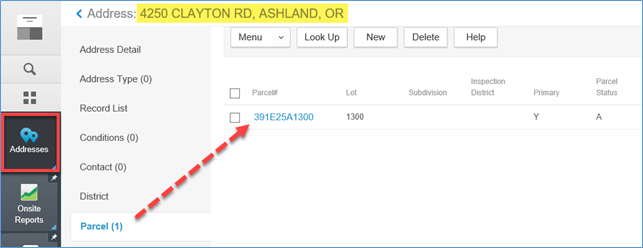
- Search for the Master record > navigate to the Address page.
Note: Even though the report is showing Master records that are missing the Reference Parcel, they will most likely be missing the Reference Address and Reference Owner too. Starting from the Address is going to be the easiest method for connecting.
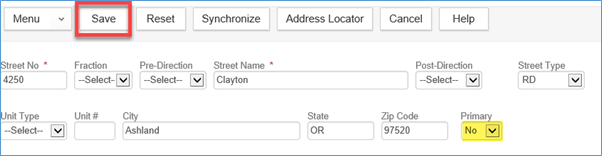
In most cases, there will already be an Address listed. Click on the Street # hyperlink to see the details.

Update the Primary value to No > click Save. This will allow the Reference Address added in the next step to be the Primary address.
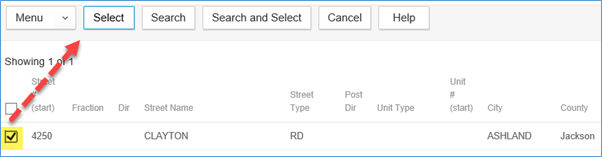
Click Look Up > search for the Reference Address > checkmark the address > click Select.
A popup window will appear. IMPORTANT: Checkmark Select All to also select the Reference Parcel and Reference Owner.
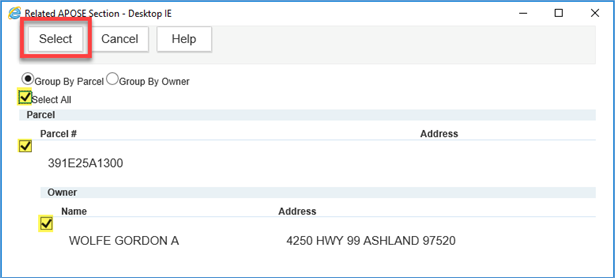
At this point, the Master record has been successfully connected to the Reference APO! But the previous Address, Parcel, and Owner should also be removed.
On the Address page > select the previous Address > click Delete.
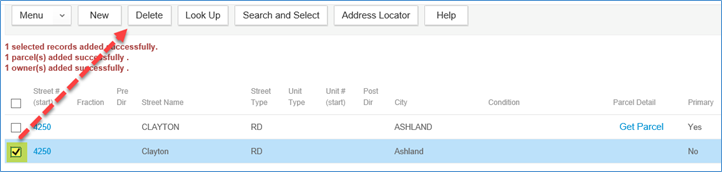
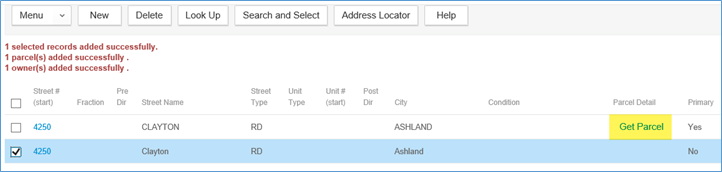
Tip: If you don't know which address is now the correct address, it is the address that shows Get Parcel. The other address should be deleted.
Navigate to the Owner page. There will likely be two Owners. Remove the previous Owner.
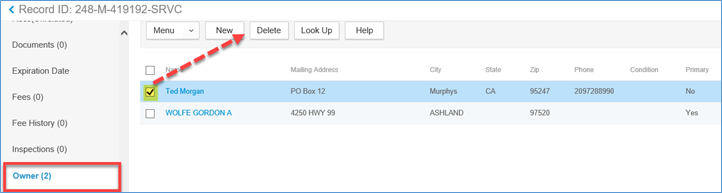
Tip: If you don't know which Owner is now the correct Owner, you can open the Launchpad > open the Reference Parcel page > search for the Reference Parcel and note the Owner that is associated.
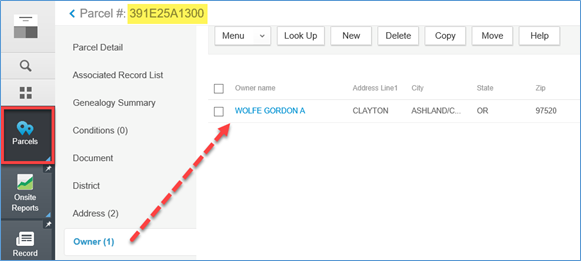
Navigate to the Parcel page. There will likely be two Parcels. Remove the previous Parcel.
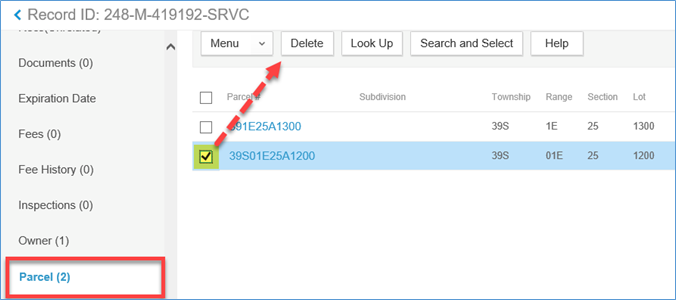
Tip: If you don't know which Parcel is now the correct Parcel, you can open the Launchpad > open the Reference Address page > search for the Reference Address and note the Parcel that is associated.