Addresses are made up of three parts, a parcel, an owner and an address. When you create and address you need to create each part to make the full address or your permit will be missing information. The information below shows how to make all of the addressing parts as a reference address which makes it available to be reused.
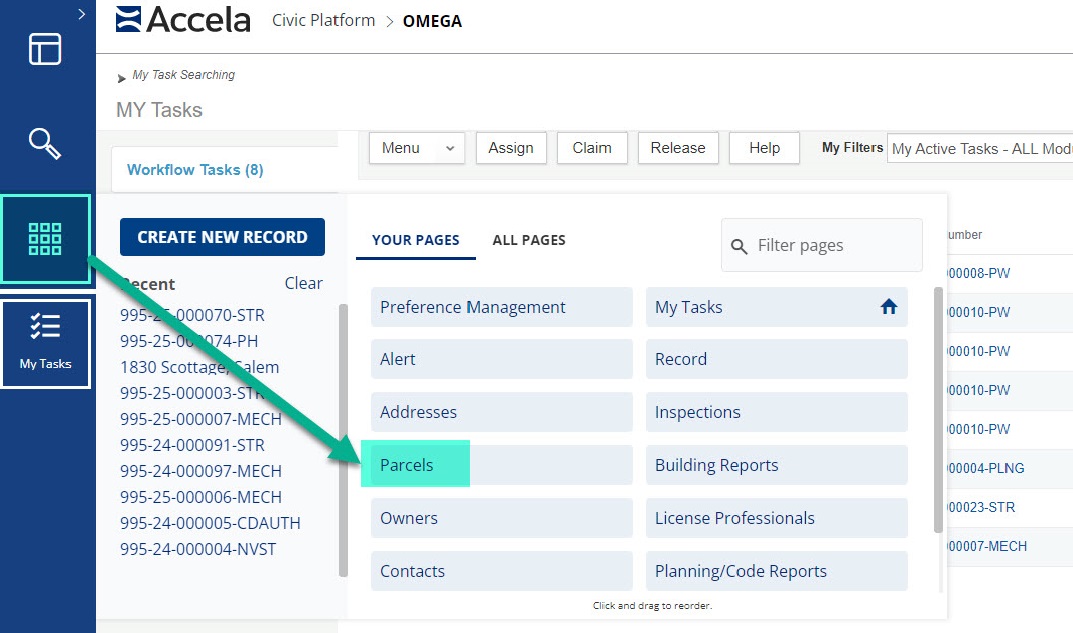
To add an address, go to the Launchpad (nine squares) and select 'Parcels'.
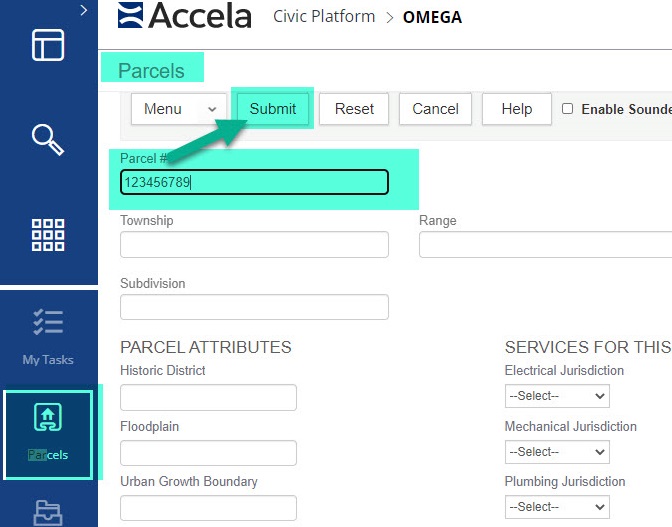
In the Parcels page, enter the parcel number then the submit button to search for the parcel to see if it is in the system.
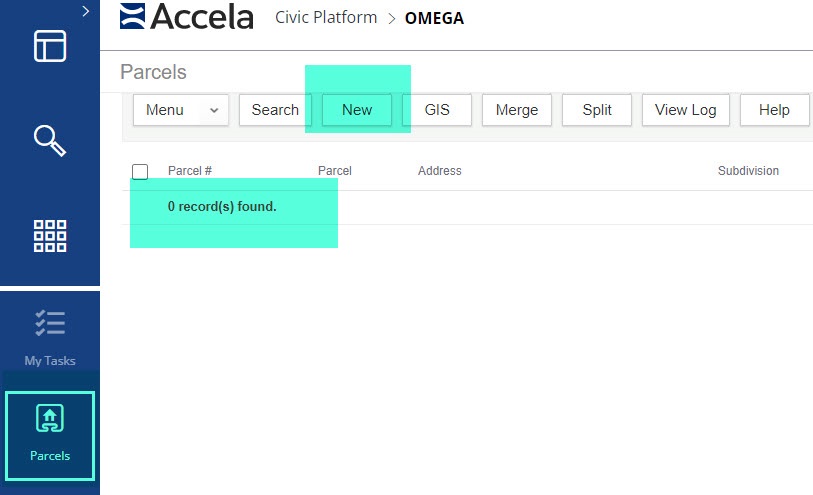
Note: You will not be able to see the ‘New’ button until after you have performed a search as this prevents duplicate information from being entered and all addresses must be tied to a parcel.
If the parcel does not exist in the system, click on ‘New’ to create a new one.
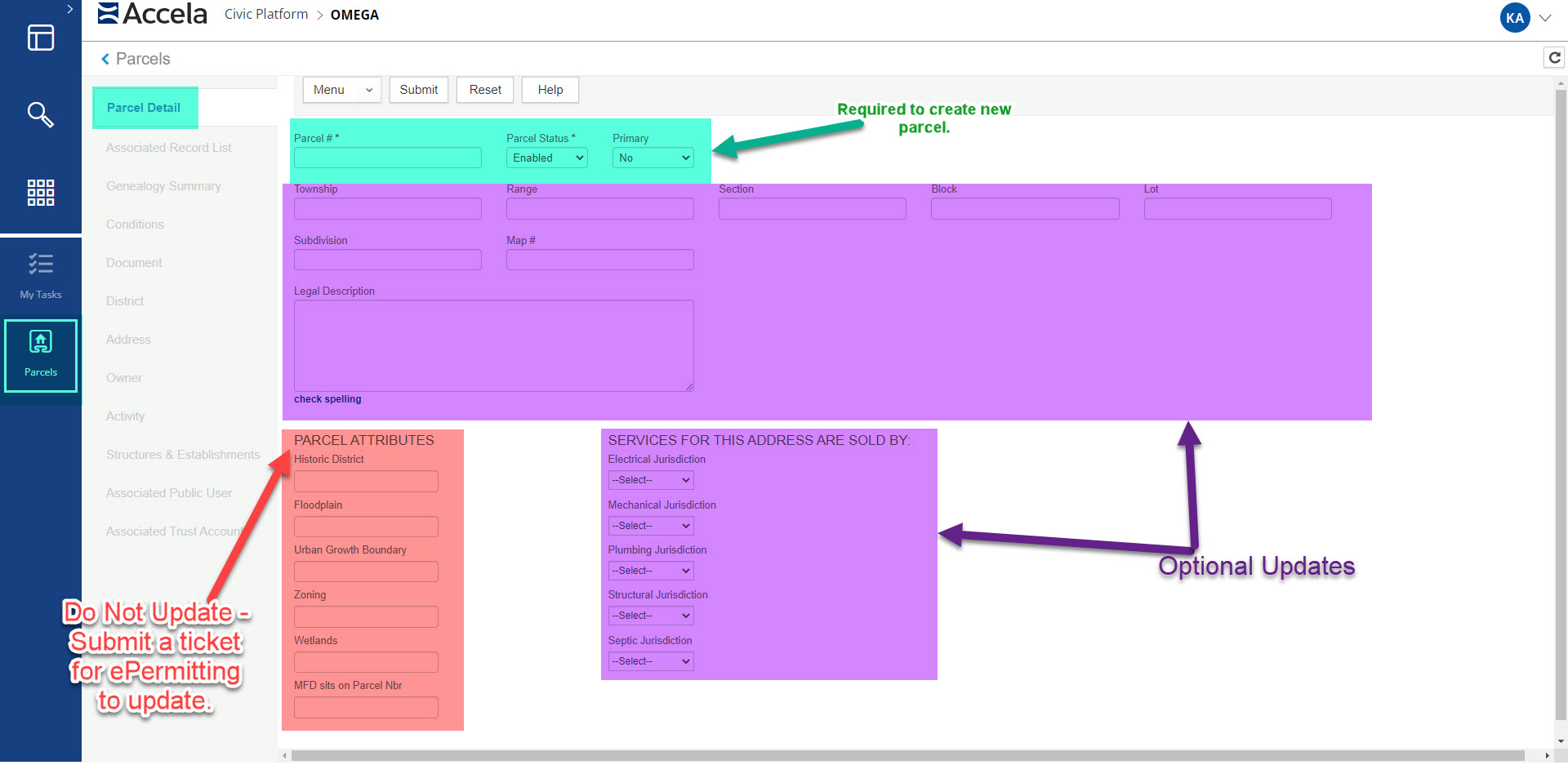
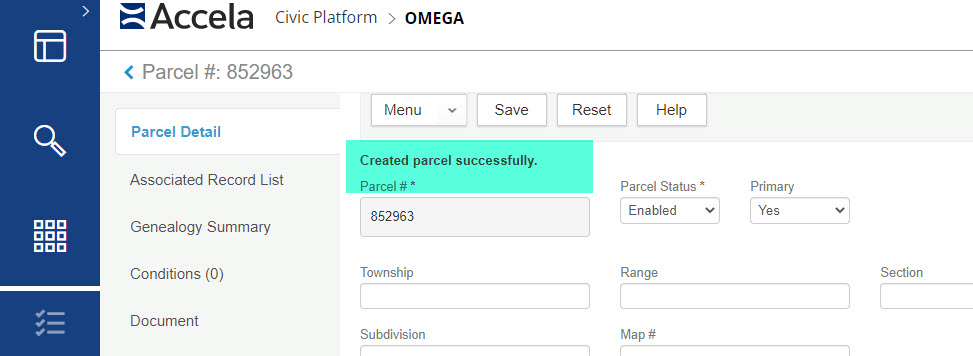
Continue creating the parcel by adding the parcel information into the fields. You are required to have the parcel number and to verify if the parcel status is enabled, change the primary selection to yes. If you know the township, range, section, block, lot, subdivision, map # or if there is a legal description needed add them. If you are a county you can also update the 'Services For This Address Are Sold By' section for what services are provided by the county or city. Note: Parcel Attributes are loaded by a script and need a specific designation
DO NOT update these. If you need them updated please submit a Ticket with ePermitting with the parcel number and Parcel Attribute needed. Once you have the information entered submit to create the parcel.
A message will appear saying 'Created parcel successfully' when it creates the new parcel.
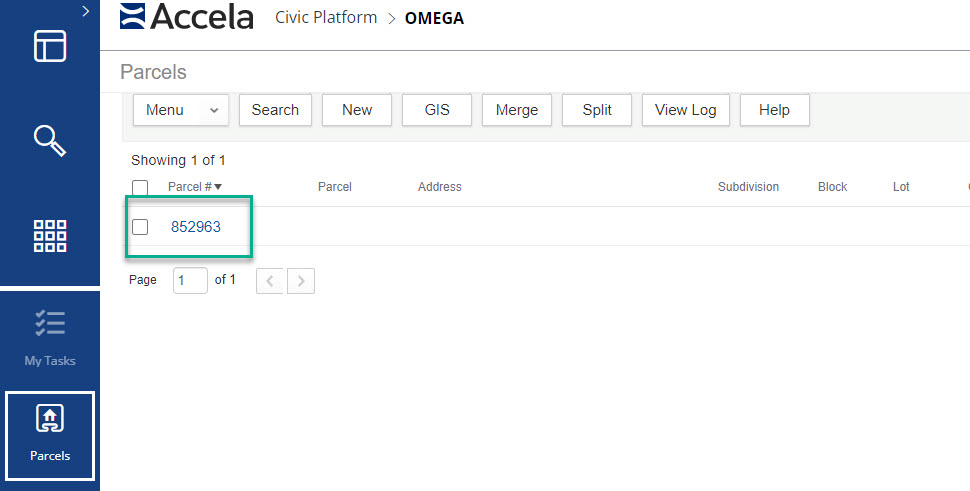
If the parcel does come up (or after you have created the parcel) when searched click on the parcel number to open it.
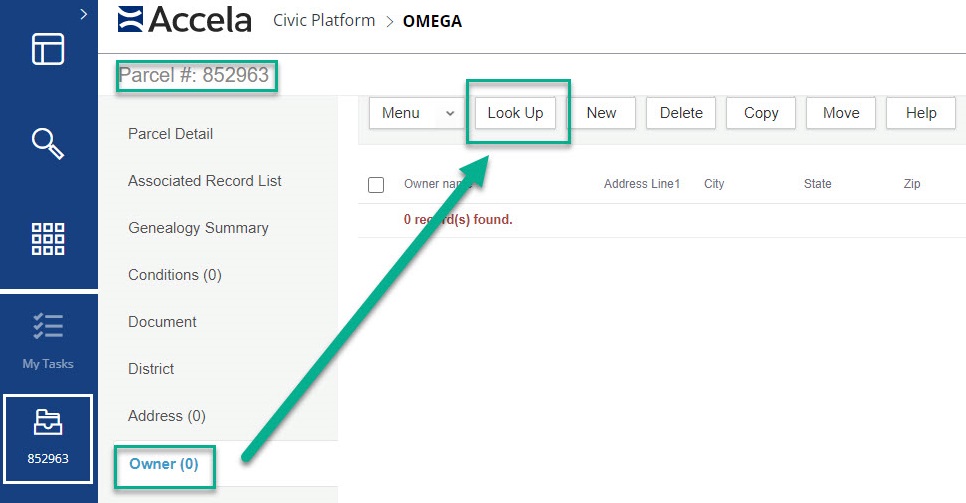
In the Parcels page, click on the owners tab to look up the owner information (this is important to do first so you don't duplicate the owner).
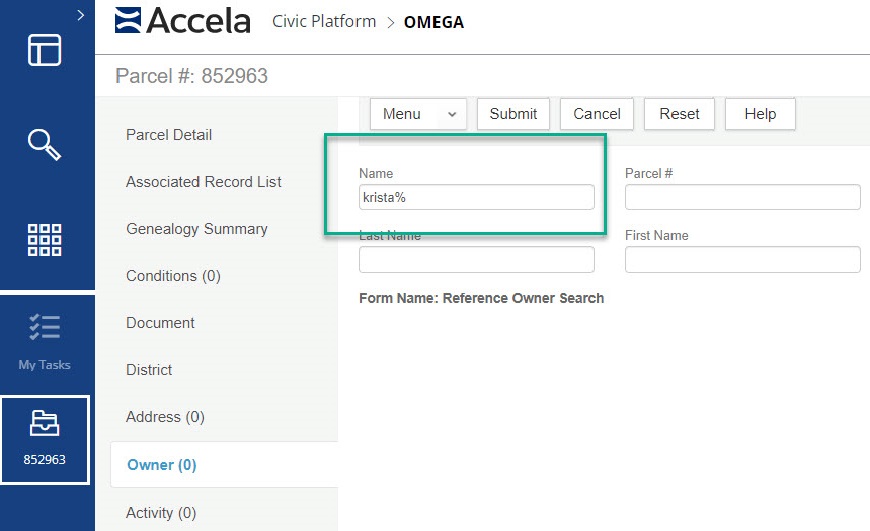
When you search be sure to do a partial search with a 'wildcard' which is a % to ensure you are getting the most accurate search results.
If the owner is found check the box next to their name and click on the select button.
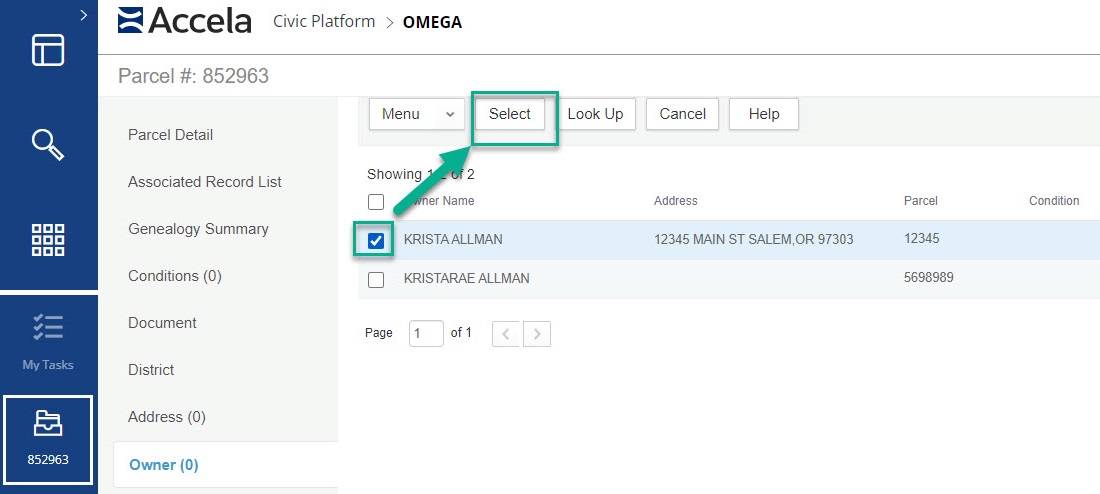
Note: If you need to add multiple owners to a parcel follow the above steps to find/select the additional owner.
If the owner you are looking for is not showing in the search go to the Launchpad (nine squares) and select 'Owners' - this will allow you to create a reference owner. The page will have you search for part of the owner's name again and after the search the 'New' button is available, click on new then fill in the owner information making sure to fill in the name, phone number and email address at minimum along with making sure 'Primary' is set to 'Yes'. Submit when completed.
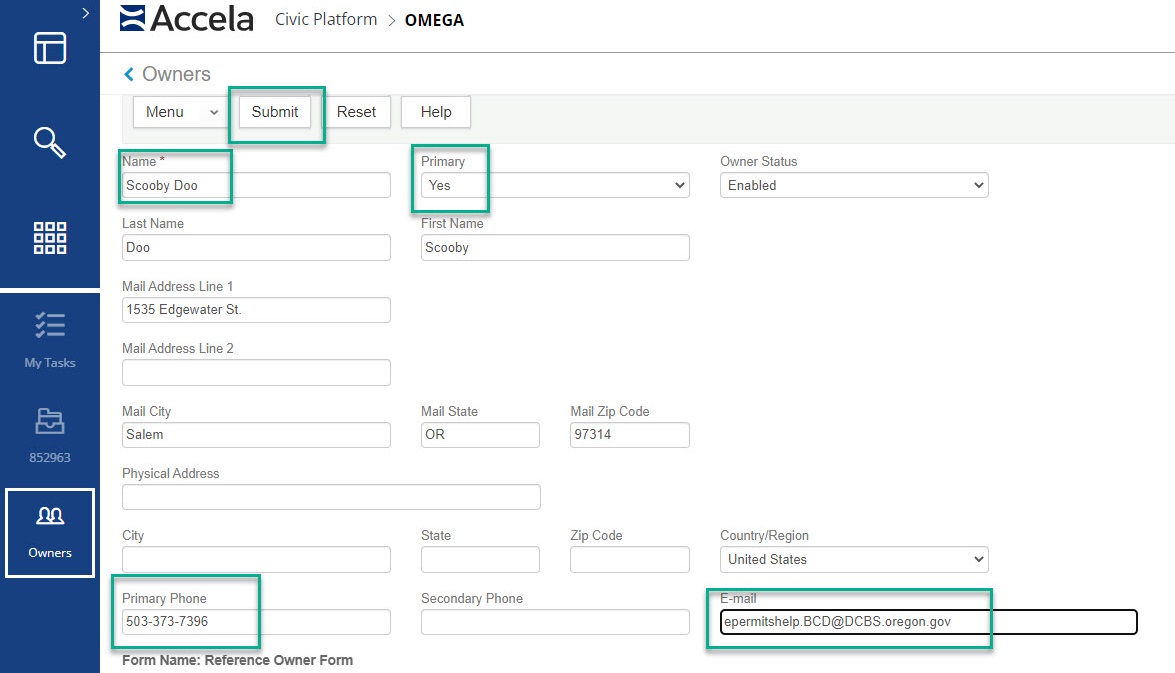
Now that the reference owner is created go back to the owner page in the parcel page and lookup the owner then to a partial search for their name. Once found check the box next to their name and submit. You now have your owner and parcel connected.
Lastly, connect the address to the parcel to complete the process. In the parcel page go to Addresses tab and search for part of the address to see if the address is already in the system. (be sure to use the % wildcard to search.) If you do find it in the search then check the box next to the address and click on select to add it. If it does not come up go to the Launchpad and select the addresses page.
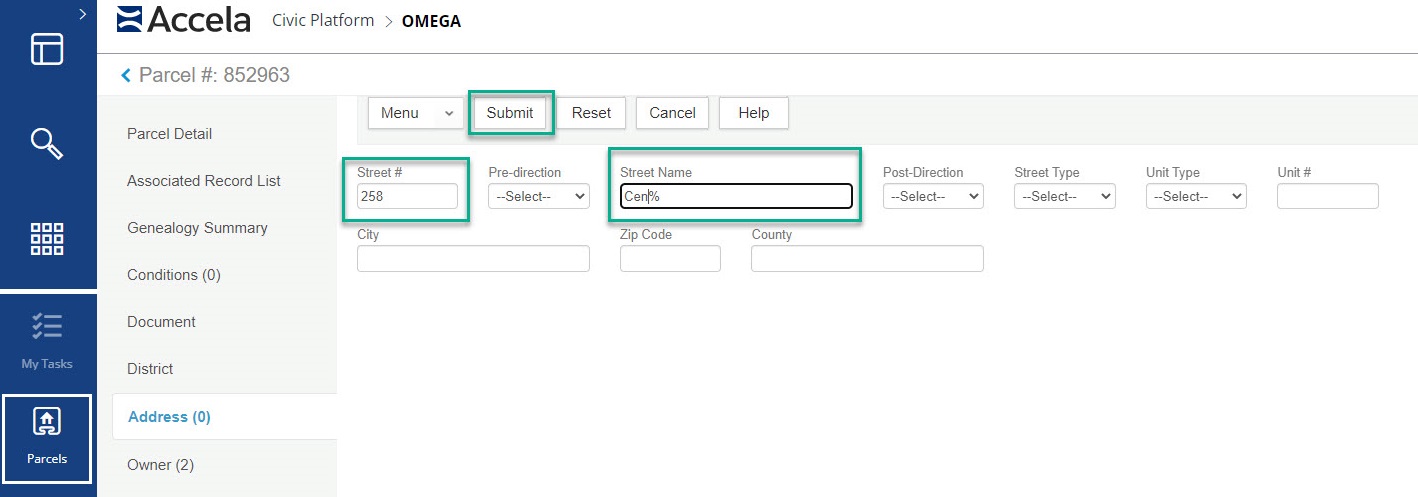
Do a partial search for the address again then search and if nothing still comes up select New. Fill in the Address Information you have. Note: Look at how other addresses are entered - do they have all caps for the words or mixed case? Follow the same method as the other addresses so if the address is in a future load it's not duplicated. Once you have the information entered for the address select submit.
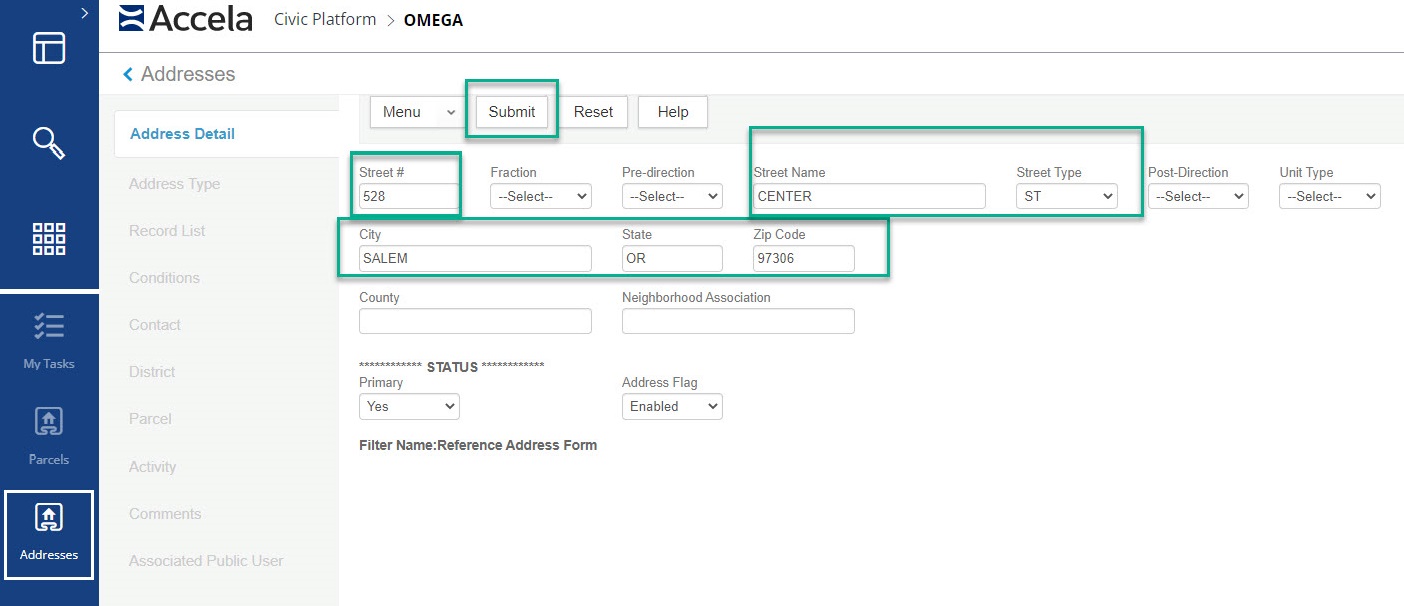
IMPORTANT: If you want customers to be able to apply at the address online you need to add an address type by going into the Address Type tab in the address page.
To add the address type, click on the Look up button, then submit to see your agency then check the box next to your agency and click on select to add the address type.
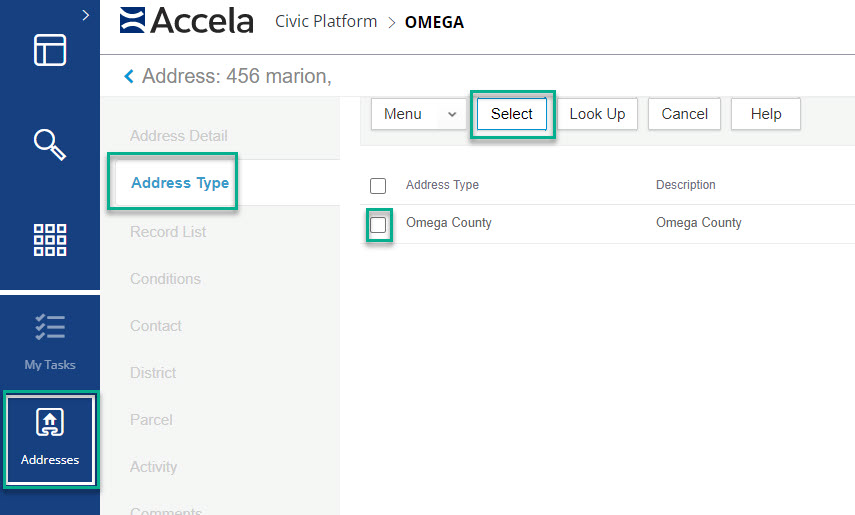
Lastly, in the address page go to the parcel tab and look up the parcel you created and select the submit button to search for it.
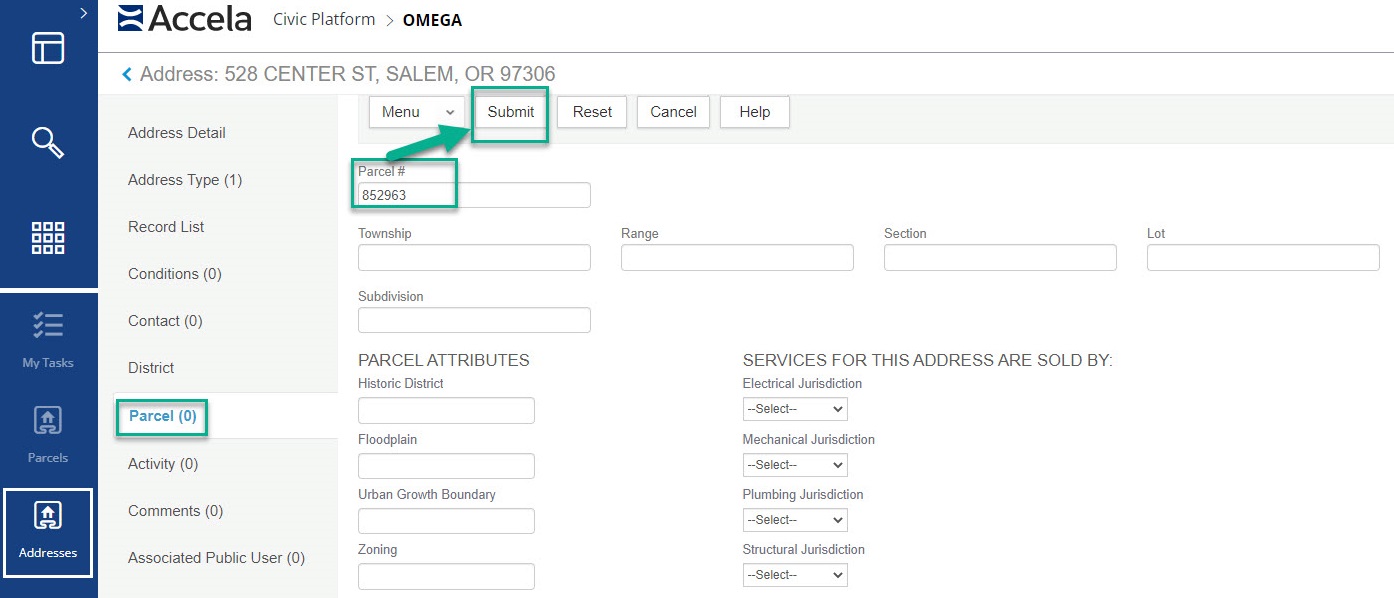
The parcel you created will now be in your selections list, to select check the box next to the correct one and click on the select button.
You have now connected the Address, Parcel and Owner and are now available to be used throughout the system.