Owner information can change often – with sale or transfer of property and changes to owner contact details, either on existing records and/or in Owner reference data. Both can be easily managed and are important to the maintenance process.
Changing Owner on an existing record
- First, confirm the owner that you are changing to, is available as an owner in the
Owners reference page.
Launchpad > Owners, search for the new owner you are looking to move to. Remember smart searching when searching owners and use the Accela wildcard '%' around your name search.
If
no matching owner result is returned and you have thoroughly searched – see training article
“Adding and Maintaining APO data in Property reference"
on how to add a new owner to reference.
- Browse to the record through Global Search or Record List Search > go to the Owner tab on the record. Select Look Up, search to the new owner you are changing to – checkbox the matching owner record and Select to add them to this individual record.
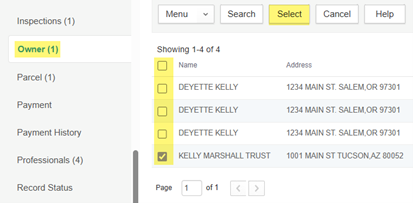
- You will then be asked if you wish to also add the Parcel and Address information associated to that Owner – check which apply, if any, and click
Select to also add this information. Consider this step carefully as you may already have different – and also correct – parcel and address information on this specific record, and in this case you would
not check any and just click
Select with nothing selected. All these considerations should also be made around keeping your Owner reference page up to date, in terms of which parcels and addresses a given owner could be associated to as they could own multiple properties and that should be reflected in reference data –
see training article
“Adding and Maintaining APO data in Property reference"
for steps on updating and maintaining reference APO.
- Once the new owner is added, both old and new will be displayed on the
Owner tab. However, the system has automatically made the new owner the Primary which is key for inclusion on most reports such as the permit. By making the new owner the Primary = Yes, the old owner can now be successfully deleted – checkbox the old owner and select
Delete to remove them from the record.

- Consider regenerating any important documents –
Record Summary > Reports – such as the Permit and/or Certificate of Occupancy in particular, to reflect the updated Owner information – and sending them again to the applicant/owner of record.
Editing existing Owner contact information
- In this case,
first go to
Launchpad > Owners reference page and search to the owner record you are needing to update. Click on the Owner name to open the owner record in reference. Make the necessary updates to Mailing Address, Physical Address, Primary Phone and/or Email, etc.
Save to save your changes.
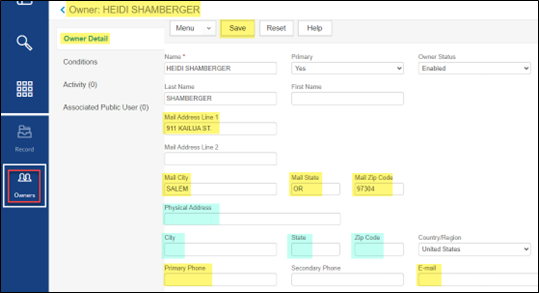
- Then browse to the specific record through
Global Search or
Record list search > go to the
Owner tab on the record and click the Owner name to open the transactional owner record. Checkbox the Owner name and select
Synchronize to then synchronize this individual transactional owner information to the reference owner information that you just updated in Step #1 just above.
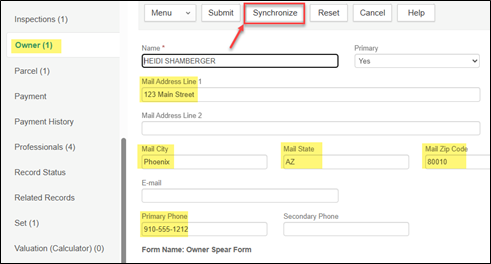
- In updating this owner information
first in the Owner reference page, you are assuring that any record created moving forward will include the updated owner information. Existing records prior to the reference update will
not assume the owner contact updates up to and unless you synchronize them at the individual record level manually, as per Step #2.
- Consider regenerating any important documents –
Record Summary > Reports – such as the Permit and/or Certificate of Occupancy in particular, to reflect the updated Owner information – and sending them again to the applicant/owner of record.