Parcels are sometimes split into mulitple parcels, merged into one parcel, have special zoning designations and sometimes have updated floodzone mapping among other scenarios. In these cases it might be helpful to have documents attached to the parcel diectly allowing anyone working on records associated to the parcel to quickly view relared documents.
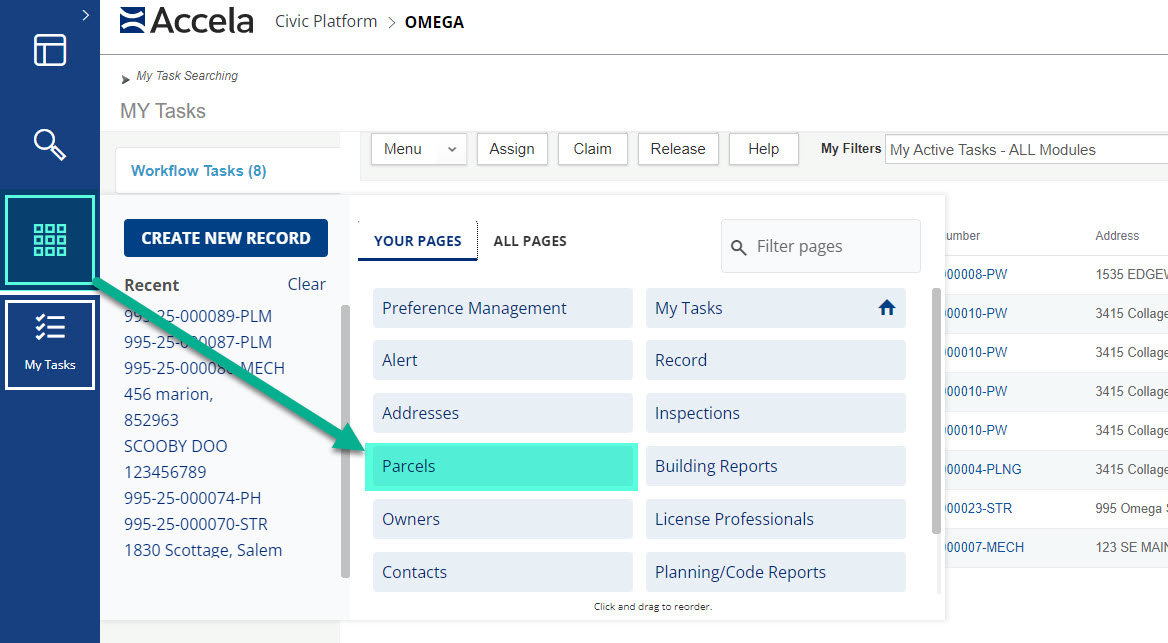
To add a document go to the Launchpad (symbol with nine squares) select the Parcels page in either Your Pages or All Pages. This is where the reference Parcel is located.
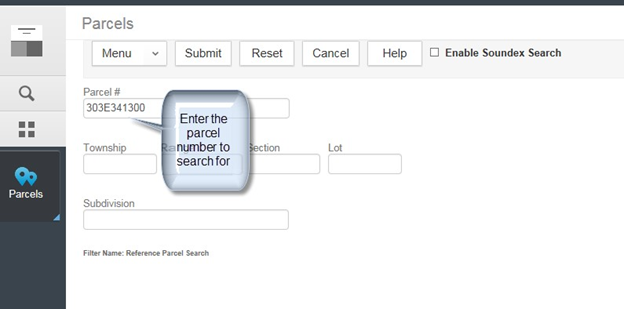
On the Parcel Search screen enter the parcel number that will have documents attached and click Submit.
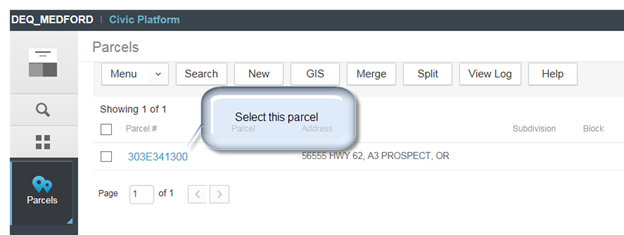
Select the parcel that will have documents attached, by clicking on the blue hyperlink (the Parcel #) to open the parcel.
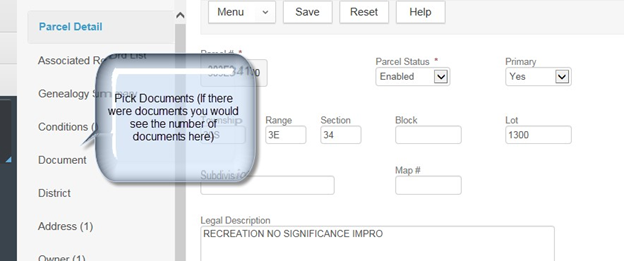
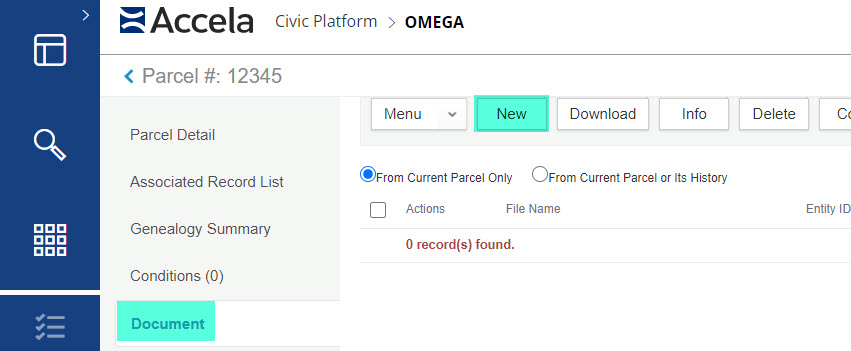
In Parcel page navigation, select Document in the left navigation. If there are already documents attached to the parcel the document count will appear in parenthesis [ex. Document(1)].
In the Document page add the document to parcels by clicking on the New button.
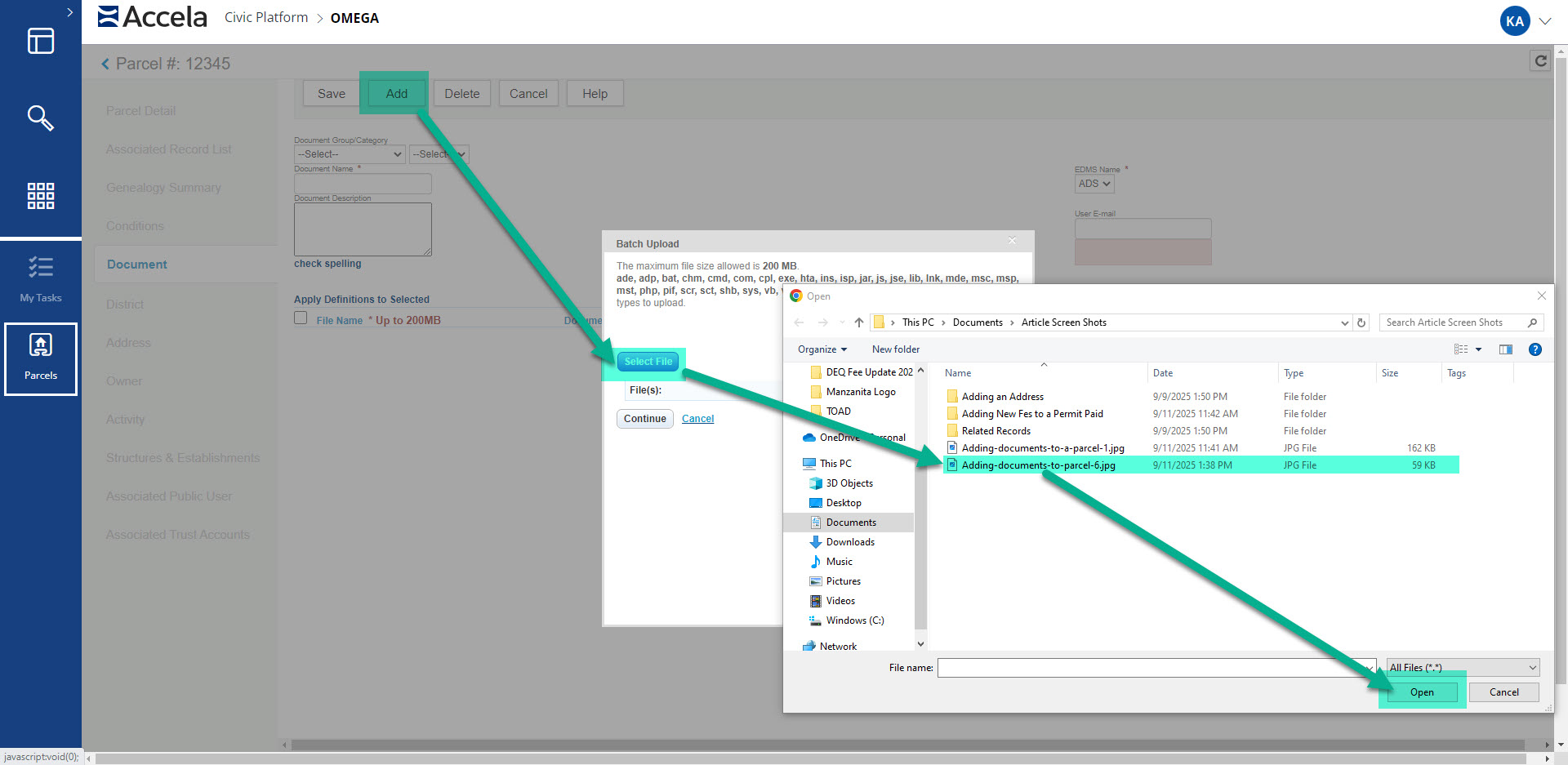
A new page will appear, select the Add button at the top of the page and a box will pop up in the middle of the page, click on the select file button then another box will pop up with fle locations will appear. Navagate to where you have the file saved on your computer, click on the file then click on the Open button in the bottom right corner of the box.
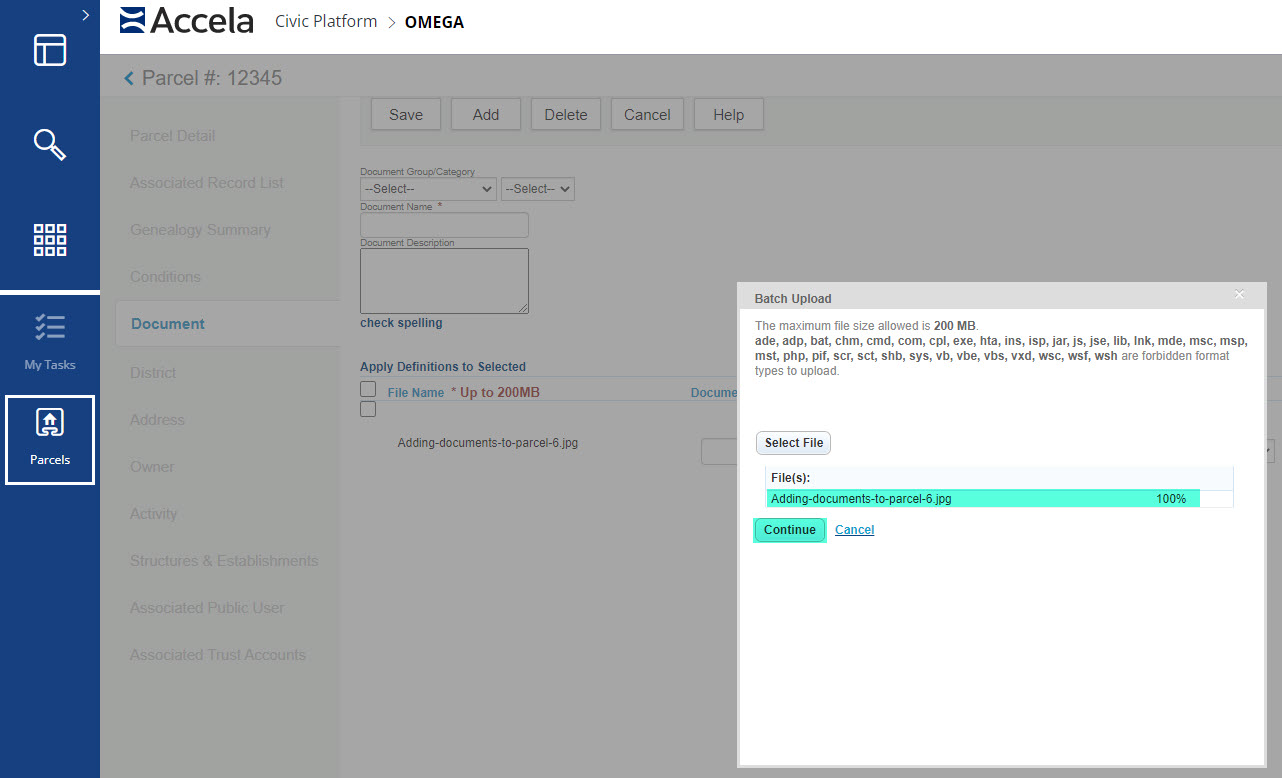
You will now see your file name and 100% which indicates your file is loaded, you can add more files through the same process. Once you have all of the files you want listed with 100% click on the Continue button.
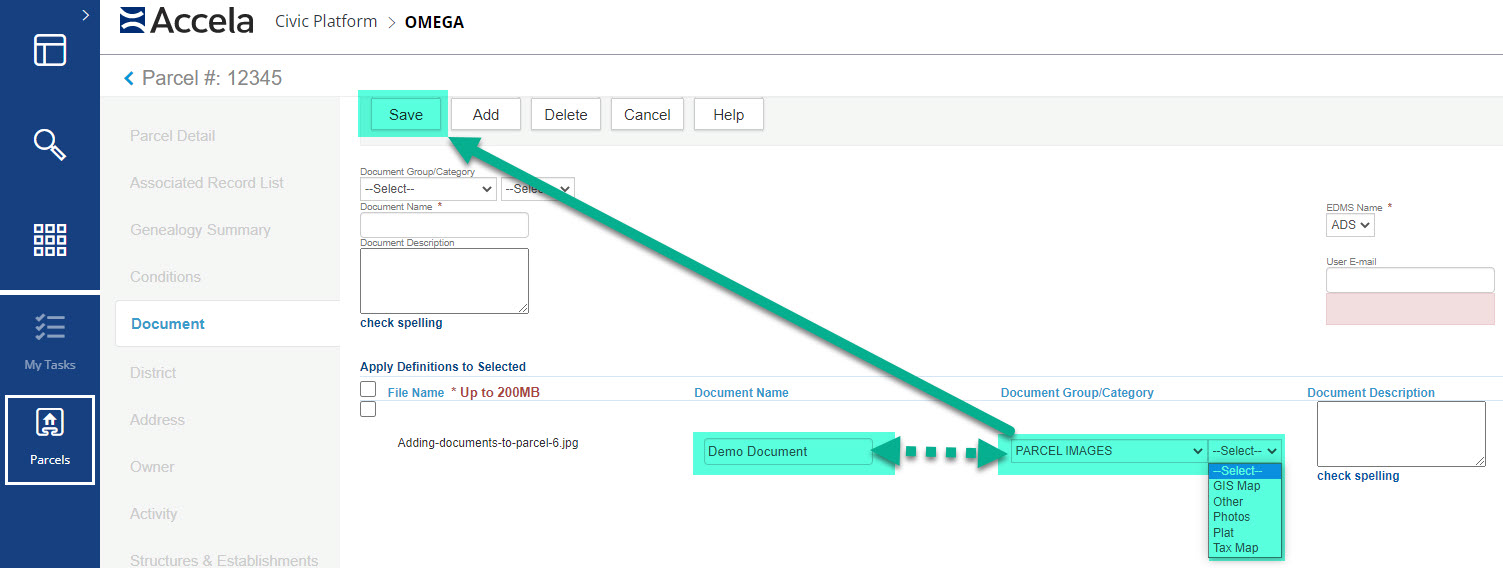
Your document is now listed on the main document screen in the 'Apply Definitions to Selected' section of the page. Enter a Document Name and Document Group/Category then click on the Save button at the top of the page.
The file will now show on the page and is available to be Downloaded, Deleted or Copied. Be sure to check the box next to the file before selecting download or delete if you need to use them.
