Reading Mode
One way to reduce clutter on the webpage before printing is to enable a reading mode in your browser. In the Microsoft Edge browser, you can find this as the “Immersive reader” option under the more options (…) menu on the right side of the address bar (keyboard shortcut F9).

Be aware that some items on the page will disappear when reading mode is enabled. That may include items you actually want to be included in your print. So, it’s worthwhile to review the page side-by-side (one in reading mode, one not) to spot the differences and ensure you have what you want.
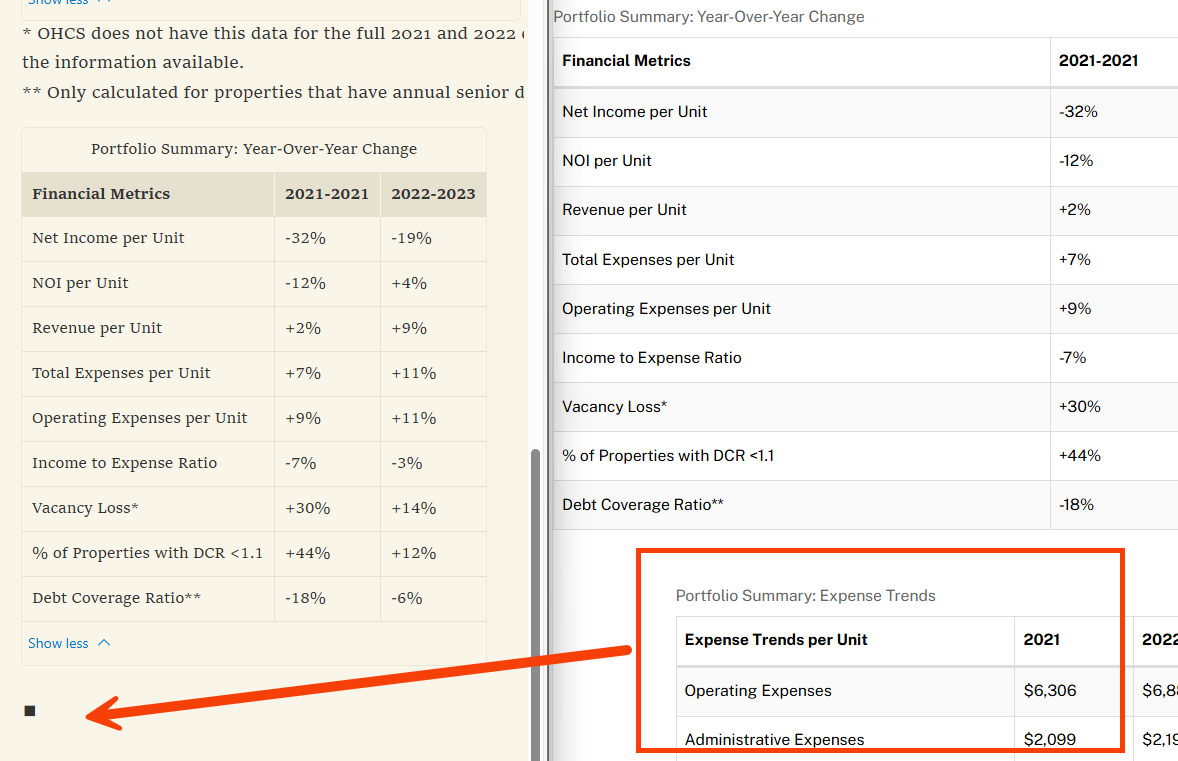
For example, in the image below, the same webpage is shown twice side by side. The page on the right is not in reading mode, and it includes all tables. On the left side, the page is shown in reading mode and is missing one of the tables. The missing table appears as a small black square on the page.
Print to PDF
Whether you want to print the page to paper, or save as a digital document, converting the page to a PDF is often the most effective method.
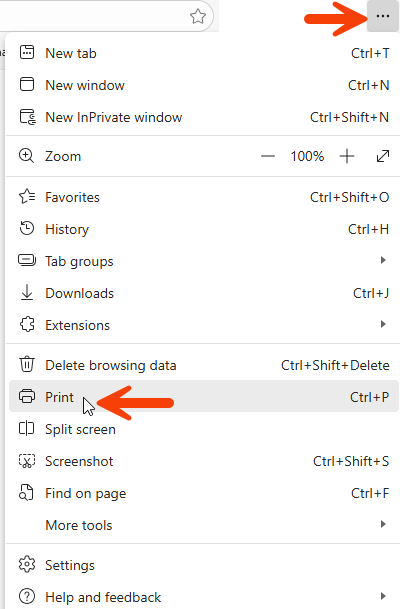
- Select the Print option in your browser (or use keyboard shortcut Ctrl+P). In Microsoft Edge, the Print option is found in the More Options (…) menu near the top-right corner of the window.
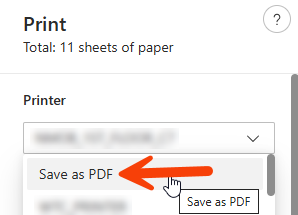
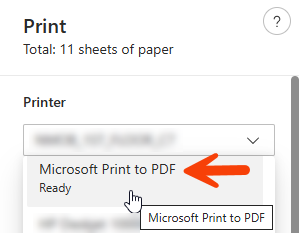
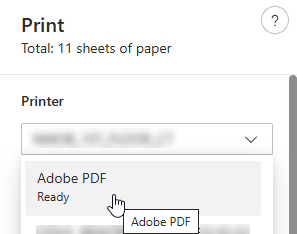
- From the Printer selection drop-down, you may see a few options for converting to PDF, including:
- Save as PDF
- Microsoft Print to PDF (if you’re using a computer with Windows 10 or newer)
- Adobe PDF (if you have Adobe PDF software installed on your computer). If you have other PDF software installed, you may see an option related to that software.
Adjusting Print Options
Whether you’re printing to PDF or an actual paper printer, you will have several options in the Print window that may help you achieve the printed look you’re after.
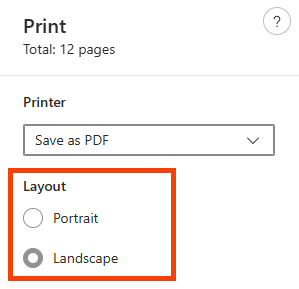
Layout
The print window will include a Layout setting where you can select from Portrait or Landscape orientation. Your browser will likely select what it thinks is best for the content you are printing, but you can change it. If the content is wide, consider landscape orientation.
Paper Size
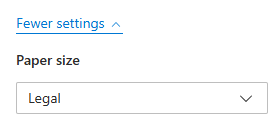
Whether printing on paper or saving as a PDF, the paper size affects how much content fits on each page. If the content is wide, consider a larger paper size. The paper size selection may be under the “More settings” area in the print window.
Scale (%)
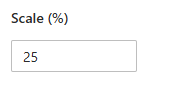
Scaling is a great way to fit more content on your printed page area. If the content you are printing is very wide (such as tables with horizontal scrolling), consider scaling down to a smaller percentage to capture everything on the page. If you are printing to physical paper, consider the “Fit to printable area” option.
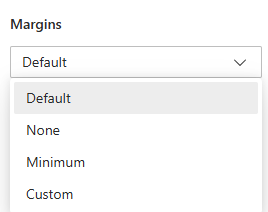
Margins
Adjusting margins can help you fit the content you want on your printed page area. If you are printing to paper and the edges of the content are being cut off, consider making the margins larger. If you are printing to a PDF and want to maximize how much content fits on the page, consider making the margins smaller (minimum or narrow).
Other Options
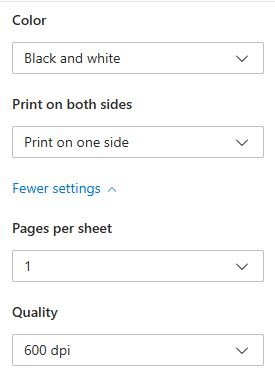
Your print window may have additional options, such as color and quality (resolution).
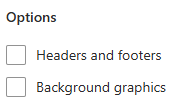
You may also encounter options to toggle on/off headers and footers or background graphics. These options can help you remove clutter you don’t want to print.
Print a Selection
If you want to print only a selection of the content on the page rather than everything, you can:
- Select the text and/or objects on the webpage you want to print.
- Right-click on the selection and choose “Print”.
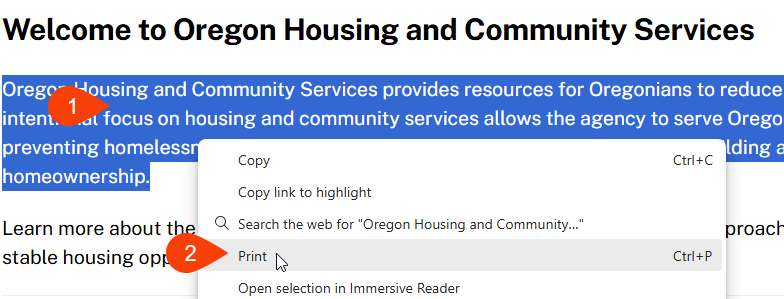
- The selection will appear in the print preview in the print window. This can help you focus on printing just the content you want.
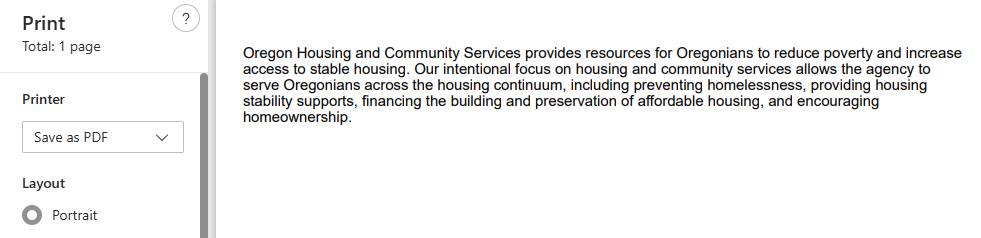
Screen Capture
If you want to capture the page exactly as it appears in your browser, or even just a portion of the page, you can use a screen capture.
Windows computers have built-in options for creating screen captures, such as the “Snipping Tool”.
Internet browsers such as Microsoft Edge or Mozilla Firefox also have built-in options for this. In Edge browser, you can:
- Right-click on the page and select “Screenshot”.
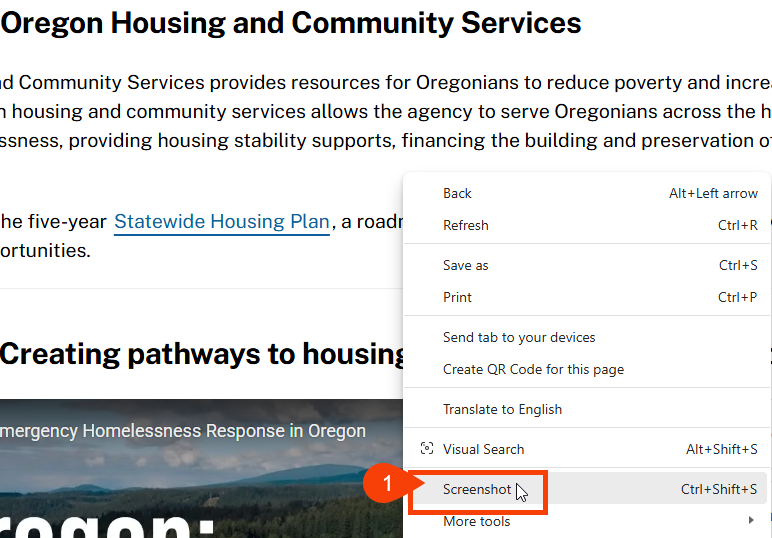
- A toolbar will appear at the top of the screen with some options for selecting the area of the page you want to capture.
