Post-issuance revisions are typically initiated and submitted by the Customer/Applicant – to push material plans changes through the required plan review process.
- Browse to the record, open the Inspection Process task under the Workflow tab > result this task as ‘Revisions Rcvd.’ A new child -REV-01 (02, 03, etc. – depending on numbers of revisions already indicated on this record) will be automatically created under Related Records. This child revision record is a plan-review-only record type and provides a clean slate of workflow plan review for reviewing the submitted revised plan - beyond the original plan review done on the original submittal.
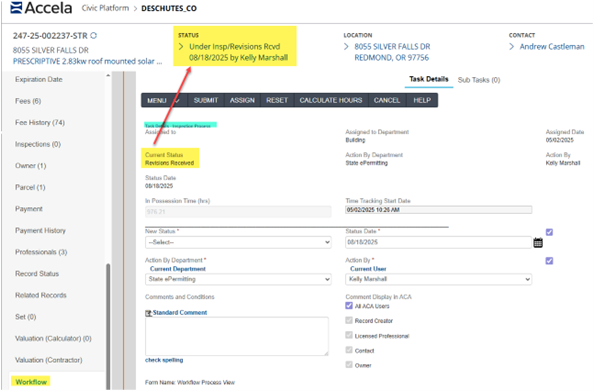
- Agency must decide if they wish to allow inspections to take place while the revision review is in progress. NOTE: a Notice condition is automatically added to the record both in back office and online to notify all that a revision is in.
If YES, then you must only accept and ready the revision child record for plan review.
If NO, then proceed with the remaining steps in this training document.
- If you wish to NOT allow further inspection scheduling while the child revision record is under review – then you have two choices to prevent scheduling:
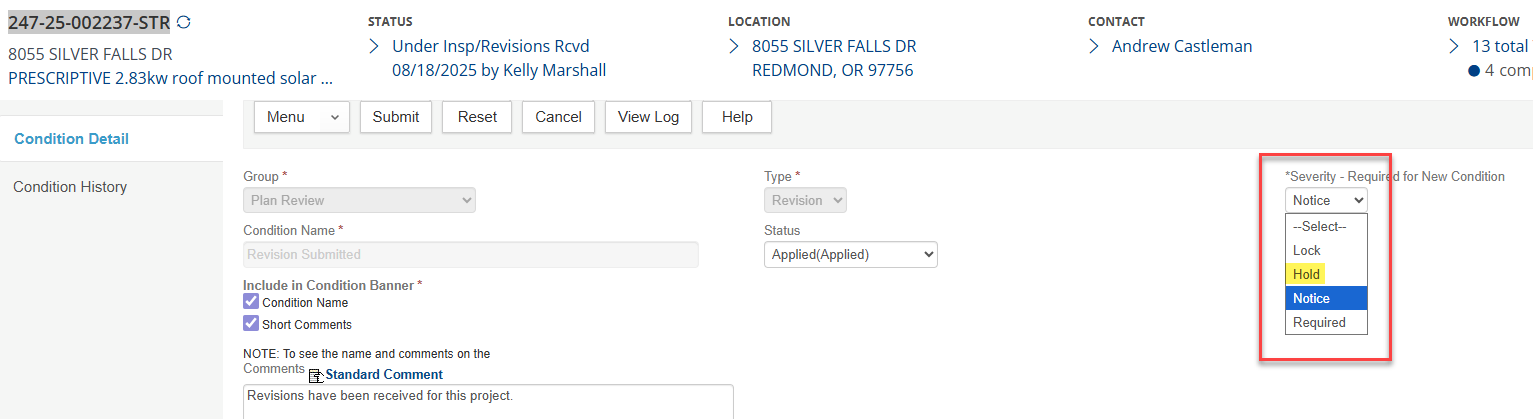
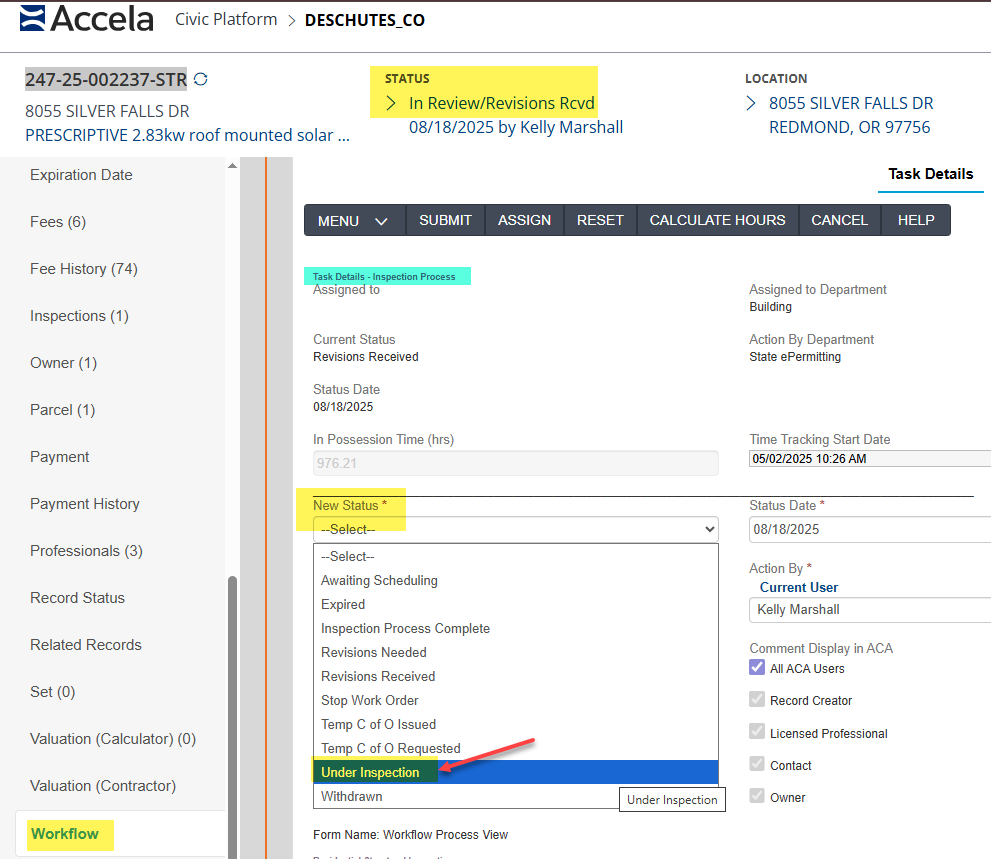
Go to Conditions (Standard) tab > open the Revisions Notice condition > Severity: update from Notice to Hold > Submit. This will prevent inspection scheduling, however it will also prevent most all other updates to this record including application specifics and fees/payments. If these other stops are not problematic, then this might be a good solution. Once the revision child completes the review process and is approved/completed – the parent record’s revision condition will be automatically ‘Not Applied’, so no longer displayed or notifying/restricting anything. You must always update the Workflow on the parent record when any revision completes – go to Workflow tab > Inspection Process task > result status as ‘Under Inspection’ > Submit. This will update both the Workflow and Record Status’s as needed for continued inspection scheduling on the parent permit.
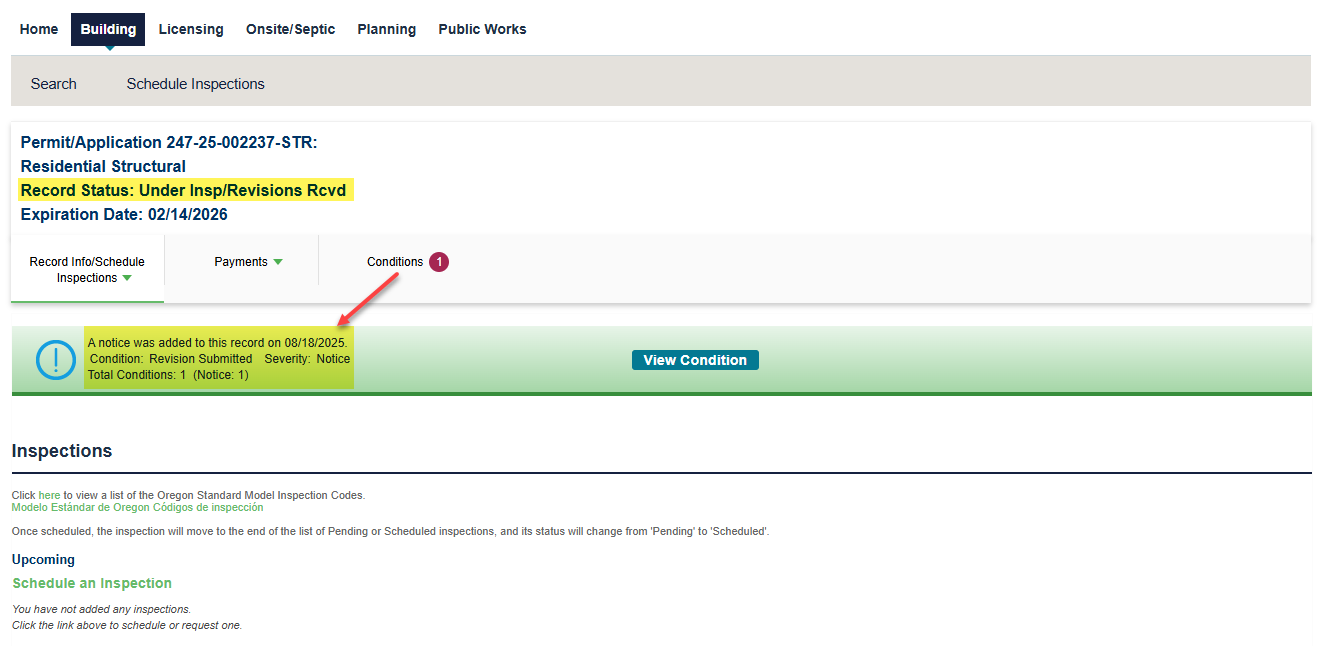
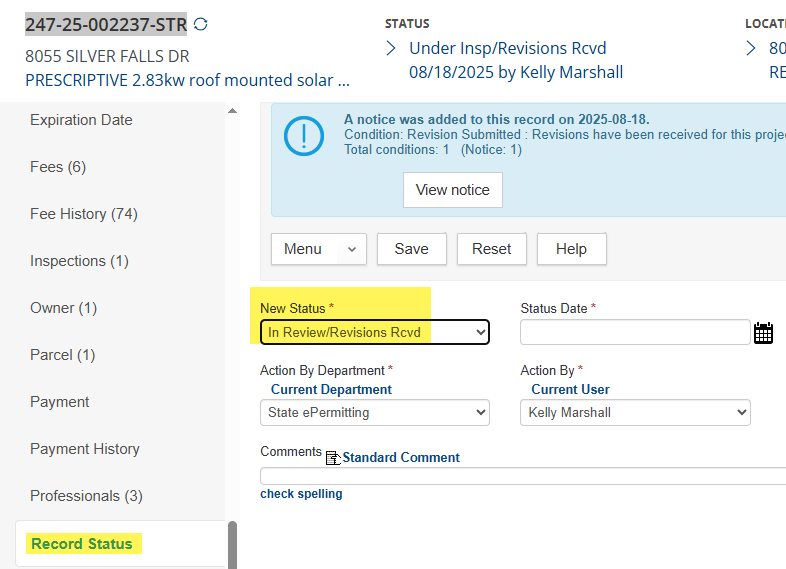
Go to Record Status tab > manually change New Status = ‘In Review/Revisions Rcvd’ > Submit. This manual Record Status change will put the record into a status that prevents inspection scheduling by customers, but still is somewhat accurate to the business case (a revision is indeed in review). Once the revision child record is moved through the review process in full and approved/completed, go to Workflow tab on the parent record > Inspection Process task > result status as ‘Under Inspection’ > Submit. This will update both the Workflow and Record Status’s as needed for continued inspection scheduling on the parent permit.
- Post-issuance revision processing complete.