Cloning a record allows you to create a child record from information already entered into a permit. A clone is effectively a copy of the selected record and allows the agency to select which record items they want to include in the cloned copy.
To create a cloned record:
First, find and open the record you want to relate (Note: structural records are always the parent in the record relationship - electrical, plumbing, and mechanical records are children).
Next, using the left navigation within the record go to the
'Related Records' tab.
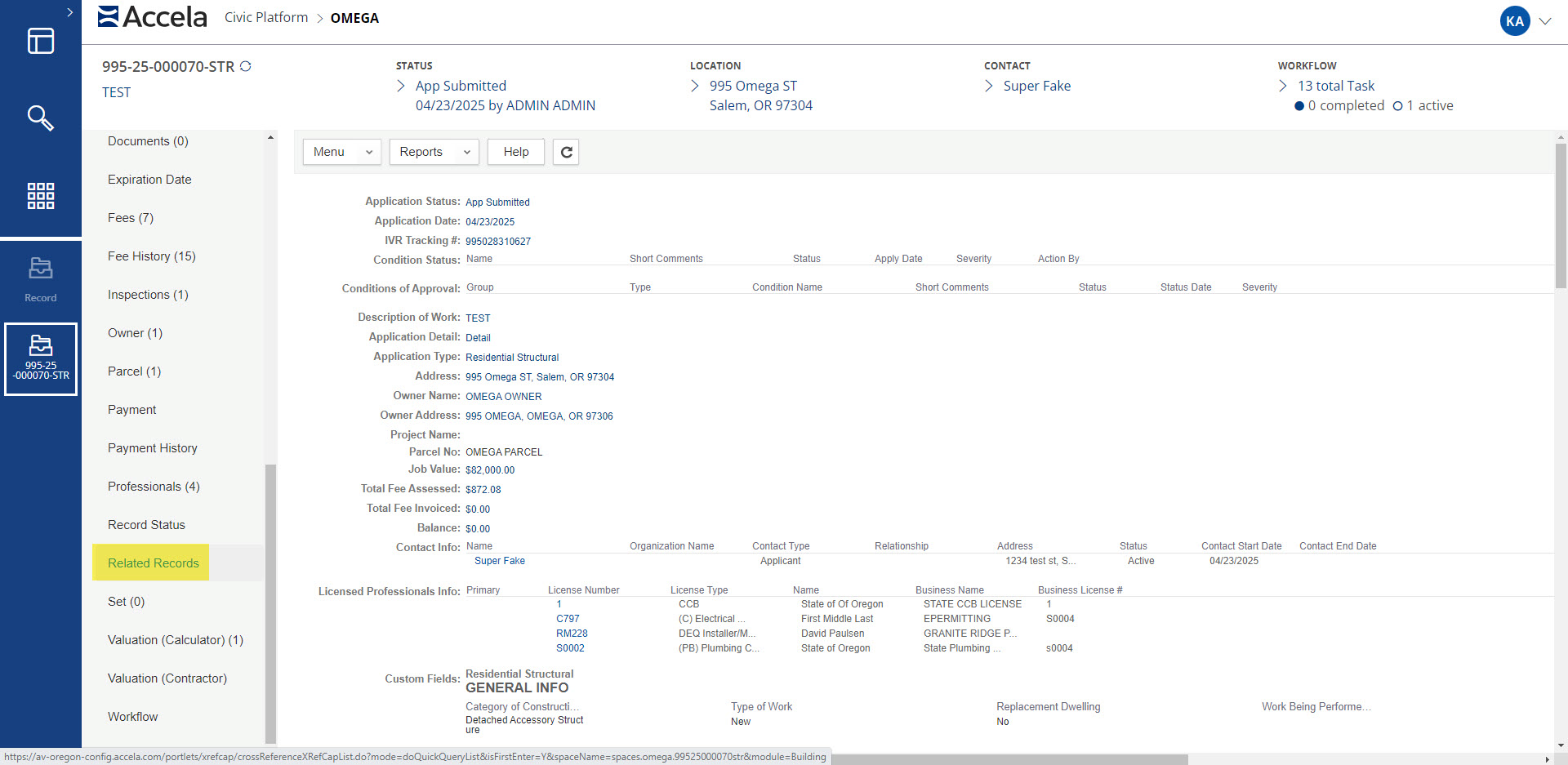
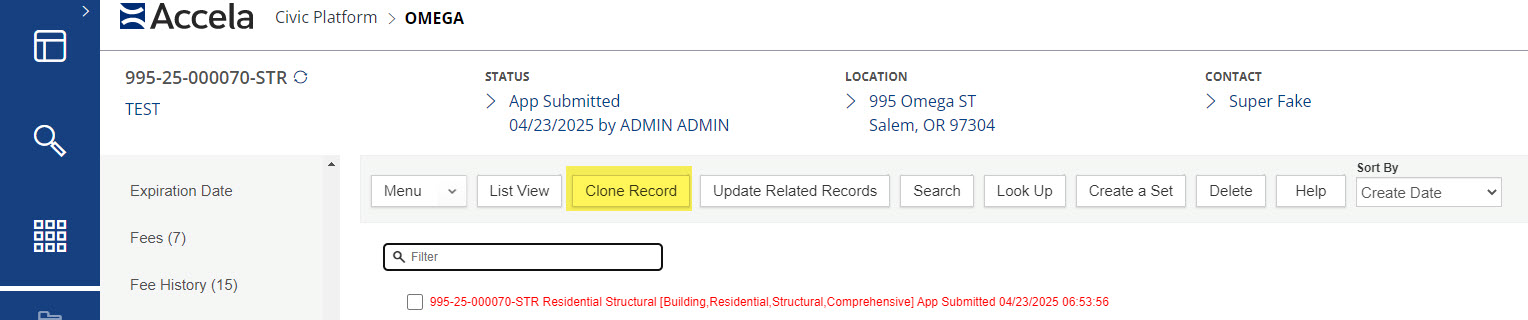
In the
Related Records tab, click on the 'Clone Record' button to begin.![]()
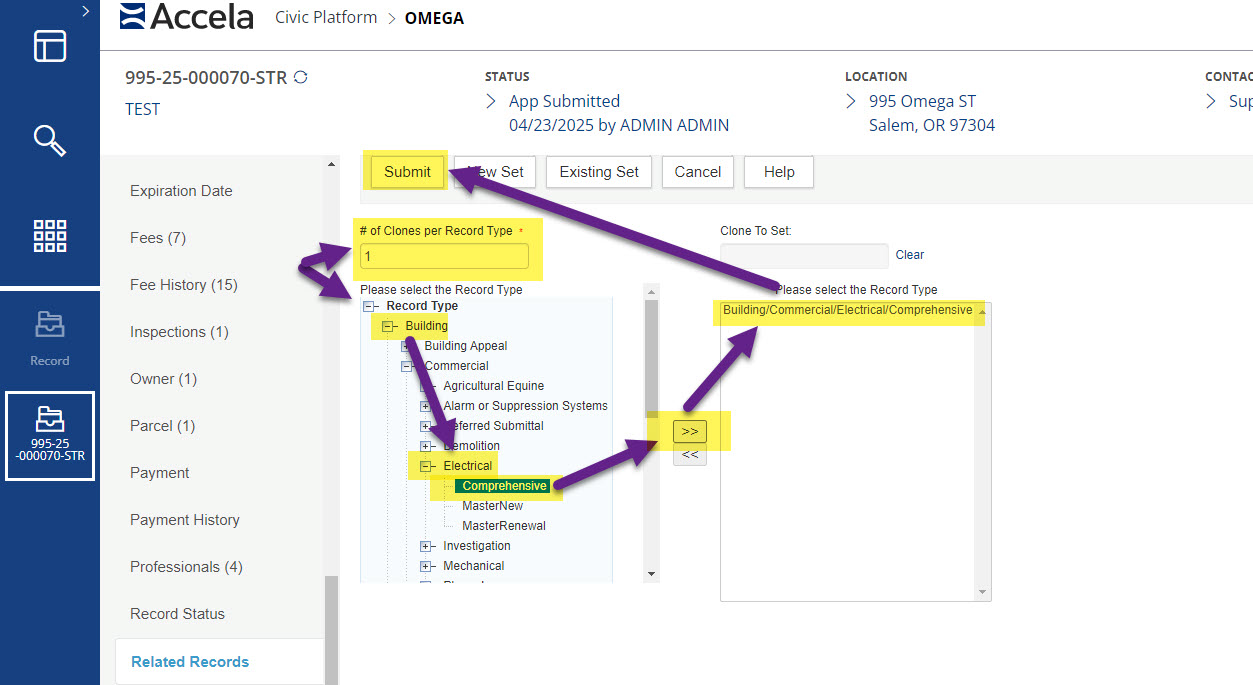
Enter the number of clones you need to make of the record into the '# of Clones per Record Type,' next go to the 'Please select the Record Type' you will start with the module and drill down through the record types to comprehensive, then use the double arrow to move your selection to the right box. Once you have all the record types you need to clone selected, click on the
Submit button at the top of the window.
Note: There does not appear to be a limit to the number of records that you can clone at one time. However, entering in a high number of records will slow the process down. Too many clones may cause the action to time out.
After clicking submit, a new window will appear which allows you to select the items you want to copy from the parent record to your new cloned records. We recommend cloning only the Address, Parcel, Owner, Licensed Professionals, and the Contact info. In addition, we do not recommend cloning Record Details as this will bring over date fields that are not applicable to your related child record and might affect your reporting. For example, the Opened, Issued, and Expired dates will reflect the parent record that the information was cloned from rather than the actual dates of the child record.
The highlighted fields are the ones that you DO NOT want to copy.
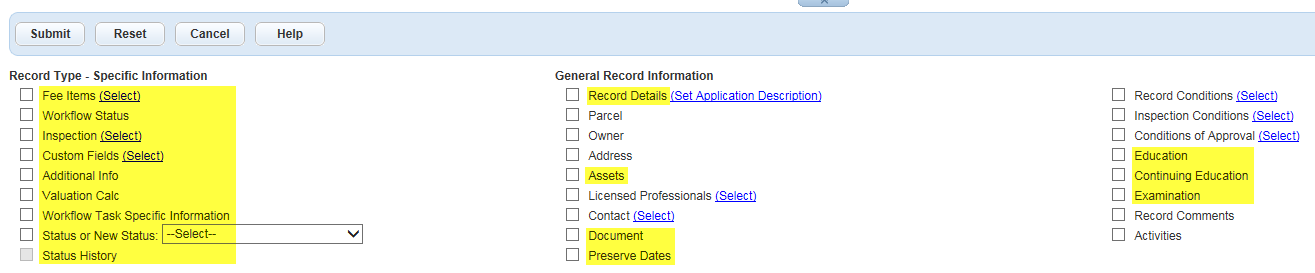
After selecting the appropriate boxes that you wish to clone, click
‘Submit’ and the record(s) will be created. A pop-up window will tell you if any information failed to transfer over and the page will go back to the starting place for cloning records, showing the new record(s).
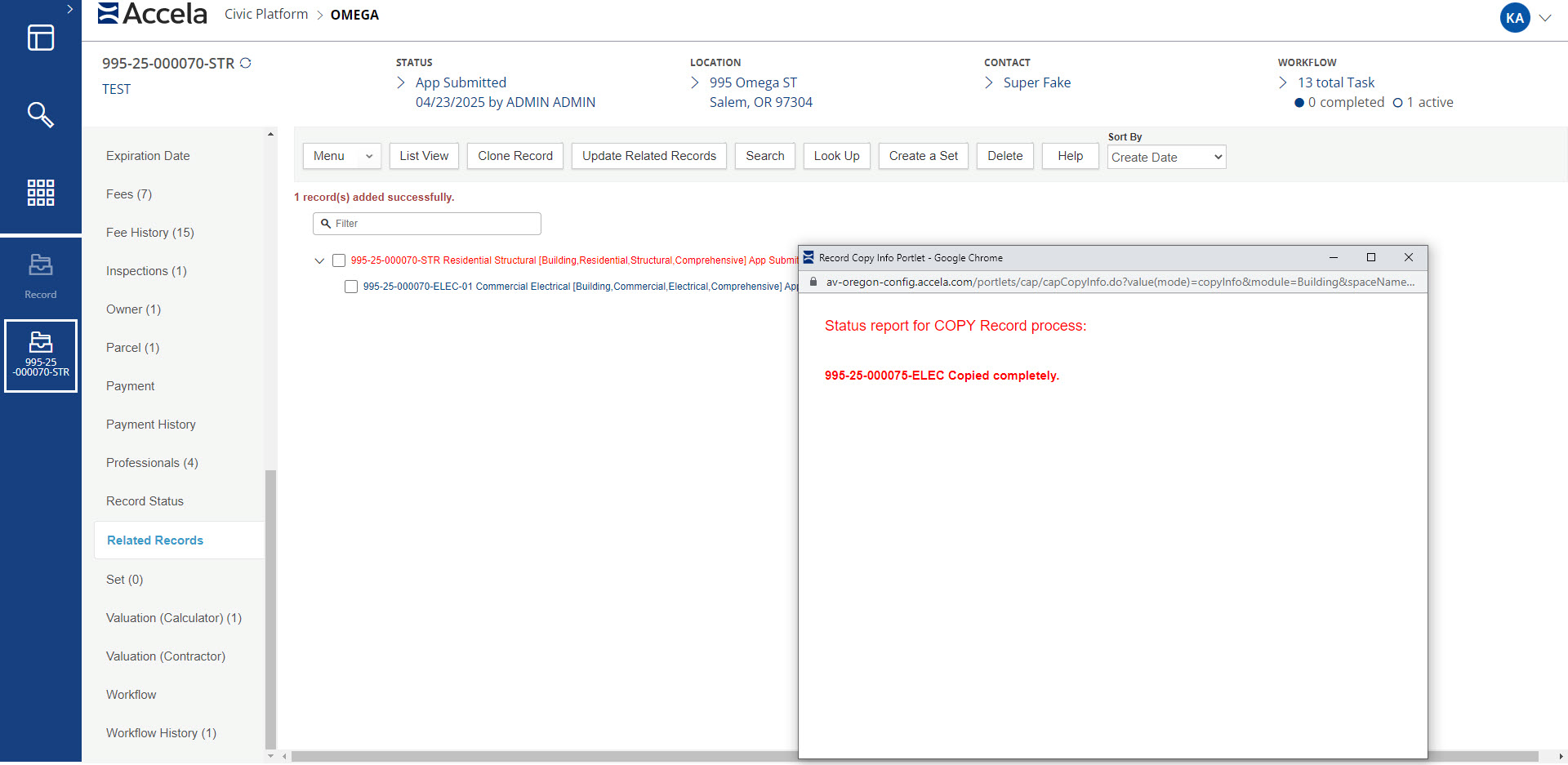
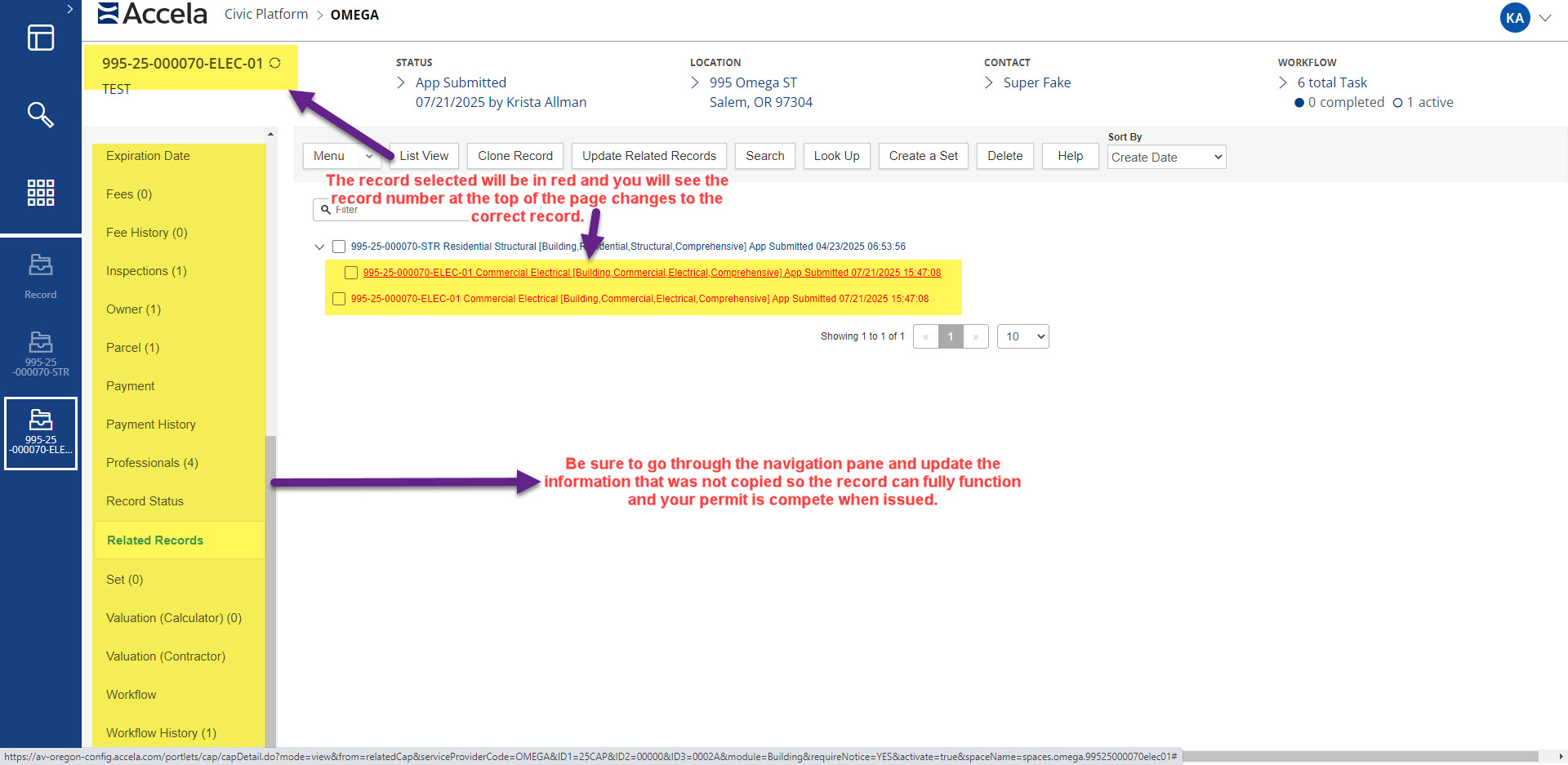
The record in red on the clone page is the record you are currently working in, to switch records click on the new record number. Be sure to go back in and add the necessary data to the newly cloned record(s); ASI, Description of Work, Workflow, etc.![]()
Important note: Completion of Application Specific Information (ASI), Submitted Job Value, and/or Valuation Calculator will not automate fees on clones/copies for those record types where fees are traditionally automated at intake. Instead, fees will need to be added manually through the
Add Fees button.