If you have multiple records for a project site, you can group them together into Related Records. There are several benefits to doing this:
- Relating records will synchronize the expiration dates of all the records in the group, preventing any record in the group from individually expiring and interrupting the overall project. Any time a record in the group has a positively-resulted inspection that extends its expiration date by 180 days, all other records in the group will receive the same extension.
- All records in the related group will be referenced on any Certificate of Occupancy or Certificate of Satisfactory Completion that meets requirements. This helps an agency to manage all related records at the project level, particiularly for Final.
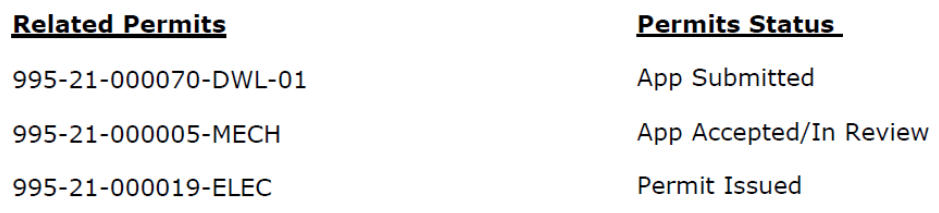
To relate existing records:
- Open the record that you want to be the Parent Record of the overall project.
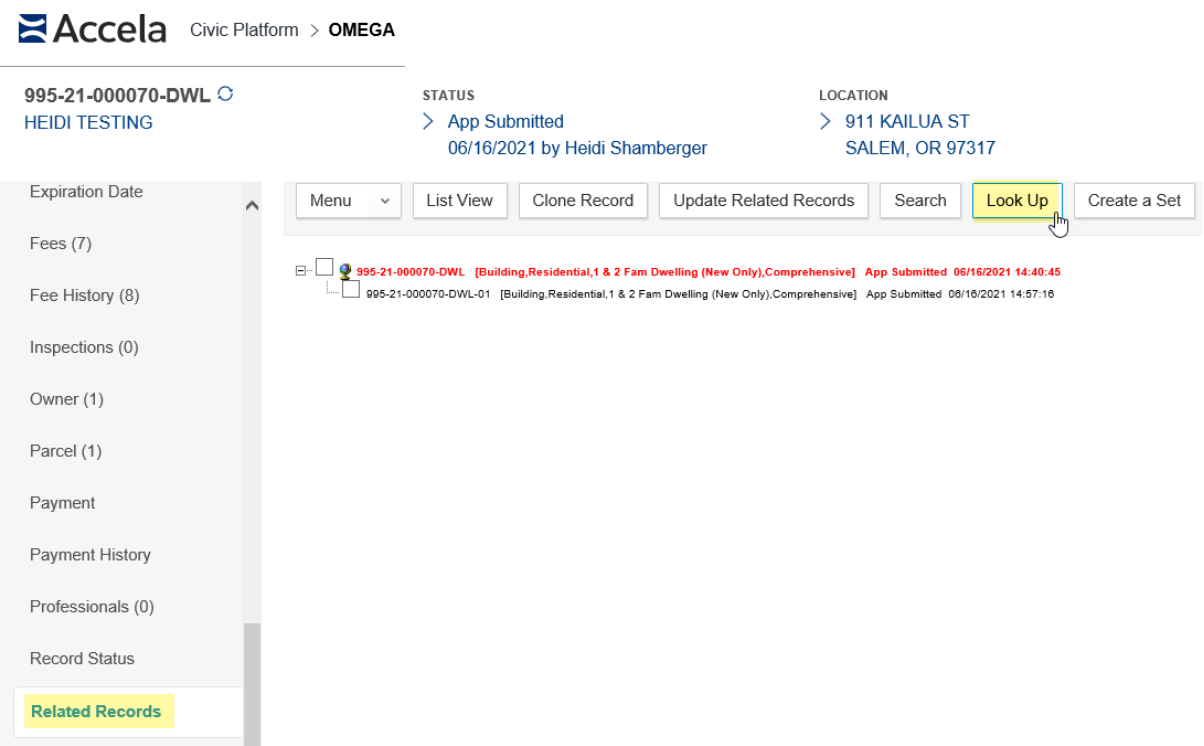
- In this record, select Related Records, then Look Up to search for any records related to the Parent Record.
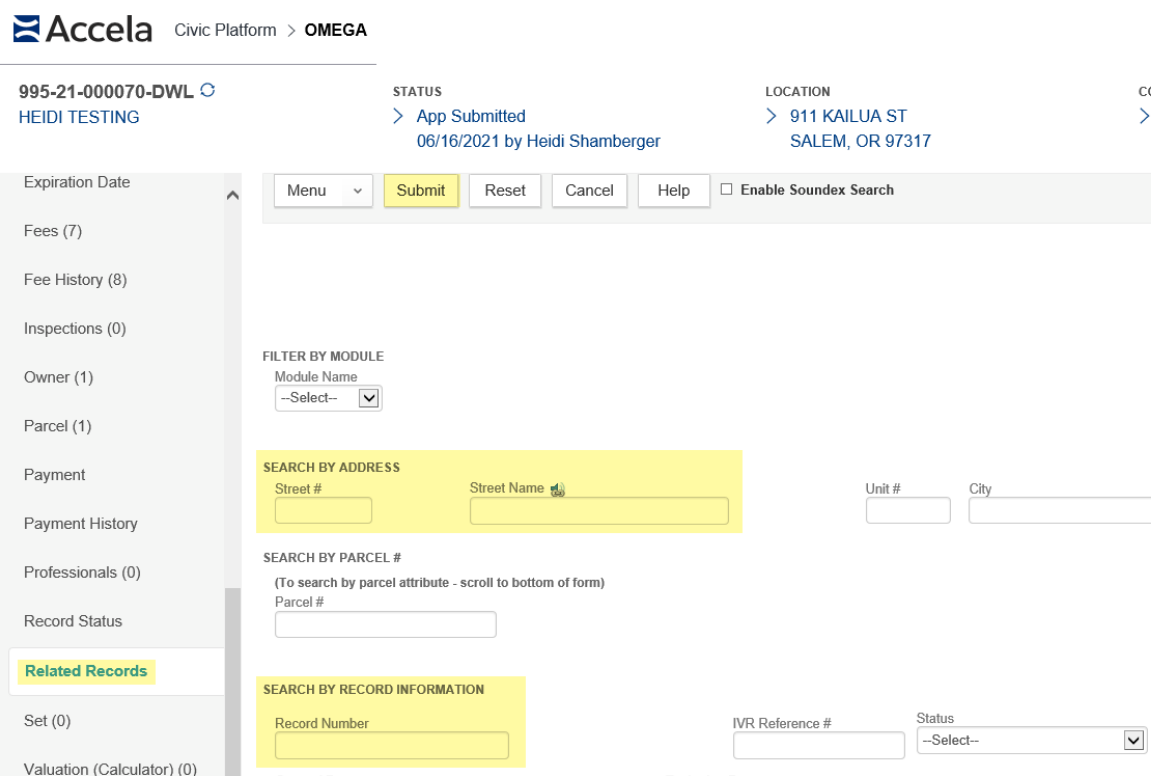
It is best practice to search by address, because all records occurring on or about the same project should reference the same address. However, it is possible to search by record number or other criteria.
- Select Submit to display matching search results.
- Review the record descriptions and statuses, then checkbox the record(s) you wish to relate to the Parent Record.
- Select Select as Child.
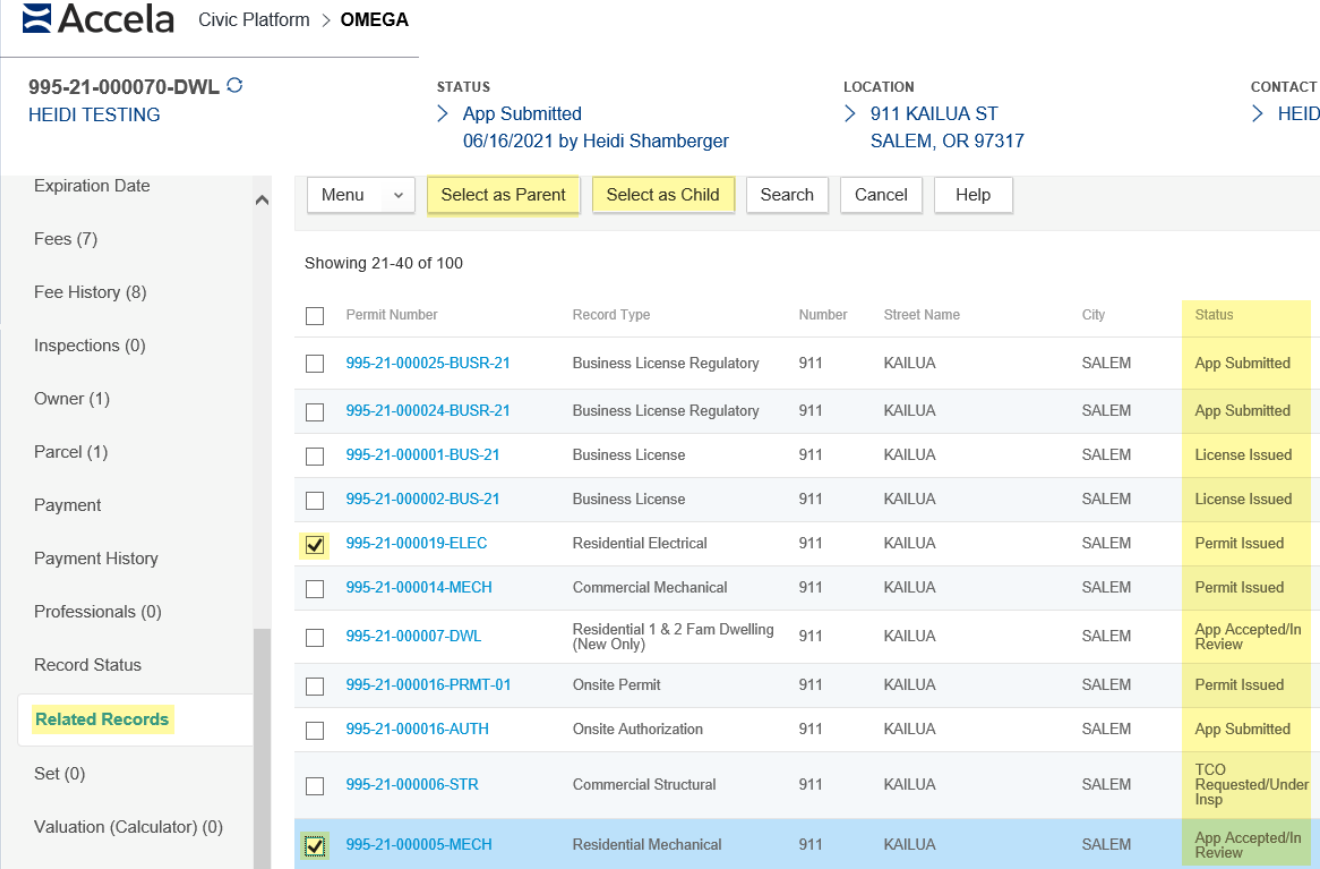
- It is best practice to start with searching for and opening the Parent Record, then selecting subsequent records as Child Records. However, you can also select Select as Parent where it makes sense to do so.
- A 'Copy Successful' pop-up message may appear with the record numbers listed. Please note that no records were actually 'copied' and disregard this message; the cloning/copy function is used to create the relationships between records.
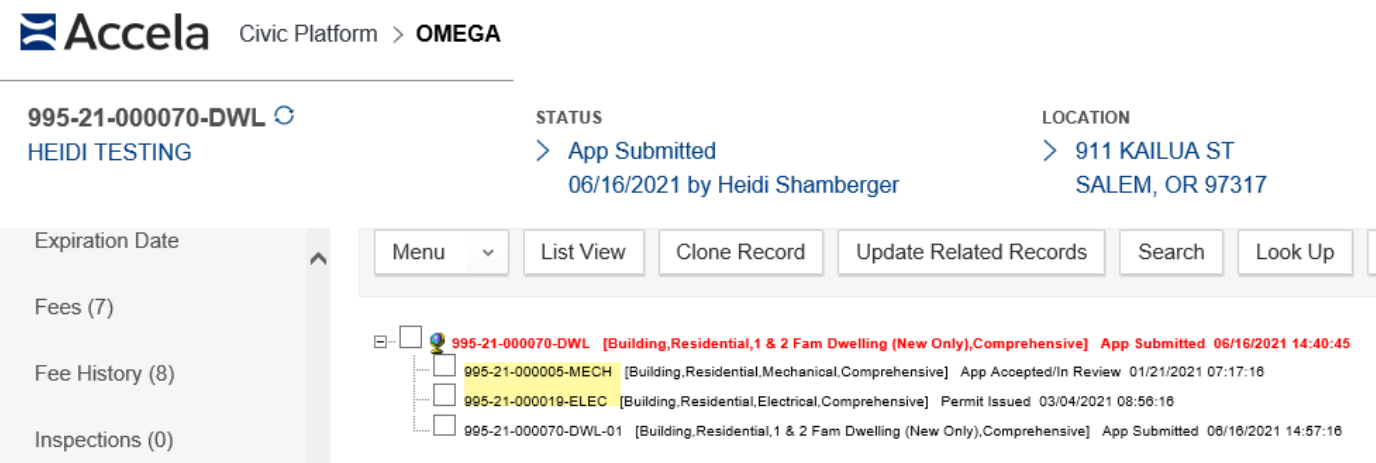
You will now see the selected Child Records listed under the Parent Record number in the
Related Records tab. Click on the link in the tab to move between records in the group.
Sometimes it may be necessary to remove a record from a group of Related Records. For instance, if a record is Voided or Withdrawn, or erroneously added to the Related Records, you can break the record's relationship to the group. This will only remove the record from the group; the record itself will not be deleted.
To remove a record from Related Records:
- Open the Parent Record
- Select the Related Records tab
- Checkbox the record(s) to be removed from the group
- Select Delete
The disconnected record will no longer appear in the Related Records tab, but it can still be searched for in the Record list.